Have you ever tried to speed up your Windows operating system, disable a stubborn background telemetry feature, or tweak a security setting, only to find that your computer started acting erratically afterward? If you use Windows 10 or Windows 11 Pro, Enterprise, or Education editions, you likely made those modifications inside the Local Group Policy Editor (known to power users as gpedit.msc).
The Group Policy Editor is an incredibly potent administrative tool. It acts as a centralized dashboard where you can change deep-system behaviors without having to manually hunt through thousands of cryptic registry keys. But as the old saying goes: with great power comes great responsibility.
It is remarkably easy to click the wrong state, toggle an experimental policy, or apply a restrictive rule that locks you out of your own system settings. Worse yet, when you try to undo your steps days or weeks later, you might realize you have completely forgotten which specific policies you modified among the thousands of available options.
If you are currently staring at a broken Windows feature, experiencing weird permission errors, or noticing that your system says “Some settings are managed by your organization,” don’t panic. You don’t need to reinstall Windows, and you don’t need to download any sketchy third-party cleaner tools.
In this exhaustive, human-written guide, we will break down exactly how to reset the Group Policy Editor to its factory default state using simple, built-in Windows utilities like the Command Prompt (CMD). Whether you are a complete beginner or an IT professional troubleshooting a misconfigured workstation, this guide will provide everything you need to know to safely recover your system.
Anatomy of the Group Policy Architecture
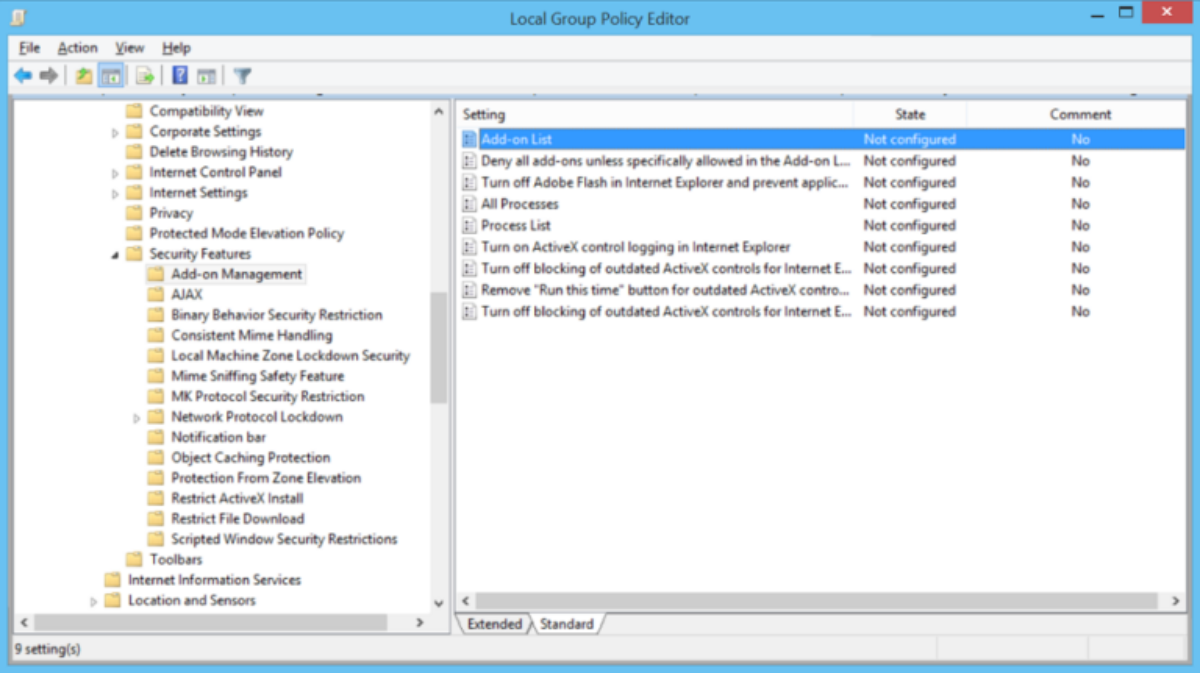
Before we open up the Command Prompt and start typing scripts, it helps to understand what is happening under the hood of your operating system. Windows manages system configurations through an intricate database architecture. To appreciate why Group Policies are so powerful—and why they sometimes break things—let’s look at how they interact with the rest of your system.
What is the Local Group Policy Editor?
At its core, the Local Group Policy Editor (gpedit.msc) is a graphical user interface (GUI) designed to help system administrators manage configuration settings for computers and users across a local machine or an entire network domain.
When you open gpedit.msc, you are presented with a hierarchical tree structure split into two main sections:
-
Computer Configuration: Settings applied to the machine itself. These take effect as soon as the operating system boots up, regardless of which user account logs in. Examples include network startup behaviors, hardware restrictions, and system-wide security baselines.
-
User Configuration: Settings applied to specific user accounts. These rules take effect when a user logs into their profile. Examples include desktop wallpaper locks, taskbar settings, and access blocks to specific software utilities like the Control Panel.
The Dynamic Link Between Group Policy and the Registry
A common point of confusion for Windows beginners is the difference between the Group Policy Editor and the Registry Editor (regedit). Think of it this way:
The Analogy of the Dashboard and the Engine:
The Windows Registry is the raw engine of your operating system—a massive, complicated database filled with millions of tiny numeric and text strings. The Group Policy Editor is a clean, well-labeled dashboard sitting on top of that engine.
When you change a policy from “Not Configured” to “Enabled” inside gpedit.msc, the Group Policy engine translates that human-readable command into raw binary or hexadecimal data and writes it directly into specific registry keys, primarily located within the Software\Policies hive.
┌────────────────────────────────────────┐
│   Local Group Policy Editor GUI        │
│   (Human-Readable Toggle: "Enabled")   │
└──────────────────────────────────┬─────┘
                                   │
                                   ▼
┌────────────────────────────────────────┐
│     Windows Group Policy Engine        │
│     (Compiles Rules into .POL Files)   │
└──────────────────────────────────┬─────┘
                                   │
                                   ▼
┌────────────────────────────────────────┐
│         Windows Registry               │
│   (Raw Registry Key: Software\Policies)│
└────────────────────────────────────────┘
Because Group Policy changes write directly to protected areas of the registry, simple Windows troubleshooting steps—like resetting your app settings or running a basic disk cleanup—will not revert these changes. The policy files remain locked in place until they are explicitly purged or overwritten.
The Core Root Folders of Group Policy
When you use the Local Group Policy Editor interface to customize your computer, Windows doesn’t immediately write those rules permanently to the cloud or into unchangeable core operating system code. Instead, it saves your configurations locally inside hidden system folders on your hard drive.
These configuration files are stored in a specialized format known as Registry Policy Files, which carry a .pol extension. The entire local policy apparatus relies on two hidden folders located deep within your system root directory:
C:\Windows\System32\GroupPolicy
C:\Windows\System32\GroupPolicyUsers
Let’s break down exactly what each of these folders does, as understanding their contents is the key to resetting them safely.
1. The GroupPolicy Folder
This is the master directory for your machine’s global rules. It contains the configuration baselines that apply to the hardware, the login screen, and the foundational security policies of the computer. Inside this folder, you will typically find subdirectories named Machine and User.
-
The Machine subfolder holds the registry.pol file responsible for system-wide tweaks (e.g., preventing Windows Update from automatically restarting your computer).
-
The User subfolder holds the rules for default accounts across the operating system.
2. The GroupPolicyUsers Folder
Windows is designed to be a multi-user operating system. You might have an administrator account for yourself, a standard account for your kids, and a guest account for visitors.
The GroupPolicyUsers folder contains separate subdirectories for individual user accounts or local security groups on the machine. If you have ever configured a policy that says “Apply this restriction to all non-administrators,” that configuration data is tracked right here.
Why do policies get stuck or corrupted?
When you change a setting back and forth inside the gpedit.msc interface, the system is supposed to update these .pol files dynamically. However, if a software installation interrupts the process, if a malware infection tries to force its own security locks, or if a user applies contradictory tweaks using automated optimization scripts found online, these .pol files can become corrupted.
When corruption occurs, the Group Policy Editor GUI might show a policy as “Not Configured,” but the underlying .pol file on your hard drive still contains the broken restriction. This mismatch can leave your computer stuck in an unmodifiable state.
To fix this, we have to bypass the graphical interface entirely and delete these physical configuration storage folders.
Step-by-Step Tutorial Resetting Group Policy via Command Prompt
Now that you understand the underlying structure of Windows Group Policies, let’s look at the actual resetting process. This method works perfectly for both Windows 10 and Windows 11 (Pro, Enterprise, and Education editions).
This approach is highly favored by IT professionals because it cuts straight to the root of the problem. By deleting the physical cache folders where local policies are stored, we force Windows to drop all custom modifications and build a completely fresh, unconfigured set of policy files from its original system image template.
Follow these steps carefully. You do not need to download any software, but you do need to make sure you are logged into an account with full administrative privileges.
Step 1: Open the Command Prompt as an Administrator
Because the Group Policy files are located inside the protected System32 directory, a standard user command line does not have the security clearance required to modify or delete them. You must elevate your access permissions.
-
Press the Windows Key on your keyboard or click the Start Menu button.
-
In the search bar, type cmd or Command Prompt.
-
Do not just left-click the icon. Instead, right-click the Command Prompt result to open its context menu.
-
Select Run as administrator from the menu.
┌────────────────────────────────────────────────────────┐
│ User Account Control                                   │
│                                                        │
│ Do you want to allow this app to make changes to your  │
│ device?                                                │
│                                                        │
│ Command Prompt (Windows Command Processor)             │
│                                                        │
│                [ Yes ]          [ No ]                 │
└────────────────────────────────────────────────────────┘
A User Account Control (UAC) prompt will pop up asking if you want to allow the Windows Command Processor to make changes to your device. Click Yes to proceed. You should now see a black window titled Administrator: Command Prompt, with the path pointed to C:\Windows\System32>.
Step 2: Delete the User Group Policy Cache Folder
The first command target is the folder that handles specific user account restrictions.
Type the following command exactly as written into the Command Prompt window, or copy and paste it by right-clicking inside the black terminal space:
rd /s /q "%windir%\System32\GroupPolicyUsers"
Once typed, press the Enter key on your keyboard.
C:\Windows\System32>rd /s /q "%windir%\System32\GroupPolicyUsers"
C:\Windows\System32>
Code Breakdown: What did this command just do?
-
rd: Short for Remove Directory. This is the fundamental command used in Windows terminals to delete an entire folder.
-
/s: This sub-parameter tells the command to look inside the target folder and delete all files, subfolders, and internal data structures. Without it, Windows will refuse to delete a folder if it isn’t completely empty.
-
/q: Short for Quiet mode. By default, if you try to wipe out a system folder, the command line will pause and prompt you with a confirmation message for every single file. This flag tells the terminal: “I know what I am doing, delete everything smoothly without asking for confirmation.”
-
“%windir%\System32\GroupPolicyUsers”: This is the environment variable path pointing directly to the folder. Using %windir% ensures the command works perfectly even if your Windows operating system is installed on a drive letter other than the traditional C: drive.
Step 3: Delete the Global Computer Group Policy Folder
With the user-specific cache cleared, we now need to wipe out the global machine configurations.
Type or paste the following command into the next line of your elevated Command Prompt, then press Enter:
rd /s /q "%windir%\System32\GroupPolicy"
C:\Windows\System32>rd /s /q "%windir%\System32\GroupPolicy"
C:\Windows\System32>
Just like the previous step, the terminal will process the deletion instantly and jump down to a fresh command prompt line. It will not display a success message yet, as the folders are removed silently behind the scenes.
Step 4: Force the Group Policy Engine to Rebuild
At this exact moment, you have successfully deleted the old configuration files from your hard drive, but your computer’s active volatile memory (RAM) is still running the old rules that were loaded when the system booted up.
To complete the reset, we need to tell Windows to refresh its policy engine, realize the old files are gone, and generate a fresh set of default rules.
Type the following command into your terminal and press Enter:
gpupdate /force
C:\Windows\System32>gpupdate /force
Updating policy...

Computer Policy update has completed successfully.
User Policy update has completed successfully.

C:\Windows\System32>
Once you press Enter, you will notice a brief pause while the system displays the text Updating policy…. Within a few seconds, the tool will update.
If everything went smoothly, the Command Prompt will display two specific success messages:
-
Computer Policy update has completed successfully.
-
User Policy update has completed successfully.
You can now type exit and press Enter to close the Command Prompt. To ensure all changes are fully written and integrated across all Windows services, it is highly recommended to restart your computer now.
Advanced Alternative Methods for Group Policy Resets
While the Command Prompt method is the fastest and most reliable way to clear your Group Policy configurations, it isn’t the only tool at your disposal.
Depending on your specific system environment—or if you prefer a graphical interface over a terminal window—there are alternative ways to reset your local policies. Let’s look at two other highly effective methods.
Method 1: The Manual GUI Reset (Inside gpedit.msc)
If you only want to reset your policies because a few settings are causing issues, and your Group Policy Editor interface is still fully functional, you can reset things manually from within the utility itself.
This method is slower because it requires you to sort through individual configuration folders, but it doesn’t require typing any code or running terminal scripts.
Method 2: Resetting Local Security Policies via the secedit Tool
Sometimes, the problem isn’t a general customization change, but rather a deep modification to your Windows account security settings—such as password length requirements, account lockout thresholds, or user right assignments.
These specific rules live inside a separate sub-engine of the Group Policy structure called the Local Security Policy (secpol.msc). Deleting the GroupPolicy folder inside System32 won’t automatically reset these lower-level security restrictions.
To reset your local security configurations back to their factory defaults, you can use a built-in command line utility called secedit.
[ Windows Security Imbalance ] ──► Execute secedit.sdb Overwrite ──► Restore Factory Default Rights
-
Open an elevated Command Prompt as Administrator (as detailed in Part 3).
-
Type or paste the following complex command string into the window:
Plaintextsecedit /configure /cfg %windir%\inf\defltbase.inf /db defltbase.sdb /verbose
3. Press the **Enter** key.

#### Code Breakdown: What is happening here?
*   **`secedit /configure`**: This launches the Windows security configuration and assessment engine.
*   **`/cfg %windir%\inf\defltbase.inf`**: This targets the core setup template file that contains the default out-of-the-box security configurations for Windows.
*   **`/db defltbase.sdb`**: This tells the system to compile these default rules into a temporary security database file.
*   **`/verbose`**: This instructs the terminal to display detailed real-time logs of every security permission and user right it updates along the way.

Once you run this command, Windows will overwrite your modified security policies with its original factory templates. You may see a few non-critical warning logs in the terminal window during the process; these are completely normal and occur when the system attempts to configure security paths for hardware modules that aren't present on your specific motherboard.

---

## Part 5: Troubleshooting the Windows 10 & 11 Home Edition Dilemma

If you are following along with this guide and encountered an error message saying **"Windows cannot find 'gpedit.msc'. Make sure you typed the name correctly, and then try again,"** you are likely running **Windows 10 or 11 Home Edition**.

```text
┌──────────────────────────────────────────────────────────┐
│ Run                                                      │
│                                                          │
│  X  Windows cannot find 'gpedit.msc'. Make sure you       │
│     typed the name correctly, and then try again.        │
│                                                          │
│                       [ OK ]                             │
└──────────────────────────────────────────────────────────┘
Microsoft intentionally removes the Local Group Policy Editor from its Home edition operating systems, positioning it as an advanced feature reserved exclusively for premium business environments.
Because Home edition users cannot access gpedit.msc, they often wonder why their systems might still show errors like “Some settings are managed by your organization,” or how they can clear old system-wide tweaks without it.
How do policies get applied to Windows Home?
If a Windows Home machine has no Group Policy Editor interface, how can it have custom policies applied to it? The answer lies back in the relationship we discussed in Part 1: everything ends up in the Registry.
Many optimization scripts, game-booster tools, unverified privacy software utilities, and even corporate work-from-home software installations modify your registry keys directly to lock down system behaviors. Because these changes write directly to the Software\Policies keys, Windows treats them exactly like an official Group Policy restriction, even though the GUI tool itself isn’t installed.
Fixing “Managed by Your Organization” via Registry Clean
If you are running Windows 10/11 Home and want to clear out these stuck hidden policies, you cannot use the gpupdate commands. Instead, you can remove them by cleaning out the corresponding registry keys using the Command Prompt.
-
Open the Command Prompt as Administrator.
-
Run the following three commands one by one, pressing Enter after each:
reg delete "HKLM\Software\Policies" /f
reg delete "HKCU\Software\Policies" /f
reg delete "HKLM\Software\Microsoft\Windows\CurrentVersion\Policies" /f
Code Breakdown: Why these keys matter
-
HKLM (HKEY_LOCAL_MACHINE): Wiping the policies path here removes all forced machine-level restrictions on your Home edition PC.
-
HKCU (HKEY_CURRENT_USER): Clearing this path removes any software policy restrictions locked specifically to your active user login profile.
-
/f: This forces the deletion of the registry keys without prompting you with a confirmation warning for every single entry.
Once you run these commands and restart your computer, Windows Home will rebuild its clean, unmanaged system state, clearing out any lingering restrictions left behind by third-party software.
How to Fix Local Group Policy Reset Errors
While the steps outlined in this guide are reliable, computers often run into issues due to unexpected software configurations or user access limitations. If you encounter an error while trying to reset your Group Policy settings, don’t worry—most errors can be resolved with a few simple adjustments.
Let’s look at the most common errors users experience when resetting policies and how to fix them.
Error 1: “Access Is Denied” inside the Command Prompt
This is the most common issue users encounter. You type out the directory deletion command, hit Enter, and the terminal immediately responds with Access is denied.
C:\Users\Username>rd /s /q "%windir%\System32\GroupPolicy"
Access is denied.
Why it happens:
This error occurs for one of two distinct reasons:
-
Lack of Elevated Permissions: You opened a standard Command Prompt window instead of selecting Run as administrator. Check the title bar of your terminal; if it doesn’t explicitly start with the word “Administrator:”, you need to close the window and re-launch it with proper administrative privileges.
-
Antivirus Interference: Security software suites can sometimes flag direct command line modifications to the System32 directory as suspicious activity, temporarily locking down access to protect your system files.
How to resolve it:
If you are already running the terminal as an administrator and still get an access denied message, temporarily disable your third-party antivirus software’s real-time protection shields for five minutes. If you rely solely on built-in security, open Windows Security, go to Virus & threat protection, select Manage settings, and temporarily switch off Tamper Protection.
Once turned off, run your Command Prompt scripts again, then re-enable your security settings immediately afterward.
Error 2: The gpupdate /force Command Hangs or Times Out
Sometimes, running the policy update command results in the terminal freezing on the Updating policy… line indefinitely, eventually failing with a network or synchronization timeout error.
C:\Windows\System32>gpupdate /force
Updating policy...
Error: The processing of Group Policy failed. Windows could not apply...
Why it happens:
This issue typically points to a stuck or non-responsive background Windows service, or an active network configuration issue if your computer belongs to a corporate domain network.
How to resolve it:
To resolve a stuck policy update, you can manually reset the foundational background services that power the Group Policy engine using these quick diagnostic steps:
-
Open your Start Menu, type services.msc, and press Enter to open the Windows Services management panel.
-
Scroll down until you locate the Group Policy Client service. Verify that its Status column reads Running and its Startup Type is set to Automatic.
-
If the service appears sluggish or non-responsive, open your administrative Command Prompt and force a hard reset of your computer’s local networking stack by running the following commands in order:
Plaintextnetsh winsock reset netsh int ip reset ipconfig /flushdns
4. Once completed, restart your computer and try running the `gpupdate /force` command once more.

---

## Part 7: Safe Management Practices for Group Policy Toggles

Now that your computer's Local Group Policy Editor has been restored to its factory default state, you have a clean slate to work with. To help prevent similar system lockouts or corruption issues down the road, it's a good idea to adopt a few safe management habits moving forward.

By using a structured approach to system customization, you can experiment with advanced Windows tweaks safely while ensuring you can easily undo any changes if something goes wrong.
              [ Safe Modification Protocol ]
                            │
   ┌────────────────────────┴────────────────────────┐
   ▼                                                 ▼
[ Create a Restore Point ] [ Keep a Modification Log ]
└── Captures stable registry states └── Tracks folder paths & original defaults
---

### 1. Always Establish a System Restore Point First
Before you toggle a single policy inside `gpedit.msc`, take thirty seconds to create a manual **System Restore Point**. This captures a snapshot of your stable registry state, giving you an easy recovery option if a change goes awry.

```text
Start Menu ──► Type "Create a restore point" ──► Click Create ──► Label with Date/Time
If a policy adjustment later causes system stability issues or prevents Windows from loading normally, you won’t have to troubleshoot commands in a terminal. Instead, you can boot your PC into Advanced Startup Options, select your restore point, and roll back the entire operating system to the exact minute before you made the change.
2. Maintain a Digital Modification Log
Never modify multiple Group Policies all at once. When you make changes to several unrelated system rules simultaneously and your computer starts acting up later, it can be incredibly difficult to isolate which specific policy triggered the issue.
Instead, keep a simple text file on your desktop to track your changes:
| Modification Date | Precise Policy Folder Path | Specific Policy Name | Original State | New Assigned State |
| May 23, 2026 | Computer Config \ Admin Templates \ Windows Components \ Windows Update | Configure Automatic Updates | Not Configured | Disabled |
| May 24, 2026 | User Config \ Admin Templates \ Start Menu and Taskbar | Turn off notification balloons | Not Configured | Enabled |
When you document your changes step-by-step, you remove the guesswork from system recovery. If a modification causes unexpected bugs or compatibility issues with your software, you can open your log file, look up the exact path, and confidently change the setting back to its original state.
Core Summary Reference Sheet
To help you quickly reference the key methods discussed in this guide, here is a breakdown of the primary tools and commands used to reset policies across different Windows environments:
Final Thoughts
The Local Group Policy Editor is one of the most useful tools built into Windows, offering a level of control over your operating system that standard settings menus simply can’t match. However, because it makes deep changes to your system architecture, an accidental configuration change or a corrupted settings file can easily lead to frustrating bugs and system errors.
Fortunately, fixing these issues doesn’t require advanced technical expertise or a fresh installation of Windows. By using simple built-in utilities like the Command Prompt to clear your local policy folders (GroupPolicy and GroupPolicyUsers), you can easily clear out stuck configurations and return your computer to a clean, stable default state.
Moving forward, the best way to avoid policy issues is to make changes carefully. Always create a system restore point before making adjustments, modify only one policy at a time, and keep a simple log of your tweaks. With these safe management habits, you can confidently customize your Windows environment while keeping your system running smoothly.
Would you like to explore how to safely navigate the Windows Registry Editor to manually backup and repair individual corrupted configuration keys without resetting your entire system baseline?
FAQ – Resetting Windows Group Policy (gpedit.msc)
1. What is Group Policy in Windows?
Group Policy (gpedit.msc) is a Windows administration tool used to control system settings, security rules, and user restrictions on Windows Pro, Enterprise, and Education editions.
2. Why would I need to reset Group Policy?
You may need a reset if:
- Your PC shows “Some settings are managed by your organization”
- Windows features are disabled unexpectedly
- Tweaks or optimization scripts broke system behavior
- You forgot which policy changes were made
3. Will resetting Group Policy delete my files?
No. Resetting Group Policy only affects system configuration settings.
Your personal files, apps, and documents will not be deleted.
4. What is the safest way to reset Group Policy?
The safest built-in method is:
- Delete local Group Policy folders:
- C:\Windows\System32\GroupPolicy
- C:\Windows\System32\GroupPolicyUsers
- Then run:
- gpupdate /force
- Finally restart your PC
5. Can I reset Group Policy without Command Prompt?
Yes. You can:
- Open gpedit.msc
- Manually set policies back to “Not Configured”
However, this is slower and harder if many policies were changed.
6. What does “gpupdate /force” do?
It forces Windows to immediately reapply all Group Policy settings after changes instead of waiting for the normal refresh cycle.
7. Why do I see “Access is denied” when resetting policies?
Common reasons:
- Command Prompt is not running as Administrator
- Antivirus or security software is blocking system changes
- System folder permissions are restricted
8. Does this method work on Windows 10/11 Home?
Partially. Windows Home does not include gpedit.msc, but policy-related registry entries may still exist and can be removed via registry cleanup.
9. Is it safe to delete Group Policy folders?
Yes, if done correctly with administrator privileges. Windows will automatically recreate default policy files after reboot or gpupdate.
10. What should I do after resetting Group Policy?
Recommended steps:
- Restart your computer
- Check Windows features and settings
- Re-enable only necessary policies carefully
- Create a System Restore Point before making new changes
11. Can Group Policy changes damage Windows permanently?
No permanent damage, but incorrect policies can:
- Disable system features
- Block settings access
- Affect performance or security behavior
These are reversible with a reset.
12. What is the difference between Group Policy and Registry?
- Group Policy = user-friendly control panel for system rules
- Registry = raw database where those rules are actually stored
Group Policy often writes directly into registry policy keys.
13. How do I know if Group Policy is causing a problem?
Signs include:
- Locked settings in Windows
- Disabled Control Panel options
- Update restrictions
- “Managed by your organization” messages
14. Will secedit reset all policies too?
secedit resets security policies only, such as:
- Password rules
- User rights
- Security templates
It does not fully reset all Group Policy settings.
15. Do I need to reinstall Windows if Group Policy breaks?
No. In most cases, resetting Group Policy or cleaning registry policy keys is enough to fully restore the system.