
While Apple’s ecosystem natively relies on iCloud Photos for seamless cross-platform synchronization, the architectural execution of the iCloud for Windows desktop application frequently introduces performance bottlenecks, background sync latency, and system resource overhead. For users operating in a mixed ecosystem (iOS and Windows), migrating to a Microsoft OneDrive backup infrastructure or using a localized hardware sync matrix offers a far more robust, responsive, and deterministic file-management experience.
This comprehensive technical guide outlines the two primary operational frameworks for syncing your iPhone photos to a Windows machine, breaking down the exact steps, cloud tier costs, and file system behavior.
Financial & Storage Architecture Comparison

Both Apple and Microsoft operate on a freemium cloud storage tiering model. Before establishing a sync matrix, evaluate your current storage footprint and budget constraints using the metric baseline below:
Cloud Infrastructure Tiering Matrix (2026 Blueprint)
System Optimization Note: Before executing either of the synchronization pipelines below, perform a manual audit of the iPhone camera roll. Purge duplicate exposures, blurry images, and unwanted screenshots to conserve local hardware space and cloud bandwidth.
Method 1 Automated Cloud Sync via the OneDrive Pipeline
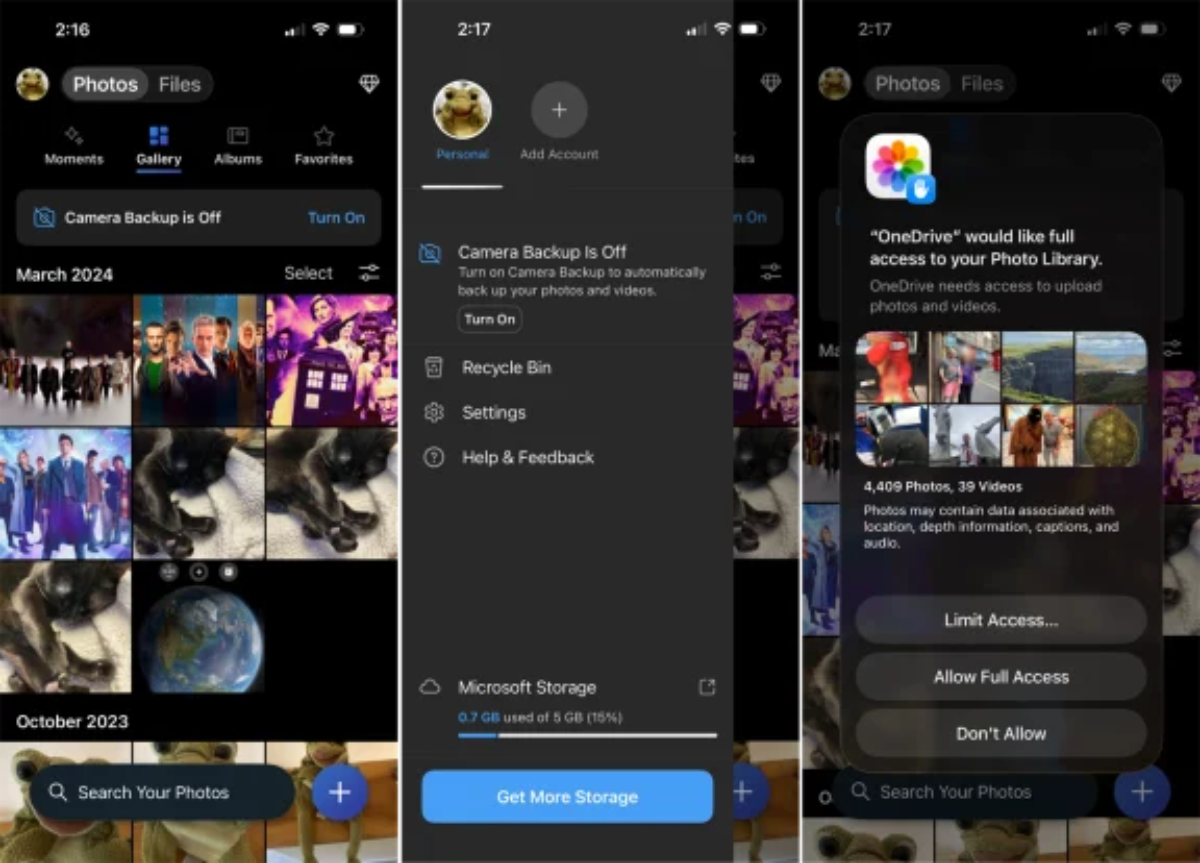
This deployment pipeline uses the native iOS OneDrive app to automatically upload media assets to the Microsoft cloud infrastructure, which then mirrors them downstream to your Windows PC.
                  METHOD 1: CLOUD AUTOMATION FLOW

  [ iPhone Photos ] ──► OneDrive iOS App (Camera Backup ON) ──► Microsoft Cloud
                                                                     │
                                                                     ▼
  [ Local PC Storage ] ◄── OneDrive Windows Sync (Camera Roll) ◄──────┘
Step 1: Configuring the iOS Client
-
Download and launch the official Microsoft OneDrive application from the iOS App Store.
-
Authenticate using your primary Microsoft account credentials.
-
Access the Gallery tab located at the upper margin of the interface. If the system prompts a “Camera Backup is Off” notification, tap Turn On.
-
Alternative Route: Navigate to your Profile Icon > Settings > Camera Backup, and toggle the switch to Active.
-
When the iOS subsystem prompts for permissions, select Allow Full Access to grant OneDrive permission to read the Apple Photo Library database.
-
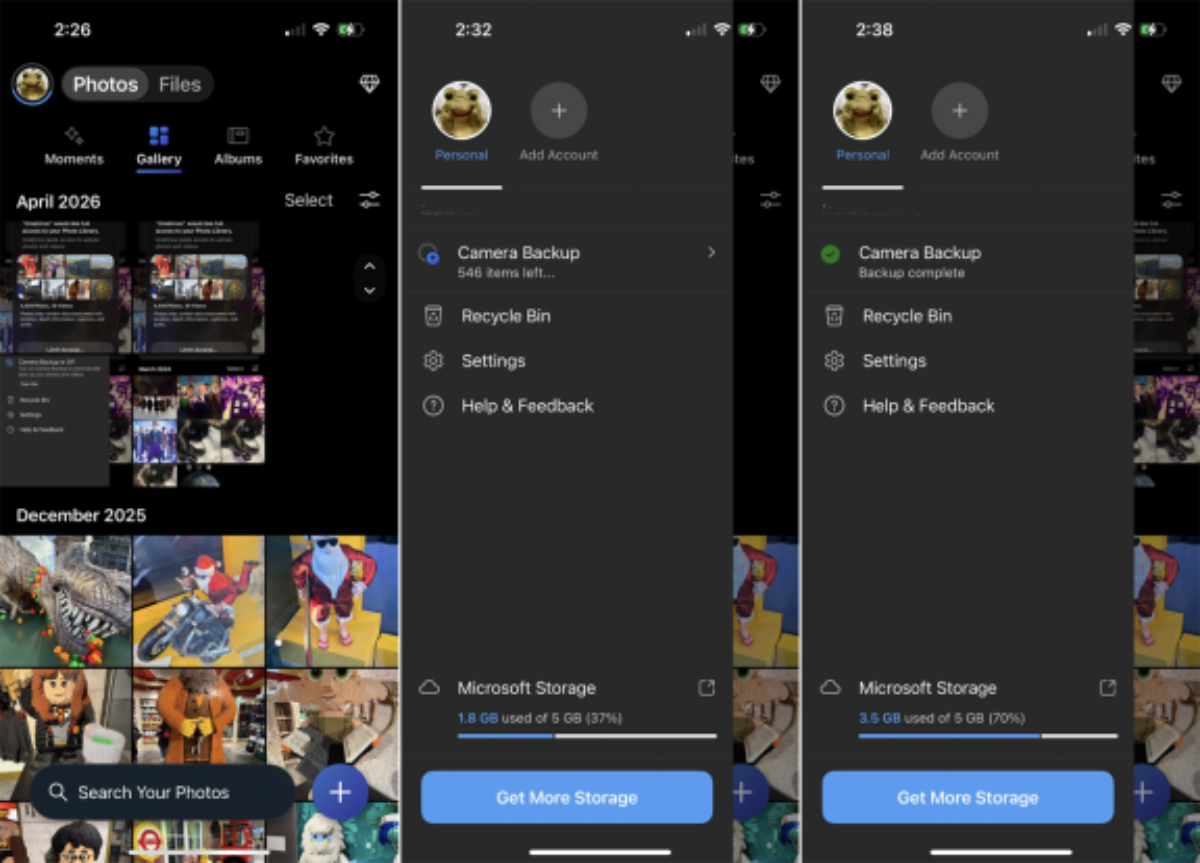
Monitor the initial upload progress by tapping the blue revolving status ring around your profile icon. This display lists remaining items and current storage usage.
Step 2: Configuring the Windows Subsystem
-
Navigate to the Windows System Tray (bottom right corner of the taskbar), right-click the OneDrive (cloud) icon, and select the Gear Icon (Settings).
-
In the configuration window, navigate to the Sync and Backup sidebar menu.
-
Click Manage Backup, locate the Pictures directory toggle, switch it to On, and click Save Changes.
Step 3: Accessing and Localizing Media
-
Open Windows File Explorer (Win + E) and navigate to the OneDrive root directory.
-
Drill down into the file tree: OneDrive \ Pictures \ Camera Roll.
-
The Folder Architecture Caveat: OneDrive automatically organizes your images using a strict numerical chronological matrix, nesting files inside subfolders named by Year and Month (e.g., OneDrive\Pictures\Camera Roll\2026\05).
-
Enabling Offline Availability: By default, Windows utilizes Microsoft’s Files On-Demand mechanism, meaning assets exist purely as cloud placeholders until opened. To force a permanent offline hardware mirror, right-click the Camera Roll folder and select Always keep on this device.
                WINDOWS FILE EXPLORER ON-DEMAND TOGGLE

  📁 OneDrive
  └─ 📁 Pictures
     └─ 📁 Camera Roll  ──► [ Right Click ] ──► "Always keep on this device"
Crucial Functional Limitation: Because of Apple’s sandboxed security architecture, the automated OneDrive app migration is a one-way upload pipeline. If you delete, rename, or edit a photo on your Windows PC inside the OneDrive folder, those changes will not sync back to your native iPhone Photos app library.
Method 2 Hardwired Local Syncing with Bi-Directional Management
For users who want full control over folder naming, file names, and true synchronization of edits, deletions, and organizational layouts back to the iPhone, a hardwired local file migration via Windows File Explorer and Apple Devices is required.
                  METHOD 2: DIRECT WINDOWS MANAGEMENT FLOW

  [ Connect iPhone ] ──► File Explorer Manual Transfer ──► [ Custom PC Folder ]
                                                                   │
                                                                   ▼
  [ iPhone Photos App ] ◄── Apple Devices / iTunes Sync ◄─── Batch File Renamer
Step 1: Directory Construction and Manual Import
-
Open Windows File Explorer, enter your local OneDrive \ Pictures directory, and create a core master folder named My Photos.
-
Inside My Photos, build your own custom descriptive subfolders using a clean chronological layout (e.g., 2026-05-31 Product Review Shoot or 2026-06-01 Family Vacation).
-
Connect your iPhone to your Windows machine using a lightning or USB-C tethering cable. Unlock the handset and tap Trust This Computer.
-
Open two separate windows in File Explorer:
-
Window A: Navigate to This PC \ [Your iPhone Name] \ Internal Storage \ DCIM.
-
Window B: Navigate to OneDrive \ Pictures \ My Photos \ [Your Custom Subfolder].
-
-
Select the raw source images from Window A and drag-and-drop them directly into Window B.
Step 2: Optimizing with Batch Renaming Utilities
To avoid the confusing, randomized file naming conventions generated by iOS devices (e.g., IMG_4921.HEIC), sanitize your imported directories using a dedicated renaming utility (such as File Renamer by Sherrod Computers or PowerToys PowerRename).
-
Load your target subfolder into the renaming software.
-
Set a unified naming rule using a descriptive prefix followed by sequential numbers (e.g., Statue_of_Liberty_001.jpg, Statue_of_Liberty_002.jpg).
-
Execute the batch operation. You can now use any Windows desktop program to safely edit, color-correct, or prune these files locally.
Step 3: Pushing Changes back to iOS via Apple Software
Once your custom directory looks exactly how you want it, you must feed it back into the iOS environment using Apple’s official synchronization protocols.
Option A: Using the Modern Apple Devices Application
-
Launch the Apple Devices app on your Windows PC (downloadable via the Microsoft Store).
-
Select your tethered iPhone from the left-hand device menu panel.
-
Select the Photos tab from the main content layout.
-
Check the box labeled Sync photos to your device from:.
-
Click the dropdown selection box, choose Choose folder…, and select your custom My Photos master directory.
-
Click Apply in the bottom right corner to run the migration.
                  APPLE DEVICES APP CONFIGURATION PATH

  [ Select Connected iPhone ] ──► [ Photos Tab ] ──► [ Sync Photos Checkbox ]
                                                             │
                                                             ▼
  [ Click Apply to Sync ] ◄── [ Choose Folder: "My Photos" ] ┘
Option B: Legacy System Routing via iTunes for Windows
-
If your environment uses legacy software, launch iTunes for Windows.
-
Click the small smartphone icon near the top left of the iTunes toolbar.
-
Under the Settings menu on the left sidebar, click Photos.
-
Check Sync Photos, change the “Copy photos from:” dropdown selector to Choose folder…, select the local My Photos directory, and hit Apply.
Accessing Synced Files on Your iPhone
Once either synchronization protocol finishes processing, your Windows-managed folders will appear directly inside the native iOS infrastructure:
-
Launch the native Photos app on your iPhone or iPad.
-
Tap the Collections or Albums navigation tab.
-
Scroll down past your cloud albums to locate the dedicated archive section named “From My Mac” (Note: Apple preserves this folder label across all operating systems, meaning photos synced from a Windows PC will still appear under this heading).
-
Tap this container to view your custom subfolders, maintaining the exact descriptive names, sequential file structures, and localized edits you configured on your Windows machine.
Frequently Asked Questions (FAQ)
1. Can I transfer photos from an iPhone to a Windows PC without iCloud?
Yes. You can use a USB cable and Windows File Explorer to manually copy photos from your iPhone, or use Microsoft OneDrive to automatically upload and sync images without relying on iCloud.
2. Is OneDrive better than iCloud for Windows users?
For many Windows users, OneDrive offers tighter integration with Windows, easier file management, and native support within File Explorer. However, iCloud remains the most seamless option if you primarily use Apple devices.
3. Does OneDrive automatically upload iPhone photos?
Yes. After enabling Camera Backup in the OneDrive iOS app, new photos and videos can automatically upload to your OneDrive account whenever the app has permission and internet access.
4. Will deleting a photo from OneDrive on my PC delete it from my iPhone?
Not necessarily. Photos uploaded through OneDrive’s Camera Backup are generally separate from your iPhone’s native Photos library. Deleting a file in OneDrive does not automatically remove it from the iPhone camera roll.
5. Can I edit photos on my Windows PC and sync the changes back to my iPhone?
Not through OneDrive Camera Backup. For two-way management, you’ll need to manually synchronize photos using the Apple Devices app or iTunes after making edits.
6. Where are OneDrive photos stored on Windows?
By default, photos uploaded from an iPhone are stored in:
OneDrive > Pictures > Camera Roll
OneDrive often organizes them into year and month folders automatically.
7. What is Files On-Demand in OneDrive?
Files On-Demand allows files to appear in File Explorer without being fully downloaded to your computer. You can save storage space by downloading files only when needed.
8. How do I make OneDrive photos available offline?
Right-click the desired folder (such as Camera Roll) and select “Always keep on this device.” This downloads and stores local copies permanently on your PC.
9. Can I transfer HEIC photos from iPhone to Windows?
Yes. Windows 10 and Windows 11 support HEIC files, although some systems may require installing the HEIF Image Extensions package from Microsoft Store for full compatibility.
10. Why can’t Windows detect my iPhone?
Common causes include:
- The iPhone is locked.
- You did not tap Trust This Computer.
- A faulty USB cable.
- Missing Apple device drivers.
- Outdated Windows or Apple software.
11. Can I organize iPhone photos into custom folders on Windows?
Yes. After importing photos manually, you can create your own folder structure and rename files however you prefer before backing them up or syncing them.
12. What is the Apple Devices app?
The Apple Devices app is Apple’s modern Windows management tool that allows users to sync photos, music, videos, and other content between an iPhone and a Windows PC.
13. Do I still need iTunes to sync photos?
Not necessarily. The Apple Devices app is replacing many functions previously handled by iTunes, although some users still use iTunes on older systems.
14. Does syncing photos through Apple Devices create duplicates?
It can if the same photos already exist on the device from another source. It’s a good idea to review your photo library before syncing large collections.
15. Can I transfer videos from iPhone to Windows using the same methods?
Yes. Both OneDrive Camera Backup and USB transfer methods support videos, although large video files may take longer to upload or copy.
16. How much free storage does OneDrive provide?
Microsoft typically offers a free storage tier, but available capacity may change over time. Check your Microsoft account for the latest storage allocation and upgrade options.
17. Is a USB transfer faster than cloud syncing?
Usually yes. A direct USB connection is often significantly faster than uploading and downloading large photo libraries through the internet.
18. Can I access OneDrive photos on multiple devices?
Yes. Photos stored in OneDrive can be accessed from Windows PCs, smartphones, tablets, and web browsers using the same Microsoft account.
19. What happens if I run out of OneDrive storage?
New uploads will stop until you free up space or upgrade to a larger storage plan. Existing files remain accessible.
20. Which method is best: OneDrive or USB transfer?
It depends on your needs:
- OneDrive: Best for automatic backups and continuous cloud synchronization.
- USB Transfer + Apple Devices: Best for full control over file organization, naming, editing, and manual synchronization.
For most Windows users who want automatic photo backup, OneDrive is the simplest solution. For photographers and power users who need complete control, USB-based local management is usually the better option.