We have all been there. You click on a 25-minute cooking video to learn how to make a simple breakfast sandwich, only to sit through a twelve-minute vlog about the creator’s trip to the grocery store, three minutes of sponsor segments, and a lengthy debate on the history of brioche. Or perhaps you are staring at a massive, two-hour tech review just trying to find out whether a laptop has a quiet fan profile, forcing you to scrub frantically back and forth across the red progress bar.
In the attention economy, video content has bloated. Creators are incentivized by platform algorithms to stretch out their runtime, leaving viewers to sift through structural noise just to get to a single nugget of actionable data.
While most people look to AI chatbots to write emails or draft code, a powerful, deeply integrated feature has quietly slipped into the ecosystem. Google’s Gemini can natively watch, digest, and analyze YouTube videos in real time. It can pull flawless recipes, extract highly specific timestamps, and summarize hours of footage in a single second.
This guide explores the underlying mechanics of Gemini’s video integration, offering five practical strategies to completely change your relationship with online video.
The Underlying Tech: How Gemini Actually “Watches” Video
To get the most out of this tool, it helps to understand what is happening behind the screen. When you point Gemini toward a YouTube link or click the built-in integration button, the AI isn’t simply reading a text transcript.
                           [ Gemini Video Processing Flow ]
                                          │
         ┌────────────────────────────────┴────────────────────────────────┐
         ▼                                                                 ▼
   [ Temporal Auditing ]                                         [ Contextual Mapping ]
   ├── Synchronizes spoken words to timestamps                    ├── Cross-references video descriptions
   ├── Extracts exact structural moments                          ├── Scans on-screen graphic data
   └── Filters filler phrasing and noise                          └── Generates immediate, clickable links
Gemini leverages its massive context window and native multimodal foundations to look at a video as a unified timeline. It treats the spoken audio, closed captions, video description, metadata, and on-screen visual shifts as a single dataset.
While competing models like OpenAI’s ChatGPT frequently require messy third-party plugins to scrape messy transcripts, Gemini acts as a native layer built directly into the video pipeline. It understands context, bridges the gap between what is said and when it is shown, and turns a passive viewing experience into an interactive, fully searchable database.
How to Unlock the Integration: A Quick Setup
Getting Gemini to audit your video queue is incredibly straightforward, but it requires one crucial step: you must be signed in.
[ Step 1: Sign in to Google Account ] ──► [ Step 2: Open YouTube Video ] ──► [ Step 3: Click 'Ask' Button ]
-
Log In: Ensure you are logged into your primary Google account on both YouTube and the Gemini interface. Without this session active, the backend API cannot safely bridge the data between the two services.
-
Locate the ‘Ask’ Button: When viewing a video on YouTube via a desktop browser, look directly below the player on the right-hand side. You will spot an “Ask” button.
-
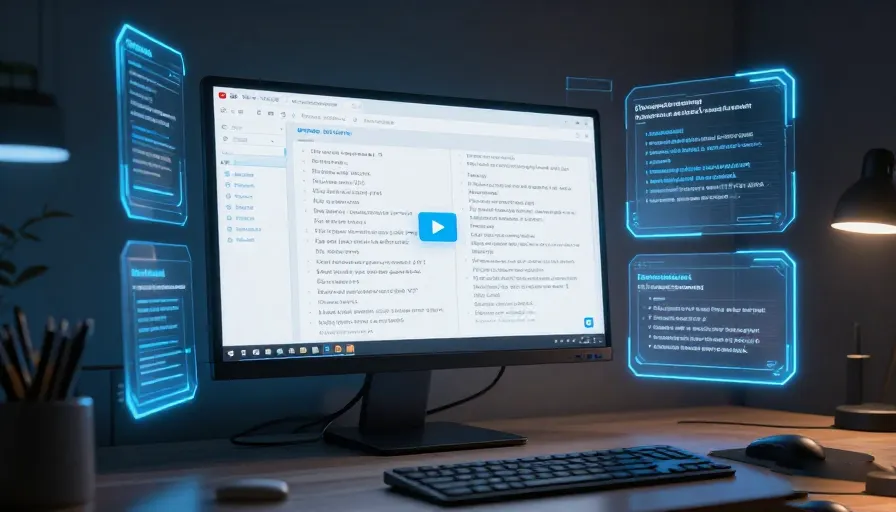
Prompt the Interface: Clicking this button opens a native sidebar right alongside your video playback, ready to take your natural language commands without forcing you to leave the page. Alternatively, you can copy any YouTube URL and paste it directly into the standard Gemini chat box.
5 Creative Strategies to Supercharge Your Viewing
One: Turn Massive Run-Times Into Searchable Bullet Points
The internet is packed with long-form deep dives, video essays, and endless gameplay let’s-plays. If you are returning to a video game after a six-month hiatus, you probably don’t want to watch an hour-long breakdown of a patch update just to see how to adjust your controller deadzones.
The Strategy
Ask Gemini to isolate specific variables across a defined window. You can ask:
“Summarize the controller settings discussed in this video from the 5-minute mark to the 12-minute mark, and give me a bulleted list of the recommended values.”
[ 45-Minute Monologue ] ──► Gemini Processing ──► • Setting A: Value 10
                                                    • Setting B: Value 0.5
                                                    • Setting C: Inverted
The AI strips away the creator’s intro, ignores the ad breaks, and serves up a pristine, structured overview of the exact data you need in under two seconds.
Two: Use Immediate Pre-Screening to Cut Through Clickbait
We have all fallen victim to a sensationalized thumbnail or a dramatic title designed to exploit your curiosity. You shouldn’t have to watch a 15-minute video just to find out if a tech reviewer actually uncovered a scam or if the title is just exaggerated hyperbole.
The Strategy
Treat Gemini as your personal content filter. Before committing your time, drop the link into the prompt field and ask:
“Does the creator actually provide proof of the financial scam mentioned in the title? Give me a concise summary of their main argument and include the specific timestamp where they present their evidence.”
If the video is mostly fluff and speculation, Gemini will point that out immediately, saving you from wasting your time on low-value content.
Three: Drop Clickable Timestamps Straight to the Core Moment
Scrubbing along a timeline on a phone or tablet screen to find one specific phrase or visual cue can be incredibly tedious.
[ Interactive Sidebar Query ] ──► "When does the announcement happen?" ──► [ Clickable Link: 12:43 ]
The Strategy
Because Gemini maps audio directly to a temporal clock, you can treat the video like a document with an index. If you are watching a long corporate stream or a gaming showcase, you can open the sidebar and type:
“What exact time does the studio reveal the release date for their next project?”
Gemini will instantly generate a response containing a clickable blue timestamp link. Clicking that link instantly jumps the video player to that exact second, allowing you to skip straight to the highlight of the show.
Four: Extract Raw, Clean Recommendation Lists Without the Monologue
“Top 10” videos—whether covering the best laptops for college, hidden sci-fi gems on streaming platforms, or upcoming seasonal anime—are fantastic for discovery, but painful when you just want a quick shopping list.
The Strategy
Instead of sitting through ten minutes of commentary for every single entry on a list, tell Gemini to scrape the video for pure nouns.
[ 20-Minute Recommendation Video ] ──► Gemini Scrape ──► 1. Product Alpha
                                                           2. Product Beta
                                                           3. Product Gamma
Use a prompt like:
“Extract a clean, numbered list of all the laptops recommended for engineering students in this video. Do not include the commentary—just give me the manufacturer names, model numbers, and their starting prices if mentioned.”
You get a clean, readable text list that you can instantly copy and paste into a shopping tab or a notes app.
Five: Transform Cooking Shows Into Written Recipes
Cooking videos are beautiful to watch, but they are a logistical nightmare when you are standing over a hot stove trying to replicate the steps. Pausing and rewinding a video with flour-covered hands just to re-verify how many teaspoons of baking powder you need is an exercise in frustration.
The Strategy
Force Gemini to act as your kitchen sous-chef by converting video frames and voice lines into a standard culinary layout.
                              [ Culinary Conversion Matrix ]
                                             │
         ┌───────────────────────────────────┴───────────────────────────────────┐
         ▼                                                                       ▼
   [ The Video Source ]                                                   [ The Gemini Output ]
   ├── 18-minute narrative cooking vlog                                    ├── Clean, itemized ingredients list
   ├── Unpredictable step-by-step shifts                                  ├── Ordered, step-by-step directions
   └── Hidden measurements in banter                                      └── Clock-anchored cooking times
Simply ask:
“Extract the complete ingredient list and step-by-step preparation instructions for the breakfast sandwich prepared in this video. Format it like a professional recipe card with clear measurements.”
Within seconds, the screen transforms into an organized, step-by-step recipe card complete with precise measurements, baking temperatures, and cooking times.
Where the System Still Hits a Wall
While Gemini’s video capabilities are an incredible asset, the technology isn’t completely without limitations. To avoid frustrating errors, keep these structural boundaries in mind:
-
The Length Threshold: If a video is exceptionally long—such as an uninterrupted, eight-hour livestream archive—the backend context window can occasionally cut off, leading to vague summaries or missed details near the end of the timeline.
-
Source Blind Spots: If a news segment or documentary covers a complex topic, Gemini will sometimes decline to list the creator’s external investigative sources if they aren’t explicitly mentioned in the audio or clear on-screen text.
-
Advanced Visual Identity Tasks: The AI can easily parse on-screen text, graphics, and audio transcripts. However, it can still struggle with highly specific visual recognition tasks—like identifying the exact brand of a background t-shirt, pulling out rapid song lyrics over loud background music, or naming an obscure background actor.
Quick Reference: Maximizing Your Interaction
To get the most out of your video prompts, use this quick reference table to match your goals with the right approach:
| Your Goal | Optimal Prompt Approach | Expected Output |
| Quick Research | “Provide a 3-bullet summary of the core thesis of this video.” | High-level takeaways without the fluff. |
| Fact-Checking | “Does the speaker provide any empirical data to support their claim at [Topic]?” | Identification of supporting evidence and citations. |
| Tutorial Navigation | “List the specific tools required for this repair project and the timestamps where they are used.” | An itemized toolkit list paired with jump-links. |
| Shopping Efficiency | “What are the exact model names of the monitors compared in this review?” | A clean comparison table without the surrounding banter. |
By leveraging Gemini as a smart, native layer on top of your video feed, you stop being a passive consumer of algorithmic runtimes. You gain the power to instantly filter, index, and organize video content on your own terms—turning YouTube into your personal, searchable knowledge base.