
As technology evolves, keeping our personal data private is more important than ever. If you are a Windows 10 user, you might enjoy using Universal Windows Platform (UWP) apps downloaded from the Microsoft Store, such as WhatsApp, Instagram, or LINE.
While these apps make our desktop experience smoother, they often require access to your hardware and personal files—including your location, camera, microphone, and photo documents. To prevent unauthorized data collection and secure your personal information, you must know how to audit and restrict these accesses.
This human-crafted step-by-step technical guide explores two practical, built-in methods to easily manage and restrict app permissions on your Windows 10 computer.
                  WINDOWS 10 PRIVACY MANAGEMENT ARCHITECTURE
                                       │
         ┌─────────────────────────────┴─────────────────────────────┐
         ▼                                                           ▼
[ METHOD 1: APP-CENTRIC CONTROL ]                           [ METHOD 2: FEATURE-CENTRIC CONTROL ]
  ├── Target individual apps one-by-one                       ├── Target specific hardware/features
  ├── Great for looking at deep app settings                  ├── Audit all apps using a feature at once
  └── Located in Apps & Features panel                        └── Located in Privacy Settings hub
Managing Permissions via Individual App Settings
If you have a specific app in mind—such as a browser or a communication tool—and you want to review all the different permissions it holds, managing access through the individual app settings is the most direct path.
Step-by-step instructions:
-
Open System Management: Right-click on your Start Menu icon (the Windows logo in the bottom-left corner) and select Apps and Features from the pop-up menu.
-
Locate Your App: Scroll down the list on the App & features page to find the specific UWP application you want to audit. Click on the app name (for example, Microsoft Edge or WhatsApp), then click the Advanced options link that appears underneath it.
-
Alternative Shortcut: You can also open your Start Menu, type the name of the app, right-click its icon, and select More > App Settings to skip directly to the management page.
-
-
Toggle Permissions: On the app’s details page, scroll down to the App permissions section. Here, you will see a list of features the app can access. Click the toggle switches to turn specific permissions On or Off based on your personal comfort level.
               INDIVIDUAL APP PERMISSION HUB
┌────────────────────────────────────────────────────────┐
│  [Microsoft Edge / App Profile]                        │
├────────────────────────────────────────────────────────┤
│  Location Access      [  ON  ] ◄── Toggle off if unneeded│
│  Camera Feed          [  OFF ]                         │
│  Microphone Capture   [  ON  ]                         │
└────────────────────────────────────────────────────────┘
Managing Permissions via System Feature Categories
If you want to view your privacy from a systemic perspective—such as checking every single app that currently has permission to use your webcam or track your location—managing permissions by feature category is the most efficient method.
Step-by-step instructions:
-
Access Settings: Right-click on your Start Menu and select Settings from the menu list.
-
Navigate to Privacy Hub: Inside the main Windows Settings dashboard, locate and click on the Privacy category.
-
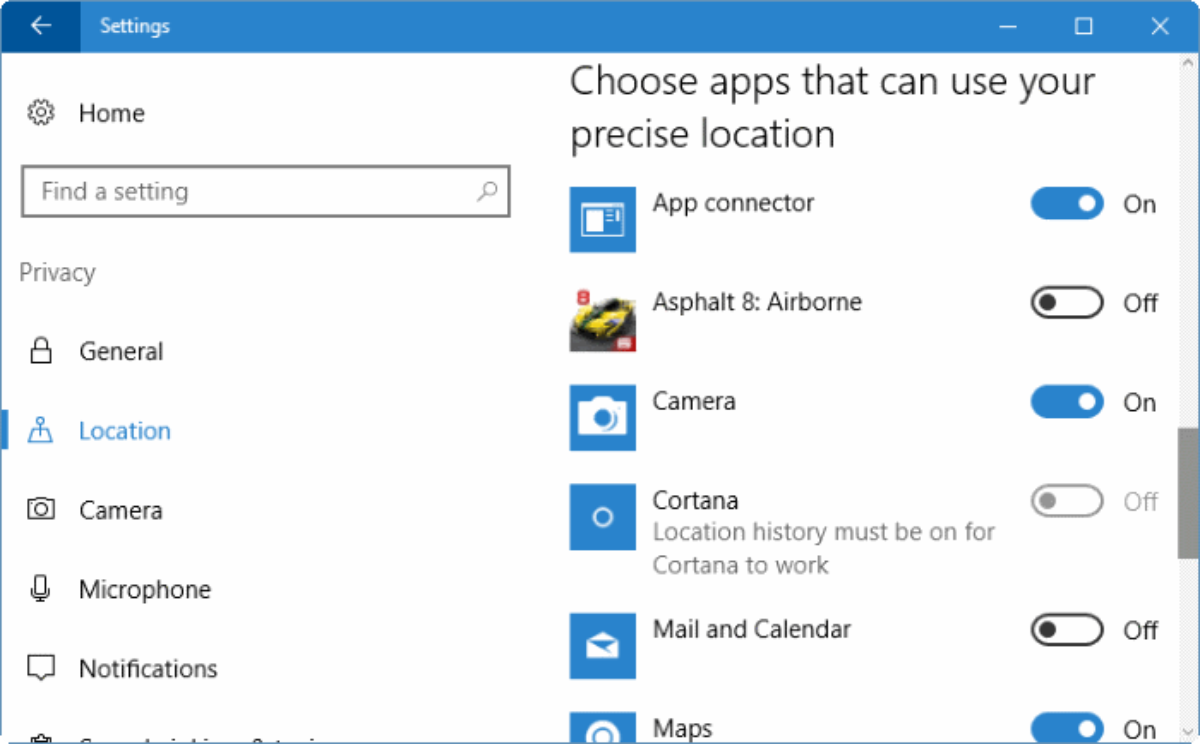
Select a Target Feature: Look at the left-hand sidebar and scroll down to the App permissions sub-header. Click on a specific feature you want to secure, such as Location, Camera, or Microphone.
-
Audit and Restrict Access: On the right side of the window, you will see a master toggle switch to disable the feature entirely for all apps. Below that, scroll down to see a complete list of applications that use this feature. Review the list and flip individual toggles to block specific apps from accessing that hardware or data category.
               SYSTEM FEATURE AUDIT HUB
┌────────────────────────────────────────────────────────┐
│  [Privacy > Camera Access List]                        │
├────────────────────────────────────────────────────────┤
│  Master Camera Access  [  ON  ]                        │
│                                                        │
│  • App 1: WhatsApp     [  ON  ]                        │
│  • App 2: Cortana      [  OFF ] ◄── Instantly strip access│
│  • App 3: Instagram    [  ON  ]                        │
└────────────────────────────────────────────────────────┘
Comparison Matrix: App-Centric vs. Feature-Centric Management
To help you decide which approach fits your immediate security needs, this reference matrix highlights the structural differences between both management methods.
Summary: Keeping Your Windows 10 Device Secure
Regularly checking your app permissions is a simple yet effective way to maintain data privacy on your computer. Whether you choose to adjust settings one app at a time or audit your hardware features in bulk, Windows 10 gives you full control over what your apps can and cannot see.
Take a few minutes to check these settings today to ensure your personal files and hardware remain completely secure.