The traditional text message is dead. For over a decade, mobile communication was defined by the rigid constraints of SMS—a 160-character limit, compressed images that looked pixelated, and a complete lack of security. While third-party messaging applications stepped in to fill the void, Apple has quietly engineered its native Messages app into a powerhouse ecosystem. With the arrival of iOS 26 and iPadOS 26, the platform has undergone a massive, structural transformation.
If you are only using Apple Messages to read one-time banking verification codes or send basic, unformatted text replies, you are underutilizing one of the most sophisticated communication tools on the planet. Backed by the computational power of Apple Intelligence, built on high-security encryption standards, and designed for deep visual expression, the latest operating system updates turn your default green and blue bubbles into a highly customized interactive workspace.
This technical blueprint breaks down 18 advanced Apple Messages features, offering clear step-by-step instructions, real-world examples, and structural overviews. Whether you need to secure your cross-platform communications with Android users, automate your inbox cleanup, or run interactive business polls within a group chat, this guide will help you get the most out of your iPhone.
Group Synchronization and Interactive Data Mechanics
Modern group chats can quickly become chaotic. When multiple people try to coordinate schedules, make decisions, or share ideas across different time zones, important details get lost in endless scrolling. iOS 26 addresses this by introducing structured interaction tools directly into the chat stream.
                      [ Group Coordination Mechanics ]
                                      │
         ┌────────────────────────────┴────────────────────────────┐
         ▼                                                         ▼
 [ Interactive Polls ]                                     [ Identity Branding ]
 ├── Built via the (+) menu item                           ├── Change Name and Photo menu
 ├── Dynamic option fields                                 ├── Custom typography/color backdrops
 └── Real-time visual data updates                         └── Unified group recognition
1. Interactive Group Polls (Polls)
Taking a vote within an active group chat—whether choosing a restaurant for a business lunch or selecting a departure time for a weekend trip—traditionally required third-party links or manual tallying. In the latest operating system version, Apple builds data collection directly into the messaging interface.
-
How to Build a Poll: Open any multi-user conversation thread where all participants are running the current operating system. Tap the plus (+) icon to the left of the input field, swipe down to access your active app integrations, and select Polls.
-
Data Input: Enter your core question into the primary comment line, then specify individual choice options below. While the interface populates three slots by default, you can add an unlimited number of alternative choices.
-
The User Experience: When sent, the poll displays as a neat, interactive card. Group members simply tap their preferred choice. The system aggregates these votes instantly, showing updating progress bars so everyone can see the results at a glance without generating extra text notifications.
2. Group Branding and Visual Identity
As your inbox fills up with different chats, finding a specific group of friends, family members, or project colleagues can take too long. You can solve this by giving your group threads unique names and distinct visual branding.
-
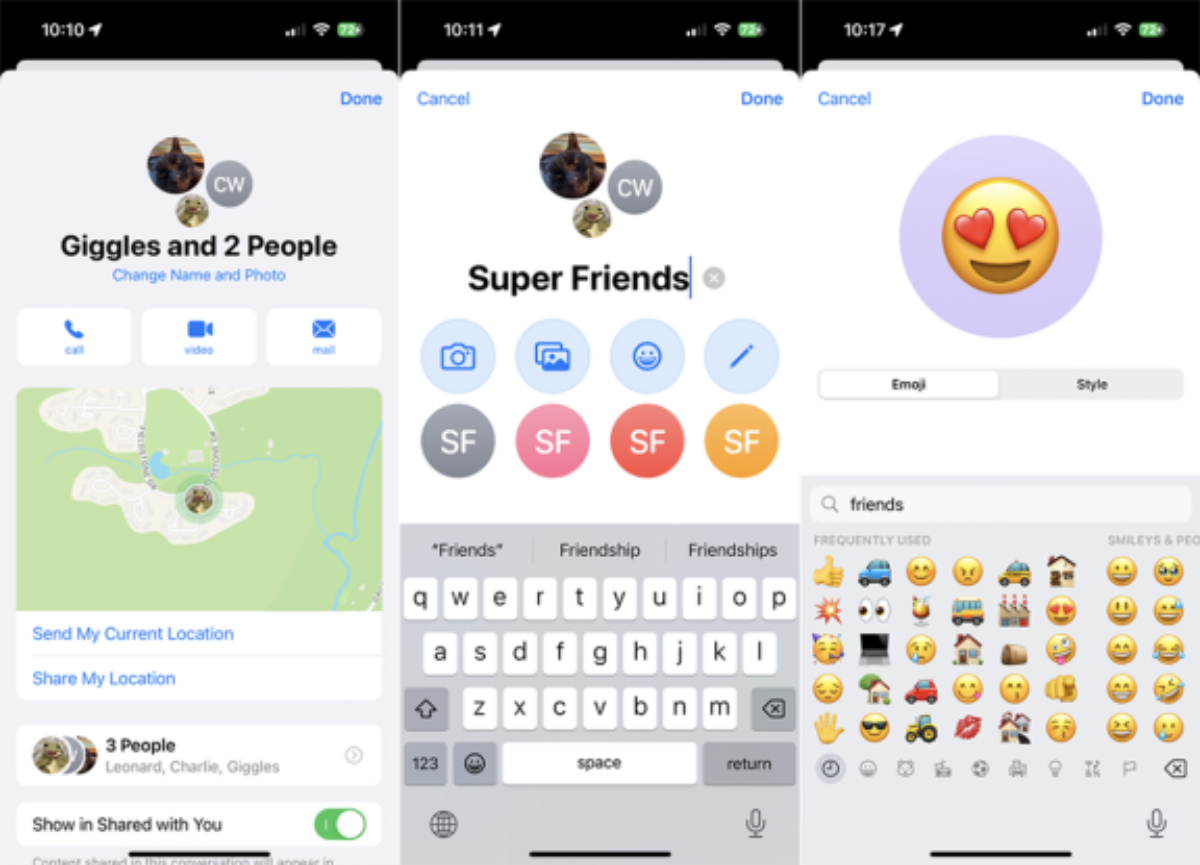
Execution Step: Tap the clustered profile icons at the top of an open group conversation, then select Change Name and Photo.
-
Creative Assets: The interface lets you enter a clear group name and assign a unique visual icon. You can capture a live photo, upload an existing image from your gallery, use an expressive emoji or Memoji combination, or create a clean, text-based monogram styled with contrasting color gradients. Once saved, these identity updates sync across all participants’ devices, keeping your inbox highly organized.
Environmental Customization and Real-Time Translations
The look and feel of a workspace directly changes how you use it. Instead of keeping a uniform white or dark background across all your chats, the current operating system lets you customize individual conversation views and adds powerful real-time translation features.
                     [ Interface Personalization Matrix ]
                                      │
         ┌────────────────────────────┴────────────────────────────┐
         ▼                                                         ▼
 [ Custom Chat Backgrounds ]                               [ Live Apple Intelligence Translation ]
 ├── Distinct visual themes per contact                    ├── On-device linguistic processing
 ├── High-contrast text protection                         ├── Automatic foreign bubble conversion
 └── Deep image cropping and filters                       └── Smooth cross-cultural conversation
3. Individual Conversation Backgrounds
Monotonous user interfaces can feel sterile. To make your favorite chats stand out, you can set custom backgrounds for specific contacts or group rooms.
-
Configuration Path: Open a specific chat window, tap the contact name or group banner at the top of the interface, and select the Background option.
-
Visual Controls: You can apply solid, minimalist colors, choose textured geometric patterns designed by Apple, or select a personal photo from your library. The system includes image-editing tools that let you crop your picture, apply style filters, and adjust background dimming. This ensures that your text bubbles remain perfectly readable and high-contrast against your new background.
4. Live Translation Powered by Apple Intelligence
International business and cross-cultural friendships often run into language barriers, forcing users to constantly copy and paste messages into external translation apps. For devices that support Apple Intelligence, this friction is completely eliminated.
-
How to Activate: Tap the profile icon of a contact who speaks a different language, and toggle on the Automatically Translate switch. Next, use the Translate from option to select the source language.
-
Underlying Mechanics: Once configured, any incoming message in that foreign language is processed right on your device and instantly translated into your native language. This happens directly inside the chat bubble, keeping your conversation flowing naturally without any lag or security risks.
Deep Dive Technical Specifications: Cross-Platform Protocol Analysis
The gap between iOS and Android communication has long been a source of frustration, resulting in broken video files, missing group chats, and unencrypted data transfers. The rollout of iOS 26.5 closes this gap by upgrading the underlying messaging engine.
| Communications Standard | Legacy SMS / MMS Configuration | Advanced RCS 26.5 Protocol |
| Data Encryption Security | No Encryption (Clear text vulnerable to carrier interception) | End-to-End Encryption (Beta) |
| High-Resolution Media Support | Extreme compression (Photos and videos are blurry) | Raw uncompressed file transfers |
| Real-Time Typestate Data | Non-existent | Active typing indicators |
| Network Data Delivery | Cellular network only | Supports Wi-Fi data networks |
| Group Conversational Control | Permanent thread fragmentation | Dynamic group creation/exit controls |
Mastering Cross-Platform Protocol Upgrades and Security
                   [ RCS Security Verification Architecture ]
                                       │
         ┌─────────────────────────────┴─────────────────────────────┐
         ▼                                                           ▼
 [ System Configuration Setup ]                             [ Visual Verification Tokens ]
 ├── Navigate to Settings > Apps > Messages                  ├── Look for top lock icon marker
 ├── Verify carrier profile matches checklist                ├── Read the clear "Encrypted" stamp
 └── Enable End-to-End Encryption toggle                     └── Confirms complete cryptographic safety
5. Secure RCS Communications with Android Users
For years, chatting with an Android user meant dropping back to old SMS or MMS technology. Now, Apple Messages natively integrates the Rich Communication Services (RCS) standard, bringing modern features to cross-platform conversations.
High-Fidelity Asset Exchanges
When communicating over RCS, you are no longer limited to compressed images. You can send high-resolution photos, documents, and video attachments without any platform degradation. The interface also supports typing indicators, read receipts, and full emoji reactions across operating systems. To turn this on, go to Settings > Apps > Messages > RCS Messaging and verify the feature is active. Your text input area will display Text Message – RCS when connected to an Android user running a compatible app like Google Messages.
Cryptographic End-to-End Encryption
Starting in iOS 26.5, Apple and Google have collaborated to wrap cross-platform RCS texts in secure End-to-End Encryption (Beta). This ensures your messages are mathematically locked before they leave your phone, protecting them from carrier snooping, corporate data collection, or government interception while in transit.
How to Verify Your Chat Protection
To ensure your cross-platform conversations are secure, open a chat thread with an Android contact and check the layout details:
-
Swipe up to view the very top of your chat history.
-
Look for a clean lock icon sitting next to the word Encrypted.
-
If the lock is visible, your communications are completely secure. If it is missing, verify that your mobile carrier supports encrypted RCS data profiles and check that your contact has updated to the latest version of Google Messages.
Temporal Management and Text Animation Engines
Time and tone are two of the hardest things to manage in digital messaging. The latest iOS updates address both challenges by introducing advanced scheduling tools and dynamic text animations.
                      [ Post-Production Input Engine ]
                                      │
         ┌────────────────────────────┴────────────────────────────┐
         ▼                                                         ▼
 [ Scheduled Deliveries (Send Later) ]                     [ Dynamic Typographic Kinematics ]
 ├── Programmed via the (+) sub-menu                       ├── Standard structural font modifications
 ├── Stored locally in an active queue                     ├── 8 kinetic movement options
 └── Fires accurately at specified times                   └── Enhances emotional intent
6. Scheduled Text Delivery (Send Later)
Whether you want to send a birthday greeting at midnight without staying up, or deliver a work reminder to a colleague tomorrow morning without disturbing their evening, the Send Later feature gives you precise control over your timing.
-
How to Schedule a Message: Open your conversation thread, tap the plus (+) icon to open the tools menu, and choose Send Later.
-
Time Parameters: A smooth scroll wheel lets you pick the exact date and time you want the message to go out.
-
Queue Presentation: Once you write your text and hit the blue arrow, the message sits in a pending queue right inside the chat window, marked by a clear blue dotted outline. You can tap this pending bubble at any time to edit the text, delete it entirely, or send it immediately if your plans change.
7. Kinetic Typography and Text Special Effects
Written words can sometimes feel flat or easily misunderstood. To help you convey your exact tone and emotion, Apple has added a dynamic text styling engine to the messaging interface.
-
Applying Text Styles: Type your message, double-tap to select the specific words you want to emphasize, and select Text Effects from the contextual pop-up menu.
-
Structural Formats: You can apply classic typographic formatting, including Bold, Italics, Underline, and ~~Strikethrough~~.
-
Kinetic Movements: For more expressive style, you can apply eight unique animations that make your words move on the recipient’s screen:
Big: Makes your text scale up dramatically to simulate a loud shout.
Small: Shrinks your text down to mimic a quiet whisper or aside.
Shake: Vibrates your words back and forth to show anger or surprise.
Nod: Bounces the text up and down to signal agreement or confirmation.
Explode: Breaks your text apart into a burst of particles for celebration.
Ripple: Sends a wave-like motion through your sentence.
Bloom: Fades your text in from a bright point of light.
Jitter: Makes your letters dance in place to convey excitement or anxiety.
Expressive Communication Upgrades and Tapback Expansions
                  [ Expanded Conversational Reaction Array ]
                                       │
         ┌─────────────────────────────┴─────────────────────────────┐
         ▼                                                           ▼
 [ Infinite Tapback Options ]                               [ Memoji Motion Capture ]
 ├── Long-press active chat bubble                          ├── Accessed via the extended app panel
 ├── Tap the smiley face selector                          ├── Tracks eyes and mouth in real-time
 └── Select any emoji or custom sticker                     └── Creates custom animated video notes
8. Infinite Tapback Responses With Any Emoji or Sticker
Sometimes a message doesn’t need a full text reply, but still requires a quick acknowledgement. Apple’s original Tapback feature offered just six basic reactions. The latest update opens this up to any expression you want.
-
How to React: Long-press on any incoming chat bubble to bring up the reaction overlay, then tap the gray smiley face icon.
-
Full Library Access: This brings up your full system emoji keyboard and custom sticker packs. You can choose any emoji or personal sticker to attach to the corner of the message bubble, giving you an endless variety of quick, nuanced responses.
9. Unified Plus (+) Feature Architecture
Finding your photos, stickers, location sharing, and audio tools used to mean digging through a cluttered row of app icons above your keyboard. Apple has streamlined this by organizing everything into a clean, vertical menu.
To access your media and tools, tap the plus (+) button to the left of the iMessage input field. This opens an elegant, minimal list that groups your primary utilities—Camera, Photos, Stickers, Audio, and Location—in one place. You can swipe down or tap the More button to access your installed third-party apps, keeping your screen tidy and your tools easy to find.
Data Management and Storage Automation Engines
A busy messaging app can quickly fill up your phone’s storage with junk files, one-time verification codes, and old conversations. The current operating system introduces smart tools that automate your storage cleanup behind the scenes.
                      [ Storage Optimization Cycles ]
                                      │
         ┌────────────────────────────┴────────────────────────────┐
         ▼                                                         ▼
 [ Automatic OTP Deletion ]                                [ Recently Deleted System ]
 ├── Captures incoming text codes                          ├── Safely stores deleted chats
 ├── Auto-fills code into app or browser                   ├── Keeps files for up to 30 days
 └── Erases message instantly after use                    └── One-tap recovery back to inbox
10. Advanced Search Filters
Trying to find an old document, address, or photo in a long chat history can feel like hunting for a needle in a haystack. The Messages app solves this with intelligent search filters.
-
How to Filter: Tap the search bar at the top of your main conversation list. Before you even type a letter, the app displays quick visual categories for Links, Photos, Locations, and Documents.
-
Narrowing Results: You can tap a category like Links and type a friend’s name to instantly see every website link they have ever sent you, making it incredibly easy to find old information.
11. Automated One-Time Password (OTP) Cleanup
One-time verification codes from banks, apps, and delivery services are essential for security, but they quickly clutter your inbox once used. You can set your iPhone to automatically clean up these single-use texts.
-
Activation Path: Open Settings > AutoFill & Passwords, and turn on Delete After Use under the Verification Codes section.
-
How It Works: The next time a security code is texted to you, your iPhone will auto-fill the code into Safari or your app as usual, and then immediately and permanently delete the text message in the background. This keeps your inbox clean without any manual effort. You can also manage these codes securely inside the standalone Apple Passwords app.
Post-Transmission Corrections and Safety Valves
We’ve all experienced the panic of spotting an embarrassing typo right after hitting send, or accidentally sending a private message to the wrong person. Apple Messages includes powerful safety valves that let you correct these mistakes in real-time.
                   [ Transmission Control Window Bounds ]
                                     │
         ┌───────────────────────────┴───────────────────────────┐
         ▼                                                       ▼
 [ Edit Message Window ]                                 [ Undo Send Window ]
 ├── Valid for 15 minutes post-delivery                  ├── Valid for 2 minutes post-delivery
 ├── Displays transparent "Edited" link                  ├── Completely removes bubble from sight
 └── Prevents unnecessary duplicate texts                └── Leaves a quiet system notification
12. Real-Time Editing of Sent Messages
If you catch a mistake in a message you just sent, you can fix it immediately right inside the existing chat bubble.
-
How to Edit: Press and hold your sent message bubble and select Edit from the pop-up menu. Correct your typo or update your info, then tap the blue checkmark.
-
Time and Visibility Limits: You have a 15-minute window after sending a message to make edits. The message will show a small Edited label underneath so both parties know a change was made, preventing confusion while keeping your conversation clean.
13. Instant Recall (Undo Send)
When a message goes to the wrong contact entirely, editing isn’t enough. You need to pull it back completely before it’s read.
-
How to Recall a Message: Long-press the misdirected message bubble and tap Undo Send. The bubble will instantly vanish from both your screen and the recipient’s phone with a smooth cloud animation.
-
Important Rules: This feature is an exclusive capability of the iMessage network (blue bubbles) and must be used within 2 minutes of hitting send. A small system note will appear in the chat stating that a message was unsent, ensuring transparency for both users.
Advanced Audio-Visual Communication and Recovery Architecture
Communication is much more than just plain text. The final section of our guide focuses on the creative audio-visual features and critical recovery tools built into the current operating system.
                 [ Creative Media and Preservation Channels ]
                                      │
         ┌────────────────────────────┴────────────────────────────┐
         ▼                                                         ▼
 [ Memoji Voice Note Overlays ]                            [ Multi-Tiered Message Recovery ]
 ├── Access through plus (+) tool panel                    ├── Filter configuration folder setup
 ├── True facial depth camera tracking                     ├── Secure 30-day storage system
 └── Creates custom video character notes                  └── One-tap recovery back to inbox
14. Animated Memoji Voice Notes
If you want to add a fun, personalized touch to your voice messages, you can use your custom Memoji character to deliver them.
-
How to Record: Open your tools menu, select Memoji, and pick your favorite character avatar. Tap the red record button to start.
-
TrueDepth Tracking: Your iPhone’s front-facing camera tracks your facial expressions, eye movements, and mouth shapes in real-time, matching them perfectly to your character as you speak. When you hit send, your contact receives an engaging, custom-animated video note that brings your voice message to life.
15. Smart Voice Dictation (Dictation)
When you are on the move, multitasking, or need to send a long message, typing with your thumbs can be slow and inconvenient. The system’s built-in dictation tool makes it easy to speak your text instead.
-
How to Use: Tap the microphone icon located in the lower-right corner of your keyboard or right inside the text input line, and begin speaking naturally.
-
Smart Features: The dictation engine automatically adds punctuation like periods, commas, and question marks based on the natural pauses in your voice. It also lets you type on the keyboard simultaneously, making it easy to fix a quick spelling or name error without turning off dictation mode.
16. Smart Messaging Inbox Filters
As your message history grows over months and years, your inbox can easily become cluttered with marketing texts, business updates, and conversations from unknown numbers. You can organize this automatically using smart filters.
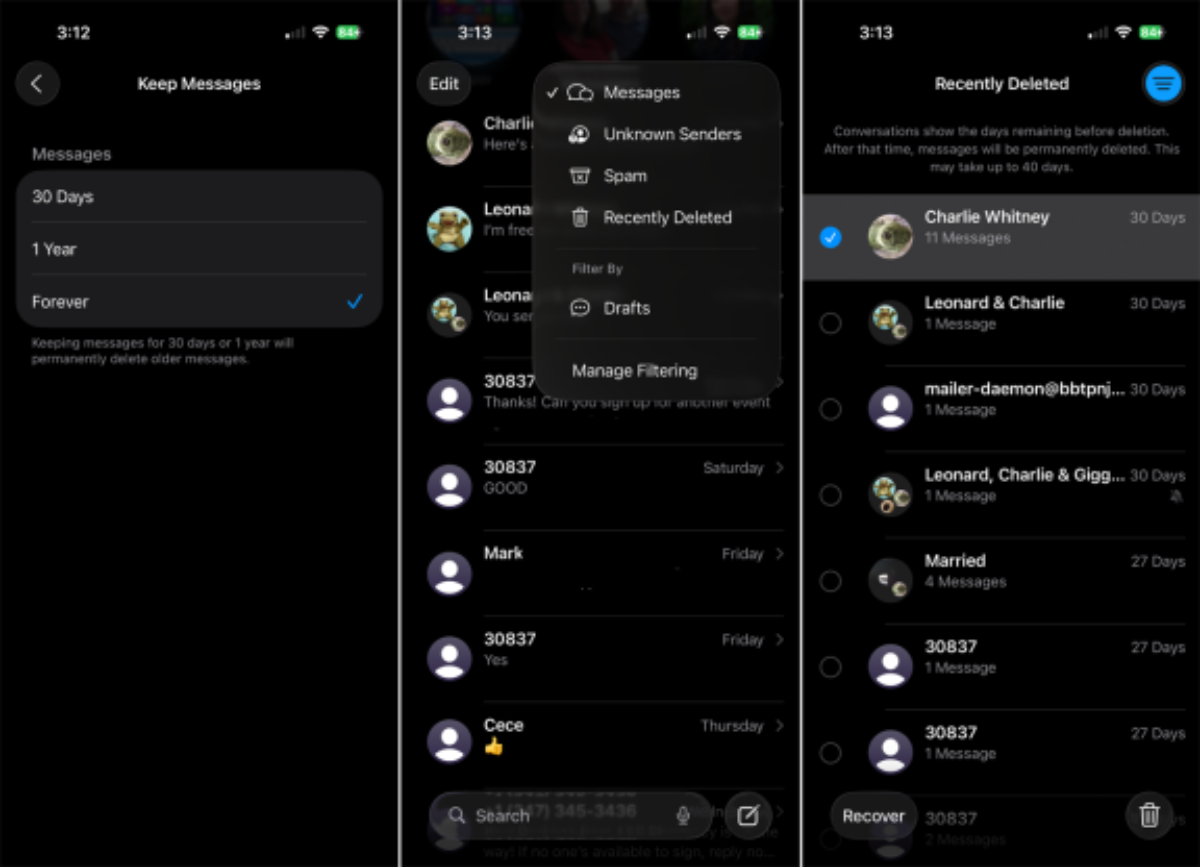
Go to Settings > Apps > Messages and turn on Screen Unknown Senders and Filter Spam. This instantly organizes your Messages app into clean, distinct folders. You can access these folders at any time by tapping the three-line filter icon in the upper-right corner of your inbox, allowing you to quickly jump between known conversations, unknown numbers, and blocked spam messages.
17. The Recently Deleted Messages Safety Net
Accidentally deleting an important conversation thread, an unread message, or a text containing critical travel info can be incredibly stressful. Apple protects your data by including a built-in safety net.
-
System Setup: Go to Settings > Apps > Messages > Keep Messages to choose how long your phone retains deleted items.
-
How to Recover: If you accidentally delete a message, tap the Filters link in the upper-left corner of the Messages app and open the Recently Deleted folder. This folder securely holds your deleted texts for up to 30 days. Simply select the conversation you need and tap Recover to restore it safely to your main inbox.
18. Pinning Critical Conversations
For the select few contacts you chat with constantly—like a spouse, a business partner, or your core family group—scrolling through a long list of messages every day is an unnecessary hassle. You can keep your most important conversations pinned right at the top of your screen.
                  [ Methods to Pin a Conversation Thread ]
                                     │
         ┌───────────────────────────┴───────────────────────────┐
         ▼                                                       ▼
 [ The Gesture Method ]                                  [ The Interface Edit Method ]
 ├── Long-press on an active chat                        ├── Tap the ellipsis (...) icon at top
 ├── Select "Pin" from the pop-up menu                   ├── Select the "Edit Pins" option
 └── Chat transforms into a large top circle             └── Tap the yellow pin next to your contact
You can pin up to nine individual or group conversations at the same time. Pinned chats appear as large, circular profile icons at the top of your inbox. When a pinned contact sends you a text, an interactive preview bubble pops up right over their avatar, letting you see their message instantly without opening the thread.
Architectural Features Matrix
To conclude this complete review of Apple Messages, let’s look at how these core features align with different user priorities:
| High-Value Feature Set | Technical Implementation | Core Benefit to the User |
| Cross-Platform Security | Encrypted RCS protocol architecture (iOS 26.5) | Secures your text data when chatting with Android users. |
| Conversational Control | Undo Send (2 mins) and Live Text Edit (15 mins) | Allows you to quickly recall mistakes or fix typos in real-time. |
| Storage Automation | Auto-deletion of one-time password (OTP) verification codes | Keeps your inbox organized by automatically removing temporary security codes. |
| AI Language Tools | Live translation powered by Apple Intelligence | Automatically translates foreign languages inside your chat bubbles. |
| Group Coordination | Native data polling cards and custom branding engines | Makes it easy to take quick group votes without long text debates. |
| Inbox Organization | Up to 9 pinned chats and multi-tier spam filtering | Keeps your most important conversations easily accessible at the top of the app. |
Conclusion: Mastering Your Daily Communication Workspace
The latest updates to Apple Messages turn your default texting app into a highly secure, expressive, and automated communication hub. By mastering these 18 advanced features—from encrypted cross-platform RCS chats to automated inbox cleanup and smart search filters—you can protect your digital privacy, save valuable time, and enjoy a much cleaner, more organized workspace.
Take a few minutes to explore these settings, set up your favorite filters, and pin your primary contacts. Once you integrate these smart tools into your daily workflow, you’ll see how a modern messaging app can make staying connected simpler, faster, and more secure.
Frequently Asked Questions (FAQ)
1. What devices support the new Apple Messages features in iOS 26?
Most advanced Apple Messages features require an iPhone or iPad running iOS 26 or iPadOS 26. Some AI-powered tools, such as Live Translation and Apple Intelligence integrations, may only work on newer Apple Silicon devices or supported iPhone models.
2. Is RCS messaging on iPhone fully encrypted?
Yes, Apple has introduced encrypted RCS messaging support for compatible cross-platform chats. When chatting with Android users using compatible RCS apps like Google Messages, you may see an “Encrypted” indicator confirming End-to-End Encryption is active.
3. Can I schedule text messages on iPhone?
Yes. The Send Later feature allows you to choose a specific date and time for your message to be delivered automatically. Scheduled messages remain editable until they are sent.
4. How do I edit or unsend a message in Apple Messages?
You can long-press a sent message and choose either Edit or Undo Send. Edited messages can typically be modified within 15 minutes, while Undo Send usually works within 2 minutes for iMessage conversations.
5. Do custom chat backgrounds sync across devices?
Yes. Custom backgrounds and conversation personalization settings generally sync through your Apple account ecosystem, allowing a consistent messaging experience across supported devices.
6. Can Apple Messages automatically delete OTP verification codes?
Yes. You can enable automatic cleanup for one-time password messages by navigating to AutoFill & Passwords settings and enabling Delete After Use for verification codes.
7. Does Apple Messages support live translation?
Yes. Devices with Apple Intelligence support can automatically translate incoming and outgoing messages directly inside conversations, making multilingual communication much easier.
8. Are Apple Messages polls available in every group chat?
Polls work best in modern group chats where participants are using updated Apple operating systems. Older devices or unsupported platforms may not display interactive poll cards correctly.
9. Can I use any emoji as a Tapback reaction?
Yes. Newer versions of Apple Messages allow you to react using virtually any emoji or sticker instead of being limited to the original six Tapback reactions.
10. How many chats can I pin in Apple Messages?
You can pin up to nine conversations at the top of your inbox for faster access to important contacts and group chats.
11. Does Apple Messages work well with Android phones now?
Yes. With RCS integration, communication between iPhone and Android users is significantly improved, including better media quality, typing indicators, read receipts, and improved group messaging support.
12. Can Apple Messages replace third-party messaging apps?
For many users, yes. Modern Apple Messages now includes encrypted communication, media sharing, scheduling, live translation, polls, animated effects, and productivity tools that rival many third-party messaging platforms.
13. Are Memoji voice messages available on all iPhones?
Animated Memoji recording requires devices with Apple’s TrueDepth front camera system, which enables real-time facial tracking and expression mapping.
14. Can I recover deleted messages on iPhone?
Yes. Deleted messages are stored temporarily in the Recently Deleted folder for up to 30 days, allowing you to recover important conversations before permanent deletion.
15. Is Apple Messages secure enough for business communication?
Apple Messages provides strong security protections, especially through iMessage encryption and encrypted RCS support. However, businesses handling highly sensitive enterprise data may still rely on dedicated corporate communication platforms for compliance requirements.