Microsoft Office 2019 remains one of the most powerful productivity suites in the world, introduced with game-changing features like Co-authoring and advanced Data Analysis in Excel. However, there comes a time when a user must bid farewell to this version—whether to upgrade to the cloud-based Microsoft 365 or to resolve a “corrupted” installation that simple repairs cannot fix.
A standard uninstallation through the Windows Control Panel often leaves behind “digital ghosts”—registry keys, cache files, and hidden telemetry folders. These remnants can interfere with future installations, leading to the dreaded “Error 1603” or activation conflicts. We will explore the three levels of removing Office 2019: The Standard Method, The Tool-Assisted Method, and The Manual Registry Purge.
The Control Panel Method (Standard Removal)
This is the baseline procedure for most users. It utilizes the built-in Windows installer engine to roll back the software.
The Step-by-Step Protocol
-
System Preparation: Before beginning, ensure all Office applications (Word, Excel, Outlook) are completely closed. Check the Task Manager (Ctrl+Shift+Esc) to ensure no background “OfficeClickToRun.exe” processes are active.
-
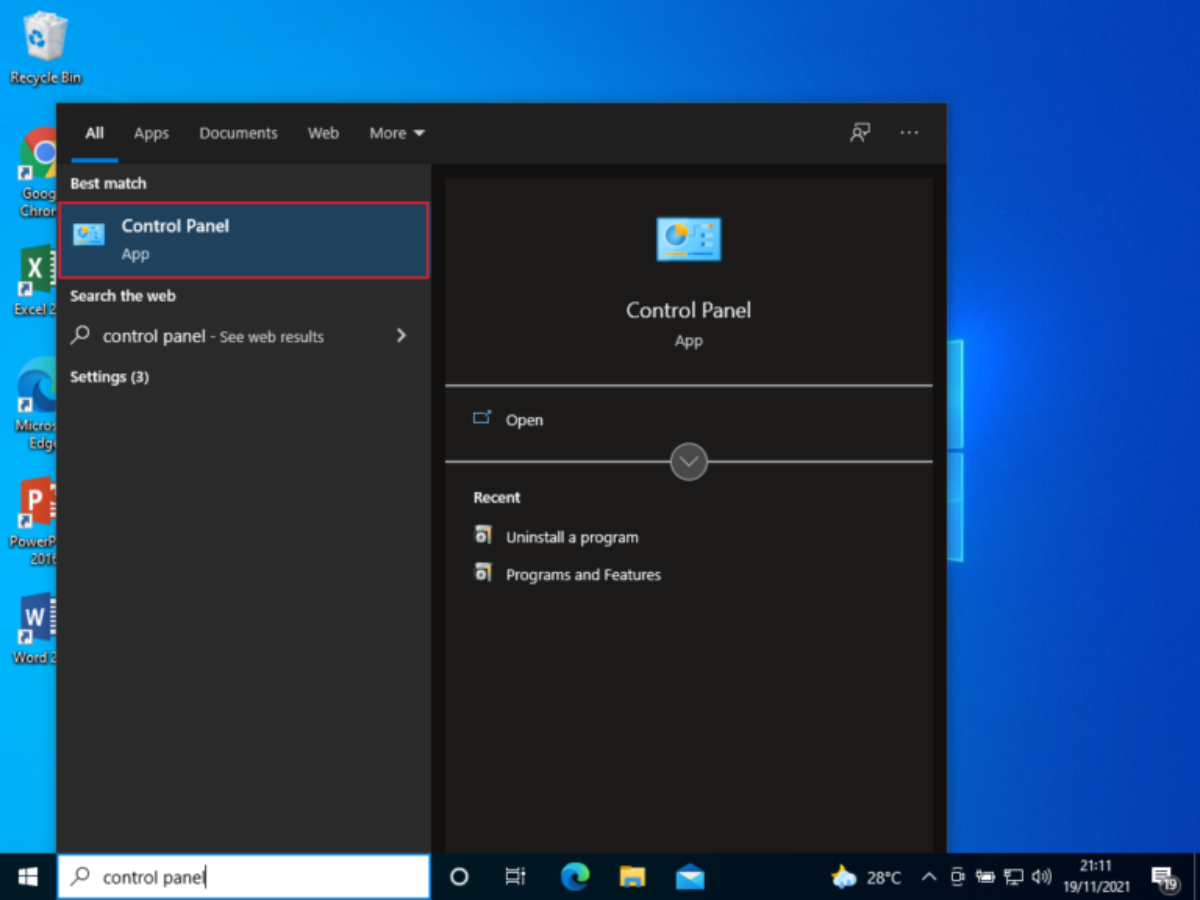
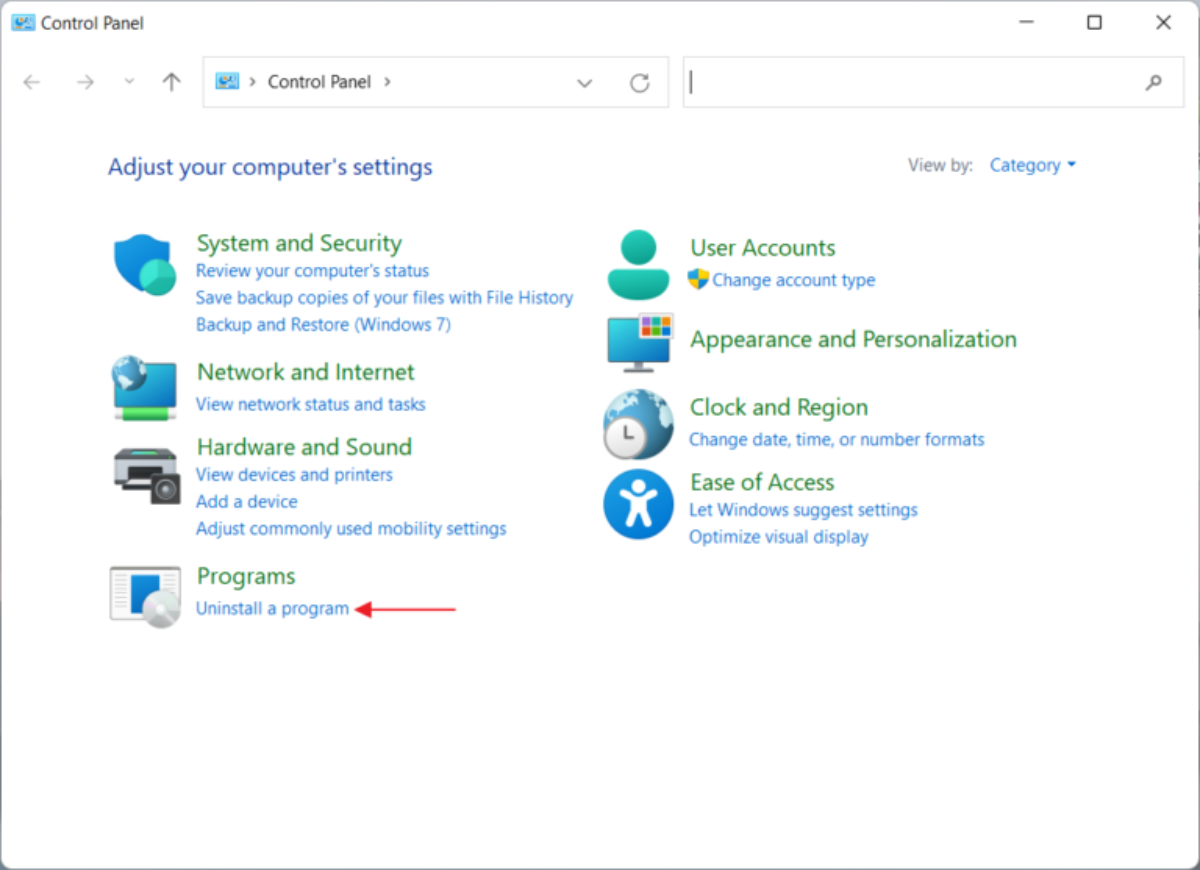
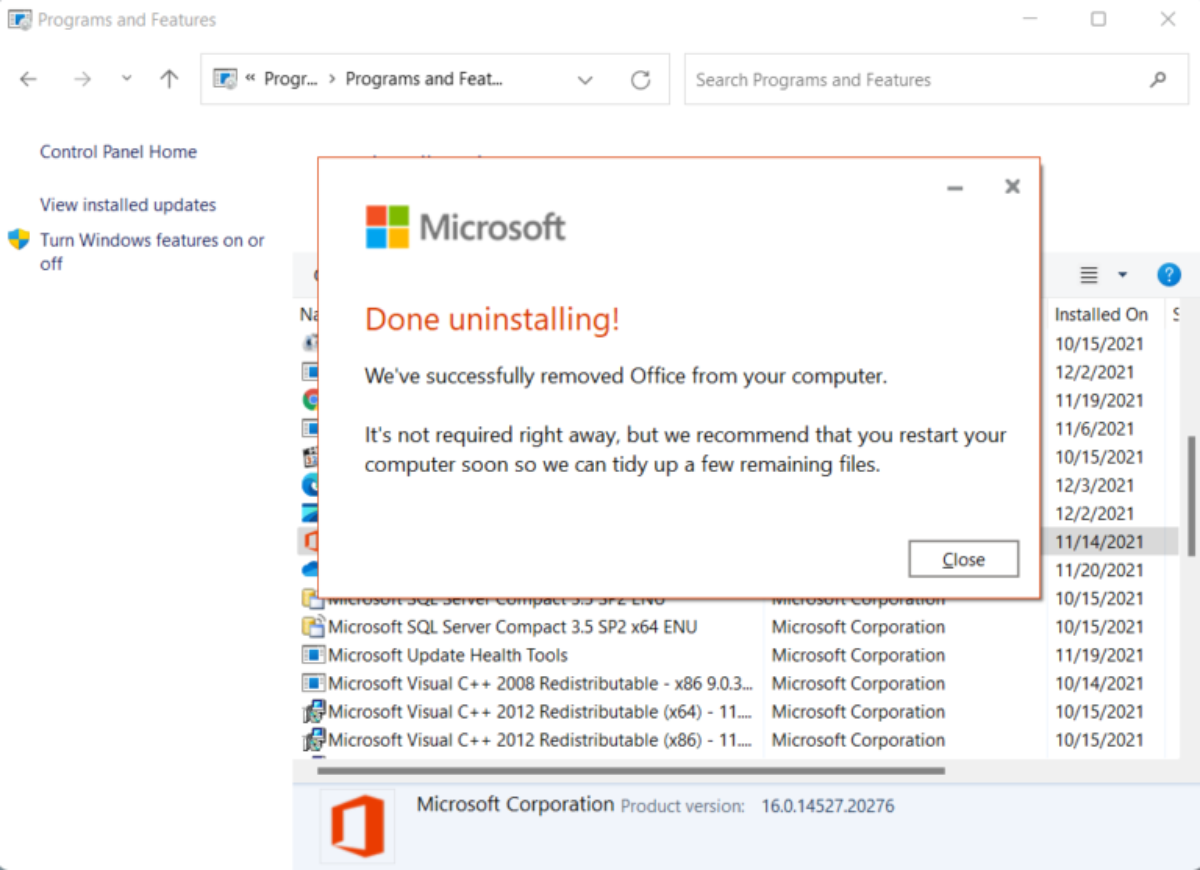
Accessing the Hub: Press the Windows Key, type Control Panel, and navigate to Programs > Uninstall a Program.
-
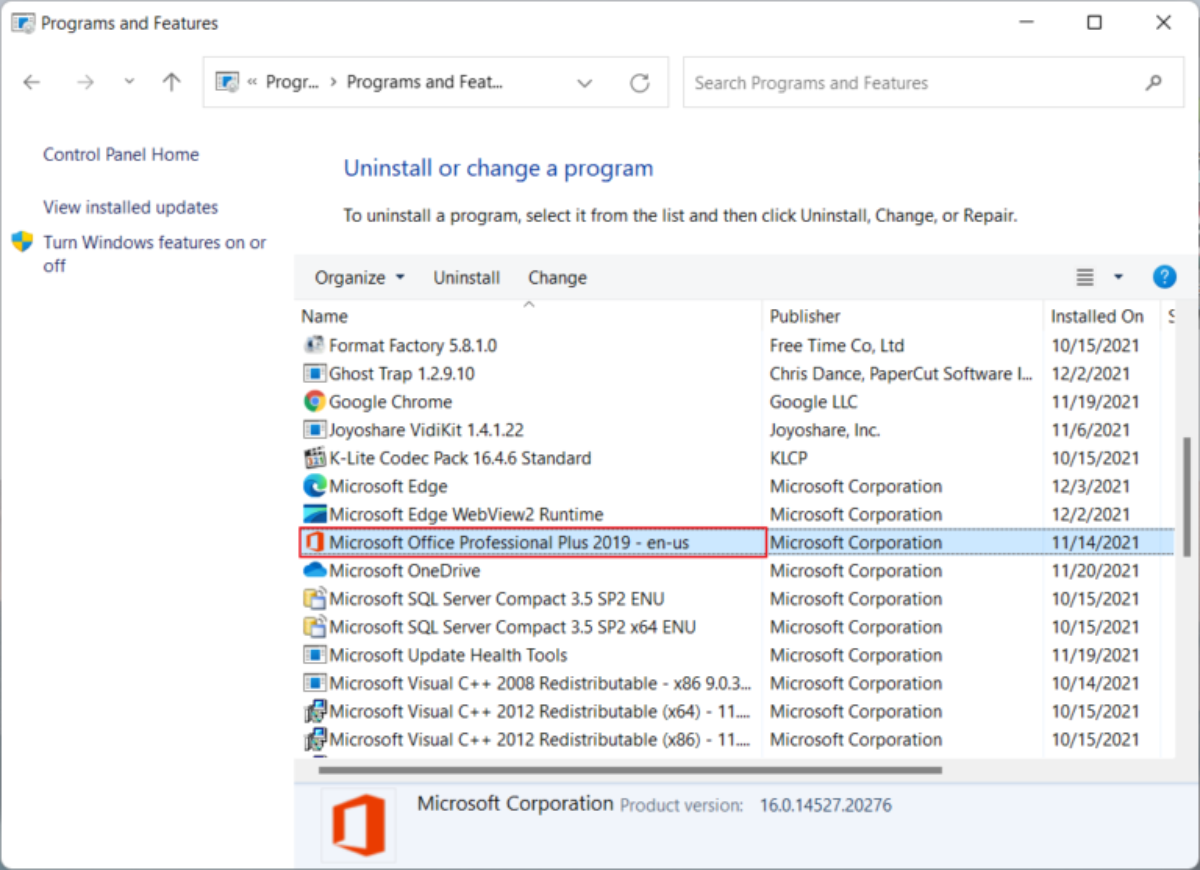
Identification: Locate Microsoft Office Professional Plus 2019 (or your specific edition).
-
The Trigger: Right-click and select Uninstall. A dialogue box will appear asking for confirmation; proceed with the prompt.
-
The Reboot: This is the most ignored step. A restart is mandatory because Windows needs to delete files that were “in-use” during the session.
Using the Microsoft Support and Recovery Assistant (SaRA)
When the Control Panel fails—or if the “Uninstall” button is greyed out—Microsoft’s official Support and Recovery Assistant (SaRA) is your best ally.
The Science of the SaRA Tool
The SaRA tool does not just run an uninstaller; it scans the system for GUIDs (Globally Unique Identifiers) associated with Office 2019. It forces the closure of stubborn services that prevent file deletion.
-
Deep Cleaning: SaRA identifies stray license tokens that could prevent a new version of Office from activating correctly.
-
Automation: It automates the removal of the Office Click-to-Run service, which is notoriously difficult to remove manually.
The Manual “Clean-Sweep” (Advanced Users)
For the ultimate PetLovers of technology—those who want a 100% clean slate—manual intervention in the Windows Registry and ProgramData folders is required.
Deleting the Hidden Folders
Even after an uninstall, folders remain in your system. Navigate to these paths and delete any “Microsoft Office” folders:
-
C:\Program Files\Microsoft Office
-
C:\Program Files (x86)\Microsoft Office
-
C:\ProgramData\Microsoft\Office
The Registry Purge (Proceed with Caution)
The Registry is the brain of your OS. Deleting the wrong key can cause system instability.
-
Open regedit via the Run command (Win + R).
-
Navigate to HKEY_LOCAL_MACHINE\SOFTWARE\Microsoft\Office\16.0.
-
Delete the 16.0 folder (this is the version code for Office 2019/365).
-
Navigate to HKEY_CURRENT_USER\Software\Microsoft\Office and repeat the process.
Preparing for the Future: Upgrading to Microsoft 365
Why do most users uninstall 2019? Usually, it is to embrace the Office 365 Planner and real-time collaboration. Unlike the “One-Time Purchase” of 2019, 365 provides:
-
1TB of OneDrive Storage: Turning your local PC into a cloud-synced workstation.
-
Dark Mode Optimization: As mentioned by Efendi, the Dark Theme in Office isn’t just about aesthetics; it reduces digital eye strain by minimizing blue light exposure.
Troubleshooting Common Uninstallation Errors
Error “Office is Busy”
This happens when the Office Source Engine is trying to update while you are trying to delete it. To fix this, you must disable the internet connection temporarily or stop the service in services.msc.
Residual License Artifacts
Sometimes, after a reinstall, Windows still thinks 2019 is there. This is due to the OSPP.VBS script. Using the Command Prompt as Administrator, you can run: cscript ospp.vbs /dstatus This will reveal any lingering 25-character product keys that need to be manually removed.
FAQ: How to Completely Uninstall Microsoft Office 2019
Why should I completely uninstall Microsoft Office 2019?
A complete uninstall helps:
- fix corrupted installations,
- resolve activation conflicts,
- prevent installation errors,
- and prepare your PC for upgrading to Microsoft 365 or reinstalling Office cleanly.
Is uninstalling Office from Control Panel enough?
Not always. Standard uninstall methods may leave behind:
- registry entries,
- cache files,
- activation tokens,
- and background services that can interfere with future installations.
How do I uninstall Office 2019 using Control Panel?
Go to:
- Control Panel,
- Programs and Features,
- locate Microsoft Office 2019,
- then select “Uninstall.”
Restart your computer afterward to complete the process.
What is Microsoft SaRA?
Microsoft Support and Recovery Assistant (SaRA) is Microsoft’s official troubleshooting tool designed to remove stubborn Office installations and repair activation or installation issues automatically.
Why is the “Uninstall” button greyed out?
This can happen because:
- Office background services are still running,
- installation files are corrupted,
- or Windows installer components are damaged.
Using SaRA often resolves this issue.
What folders should be deleted manually after uninstalling Office?
Advanced users sometimes remove leftover folders such as:
C:\Program Files\Microsoft Office
C:\Program Files (x86)\Microsoft Office
C:\ProgramData\Microsoft\Office
Be careful not to delete unrelated Microsoft folders.
Is it safe to edit the Windows Registry?
Registry editing should only be done by experienced users. Deleting incorrect registry keys may cause:
- software instability,
- broken applications,
- or Windows startup problems.
Always back up the registry first.
What registry path is associated with Office 2019?
Office 2019 commonly uses the version identifier “16.0” under Microsoft Office registry paths.
Why does Office still appear installed after uninstalling?
This usually happens because:
- activation data remains,
- Office Click-to-Run services are still active,
- or leftover registry entries were not removed.
What is Office Click-to-Run?
Office Click-to-Run is Microsoft’s streaming and virtualization technology used to install and update Office applications efficiently.
What causes Error 1603 during Office installation?
Error 1603 is commonly caused by:
- incomplete previous installations,
- corrupted registry data,
- insufficient permissions,
- or conflicting Office services.
How do I check for leftover Office product keys?
You can use Command Prompt with the OSPP.VBS script:
cscript ospp.vbs /dstatus
This displays remaining Office activation licenses installed on the system.
Why do users upgrade from Office 2019 to Microsoft 365?
Many users switch to Microsoft 365 for:
- cloud storage,
- real-time collaboration,
- automatic updates,
- AI-powered features,
- and cross-device syncing.