
For millions of desktop users, developers, and system administrators worldwide, Windows 10 remains a primary operating system due to its structural reliability, backward compatibility, and deep customization potential. Yet, beneath the polished Fluent Design interface, the colorful live tiles, and the user-friendly Settings app lies a massive configuration engine that truly dictates how your computer breathes, computes, and behaves: The Windows Registry.
To the uninitiated, the Windows Registry sounds like a mysterious, highly dangerous territory where a single misplaced character can instantly destroy a computer’s boot loop. To power users, IT professionals, and cybersecurity experts, however, it is the ultimate control panel. It is the place where hidden performance optimizations are unlocked, stubborn operating system bugs are squashed, residual malware infections are wiped out, and advanced system modifications are brought to life.
The gatekeeper to this deep configuration engine is The Registry Editor, popularly known across generations of computing as Regedit.
If you are looking to take absolute control of your operating system, troubleshoot elusive hardware issues, or master the underlying architecture of Microsoft’s ecosystem, you have landed on the definitive guide. This 5,000-word comprehensive masterclass breaks down exactly what the Windows Registry is, explores five tactical protocols to access the Registry Editor instantly, dives into its core architectural hierarchy, and outlines real-world modifications to safely transform your computing experience.
Deconstructing the Windows Registry The Central Nervous System of Windows 10
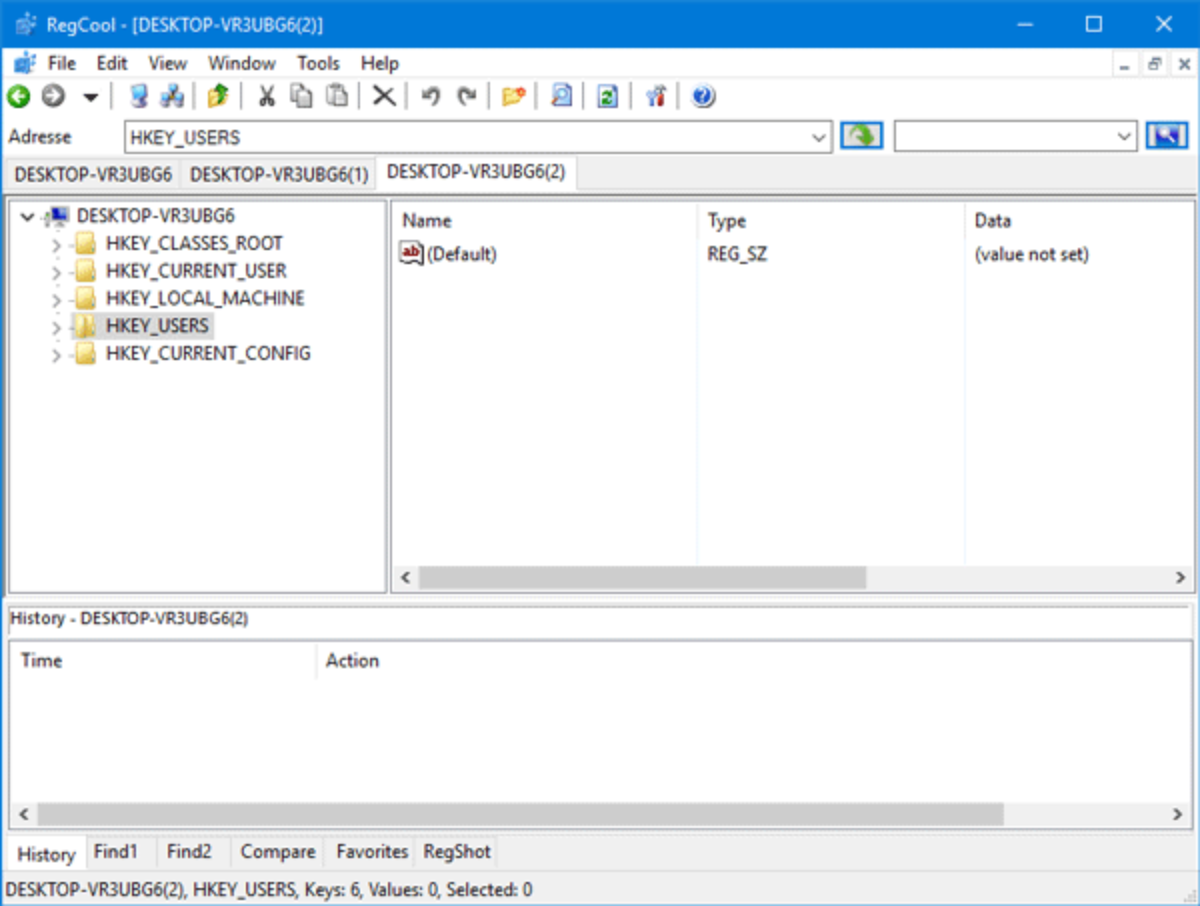
Before learning how to access and modify this system engine, it is vital to understand what the Windows Registry actually is from a structural standpoint. Treating Regedit as a simple utility menu can lead to critical operational mistakes. Instead, it should be approached as a highly organized, live-updating infrastructure.
                          [ The Windows System Hierarchy ]
                                         │
         ┌───────────────────────────────┼───────────────────────────────┐
         ▼                               ▼                               ▼
 [ The Graphical UI ]         [ The Settings App ]            [ The Windows Registry ]
 ├── Surface Interaction       ├── Surface Configuration       ├── Underlying Central Database
 └── Icons, Windows, Menus     └── Basic System Switches       └── Raw System Binaries & Hives
1. What is the Registry Editor?
In the simplest terms, the Registry Editor is a built-in graphical user interface (GUI) that allows authorized users to view and modify the Windows Registry database.
Think of this database as the central nervous system of your operating system. It is a unified repository that stores operational settings, low-level system profiles, user accounts, and hardware parameters for the entire machine. Every time you plug in a new USB device, install a software application, change your desktop wallpaper, or boot up a hardware component, Windows instantly reads from and writes to this database.
2. The Shift from Configuration Files to the Unified Registry
In the early days of personal computing (such as Windows 3.x and MS-DOS environments), operating systems and individual software applications relied heavily on separate, text-based configuration files—primarily .ini (initialization) files scattered across various directories.
While simple, this decentralized design presented massive problems:
-
File Fragmentation: Tracking down thousands of separate text files across a hard drive was highly inefficient.
-
Slow Read/Write Cycles: The operating system had to constantly scan individual text files, causing performance bottlenecks.
-
Lack of Centralized Access: There was no unified, secure interface to safely manage system privileges or user-specific preferences.
To solve this, Microsoft introduced a unified database design: the Windows Registry. Instead of juggling thousands of fragmented files, Windows 10 consolidates your system’s core configuration settings into organized, binary system files known as Hives. The Registry Editor acts as the master key that opens these binary hives, translating raw machine data into a clean, searchable folder hierarchy that humans can navigate.
3. The Power of the Kernel on Display
Beyond simply storing settings, the Registry gives you a live look at how the Windows kernel operates under the hood. It actively communicates with your computer’s hardware layer by displaying live system performance metrics, tracking active system device drivers, monitoring physical hardware counters, and managing hardware initialization sequences.
When a hardware component experiences an interruption or a driver crashes, the Registry holds the specific status keys needed to track down and solve the physical hardware failure.
The 5 Tactical Protocols to Open the Registry Editor in Windows 10
When troubleshooting a PC or modifying a system setting, time is of the essence. Depending on your current system environment—whether you are working within a standard desktop UI, navigating a remote command-line terminal, or fixing a corrupted profile where the user interface is completely broken—you need multiple ways to launch the Registry Editor.
Here are the five most efficient ways to access Regedit on Windows 10.
                    [ Registry Editor Access Framework ]
                                     │
        ┌────────────────────────────┴────────────────────────────┐
        ▼                                                         ▼
 [ Graphical UI Paths ]                                    [ Command-Line Paths ]
 ├── Protocol 1: Taskbar Search                            ├── Protocol 3: Command Prompt (CMD)
 ├── Protocol 2: The Windows Run Dialog                    ├── Protocol 4: Windows PowerShell
 └── Protocol 5: Manual File Explorer Navigation           └── Protocol-independent Admin Elevated Launch
Protocol 1: The Taskbar Search Method (The Visual Path)
The most straightforward, intuitive way to open the Registry Editor on a healthy Windows 10 machine is through the built-in indexing search bar located directly on your taskbar.
[ Click Search or Press Win + S ] ──► Type "regedit" ──► Right-Click & Select "Run as administrator"
Step-by-Step Execution:
-
Locate the magnifying glass or search bar next to the Start button on your Windows 10 taskbar. Alternatively, press the shortcut keys Windows + S on your keyboard to instantly open the search interface.
-
Type the short command regedit into the search box.
-
The search engine will instantly show the Registry Editor desktop app as the top match.
-
To ensure you have full administrative rights to modify system keys, do not simply left-click the icon. Instead, right-click on the Registry Editor search result and select Run as administrator from the context menu.
-
A User Account Control (UAC) prompt will pop up on your screen. Click Yes to verify your administrative privileges and launch the application window.
Protocol 2: The Windows Run Dialog Consoles (The Speed-User Route)
If you prefer navigating your computer quickly using keyboard shortcuts without touching your mouse, the Windows Run dialog box is an excellent tool that completely cuts out the need to navigate through the graphical UI.
-
Step 1: Press the keyboard combination Windows + R at the same time. This immediately opens the classic, compact Run dialog box in the bottom-left corner of your display.
-
Step 2: Click inside the empty text field next to the label Open:, and type the following short string:
Plaintextregedit
-
Step 3: Press the Enter key on your keyboard, or click the OK button with your cursor.
-
Step 4: Accept the incoming User Account Control (UAC) security warning to immediately open the Registry Editor window in the foreground of your workspace.
Protocol 3: The Command Prompt (CMD) Console (The Technical Interface)
The Command Prompt (CMD) is a time-tested, text-based command-line interface used by system administrators to run core system tools without clicking through layers of menus. It is highly reliable for quick troubleshooting.
              [ Command-Line Console Access Strategies ]
                                   │
       ┌───────────────────────────┴───────────────────────────┐
       ▼                                                       ▼
 [ Command Prompt (CMD) ]                               [ Windows PowerShell ]
 ├── Best for low-overhead environments                 ├── Best for advanced automation scripts
 ├── Standard command: regedit                          ├── Standard command: regedit
 └── Opens graphic tool from text-based interface       └── Allows remote administrative system access
Step-by-Step Execution:
-
Press the Windows key on your keyboard, type cmd into the search bar, and select Run as administrator to launch an elevated Command Prompt window.
-
Once the text cursor begins flashing next to your standard system directory pathway (e.g., C:\Windows\system32>), type the following case-insensitive launch instruction:
    regedit
    ```
3.  Press **Enter**. The Windows command engine will interpret your text input, locate the system executable file, and instantly open the graphical Registry Editor window on your screen.

---

### Protocol 4: The Windows PowerShell Shell (The Modern Admin Portal)

Windows PowerShell is Microsoft's modern task automation framework and configuration management shell. It provides a more robust scripting environment than the classic Command Prompt, allowing you to easily call and manage core system processes.

*   **Step 1:** Right-click on the Windows Start menu icon in the far corner of your taskbar, or press **Windows + X** to open the advanced system power-user menu.
*   **Step 2:** Select **Windows PowerShell (Admin)** from the list of options to open a high-privilege blue console window.
*   **Step 3:** In the terminal line, type the same executable command:
    ```powershell
    regedit
    ```
*   **Step 4:** Hit **Enter**. PowerShell will execute the command, open the Registry Editor GUI, and return you safely to the command prompt line.

---

### Protocol 5: Manual Navigation via File Explorer (The Fail-Safe Blueprint)

There are times when critical operating system errors can break your Windows search indexing, freeze your keyboard shortcuts, or crash your command line consoles. In these challenging situations, you can bypass the system's shortcuts and track down the physical executable file manually through your File Explorer.

<Sequence>
  <Step subtitle="Opening the Local Directory" title="Access File Explorer and Your Primary Drive">
    Open your File Explorer by pressing the shortcut keys **Windows + E** on your keyboard. Click on *This PC* in the left navigation pane, and double-click your primary operating system drive—most commonly labeled as **Local Disk (C:)**.
  </Step>
  <Step subtitle="Locating System System Files" title="Navigate into the 'Windows' System Directory">
    Inside the root folder of your C: drive, look through the list of folders, find the main directory labeled **Windows**, and double-click to open it. This folder holds the core framework files for your entire operating system.
  </Step>
  <Step subtitle="Entering the Binary Repository" title="Locate and Open the 'System32' Sub-Folder">
    Scroll down through the Windows directory until you find a folder named **System32**. Double-click to open it. This specific folder acts as the central storage vault for the core system tools and drivers that keep Windows running.
  </Step>
  <Step subtitle="Executing the App Directly" title="Find and Run the 'regedt32' Binary File">
    Inside the System32 folder, use the upper-right search bar to look for `regedt32`, or scroll down manually until you locate the application icon named **regedt32** (or `regedit.exe` located in the main Windows folder). Right-click on the file and choose **Run as administrator** to safely open the Registry Editor interface.
  </Step>
</Sequence>

---

## Part 3: Deep Technical Comparison of the 5 Access Protocols

To help you choose the best tool for any troubleshooting scenario, this comparison matrix breaks down the unique advantages, speeds, and use cases for each of the five access methods:

| Access Method | Average Launch Speed | Ideal Troubleshooting Scenario | Required Privileges | User Skill Level |
| :--- | :---: | :--- | :---: | :---: |
| **1. Taskbar Search** | Very Fast (~2 Seconds) | Everyday system modifications and quick configuration checks on a fully working desktop. | Adjustable via Right-Click menu. | Beginner Friendly |
| **2. Windows Run Dialog** | Instant (<1 Second) | The fastest route for experienced power users who want to skip clicking through menus. | Inherits your current user profile rights. | Intermediate |
| **3. Command Prompt** | Fast (~1 Second) | Perfect for running repairs when the graphical desktop environment is lagging or unresponsive. | Supports Administrator escalation. | Advanced Technician |
| **4. Windows PowerShell** | Fast (~1 Second) | Ideal for system administrators managing automated deployment scripts or remote terminal connections. | Supports full Administrator privilege level. | Professional Admin |
| **5. File Explorer** | Slow (~10 Seconds) | The ultimate fallback method if Windows search is broken or system shortcuts stop working. | Scaled manually via Right-Click options. | Intermediate |

---

## Part 4: Deciphering the Registry Architecture — Understanding the 5 Master Hives

When you open the Registry Editor for the first time, you are greeted by an interface that resembles a standard folder directory tree. In this environment, folders are known as **Keys**, subfolders are called **Subkeys**, and the actual configuration data files inside them are called **Values**.

At the absolute root of this folder structure sit five distinct, un-deletable folder groups known as the **Root Keys** or **Master Hives**. Each root hive has a highly specialized role in managing your operating system's configuration.
                  [ The Five Fundamental Root Keys ]
                                  │
     ┌────────────────────────────┼────────────────────────────┐
     ▼                            ▼                            ▼
[ HKEY_CLASSES_ROOT ] [ HKEY_CURRENT_USER ] [ HKEY_LOCAL_MACHINE ]
├── File associations ├── Active user profile ├── Full hardware settings
└── OLE object registries └── Desktop preferences └── Global system policies
│
┌───────────────┴───────────────┐
▼ ▼
[ HKEY_USERS ] [ HKEY_CURRENT_CONFIG ]
├── All loaded user profiles ├── Active boot profiles
└── Master template database └── Real-time hardware states
---

### 1. HKEY_CLASSES_ROOT (HKCR)
This root hive manages how Windows handles different file types and applications. It stores critical **file association data**, linking specific file extensions to their corresponding software programs. For example, it ensures that when you double-click a `.txt` file, Windows automatically knows to open it using Notepad. It also handles core OLE (Object Linking and Embedding) registries and drag-and-drop shortcuts across the user interface.

---

### 2. HKEY_CURRENT_USER (HKCU)
This hive acts as a personalized settings vault for the user profile that is **currently logged into the computer**. It contains your specific desktop background preferences, custom sound profiles, keyboard layouts, mapped network drives, and individual application settings.

The beauty of the HKCU hive is that its data is highly dynamic. When a different user logs into the machine, this entire folder structure swaps out automatically to load that specific person's personalized profile settings.

---

### 3. HKEY_LOCAL_MACHINE (HKLM)
This is the largest, most critical root hive in the Registry Editor. HKLM stores global configuration settings that apply to the **entire computer**, regardless of which user account is logged in. It contains low-level hardware initialization data, security parameters, system boot instructions, and global software policies.

The HKLM hive is divided into several vital subkeys:
*   **HKLM\SYSTEM:** Manages the critical operating system startup sequence, controls active device drivers, and handles windows services.
*   **HKLM\SOFTWARE:** Holds the global configuration keys and installation settings for all your installed third-party applications and Microsoft software packages.
*   **HKLM\SECURITY:** Manages user access rights, security policies, and local account permissions (this area is deeply hidden from view to protect your machine's security).

---

### 4. HKEY_USERS (HKU)
This directory contains the master configuration templates for **all active user profiles** created on the computer. When a user logs in, their specific subkey under HKU is loaded into memory to form the dynamic `HKEY_CURRENT_USER` hive we discussed earlier. It also contains the baseline default configuration profile that Windows uses as a starting template whenever you create a brand-new user account on the machine.

---

### 5. HKEY_CURRENT_CONFIG (HKCC)
This root hive is a streamlined, temporary profile that maps real-time information about your **active hardware state** during the current system boot sequence. It doesn't permanently store data on your hard drive. Instead, it generates on the fly during startup, pulling data from the `HKLM\System\CurrentControlSet` hive to manage immediate tasks like adjusting monitor display resolutions, setting up printer connections, or initializing active audio outputs.

---

## Part 5: Registry Value Types Explained

When you drill down inside a subkey folder, look over to the right-hand panel of the Registry Editor window. You will find that individual configuration parameters are categorized by specific data types. Understanding these data types is essential for entering the correct value format:

```text
┌─────────────────┬──────────────────────────────────────────────────────────────────┐
│ REG_SZ          │ Standard Text String. Stores readable characters like file paths │
├─────────────────┼──────────────────────────────────────────────────────────────────┤
│ REG_DWORD       │ Double Word Binary value. Uses 32-bit integers for On/Off toggles│
├─────────────────┼──────────────────────────────────────────────────────────────────┤
│ REG_BINARY      │ Raw Hexadecimal Data. Used for raw hardware component profiles   │
└─────────────────┴──────────────────────────────────────────────────────────────────┘
-
REG_SZ (String Value): A standard, human-readable text string. This type is used to store text configuration values, such as the exact file path to a desktop background image or an application’s default folder directory.
-
REG_DWORD (32-bit Value): A Double Word value, representing a 32-bit integer number. This format is widely used to handle Boolean toggles (On/Off switches) across the operating system. Entering a value of 0 typically disables a setting, while entering a 1 enables it.
-
REG_BINARY (Binary Value): Raw binary data represented as hexadecimal characters. This complex format is primarily used to store raw hardware device configurations, component profiles, and low-level system states.
The Golden Safety Rules — Backing Up and Restoring the Windows Registry
Because the Registry Editor allows you to directly change the core configuration values of your operating system, making a careless mistake or changing an incorrect key can lead to system errors or boot loops. To keep your system safe, always follow these mandatory backup and recovery protocols before making any modifications.
                    [ The Mandatory Registry Safety Loop ]
                                       │
         ┌─────────────────────────────┴─────────────────────────────┐
         ▼                                                           ▼
 [ Phase 1: Proactive Backup ]                              [ Phase 2: System Restoration ]
 ├── Create an active System Restore Point                  ├── Boot system into Safe Mode option
 ├── Run a full `.reg` hive export layer                    ├── Import saved `.reg` file layout
 └── Save backup files to external media                    └── Roll system back via Restore Point
Protocol 1: Creating an Isolated Registry Hive Export (.reg File)
Before changing a specific key or value, you can create a localized backup copy of that exact directory folder. This allows you to easily restore it if something goes wrong.
[ Select Key Folder ] ──► Click File ──► Select Export ──► Name and Save Backup `.reg` File
-
Inside the Registry Editor tree, highlight the specific key or subkey folder you plan to modify.
-
Click on the File menu located in the upper-left corner of the window tool menu, and select Export… from the dropdown options.
-
In the file window that appears, pick a safe storage directory (such as a dedicated backup folder on an external USB drive).
-
In the Export range radio buttons at the bottom of the window, make sure Selected branch is ticked to capture just your specific folder path, rather than exporting the entire massive database.
-
Give your backup file a clear, descriptive name (e.g., HKLM_System_Backup_BeforeMod.reg) and click Save.
How to Restore Your Backup:
If a system modification causes unexpected issues, restoring your old settings is incredibly easy. Open the Registry Editor, click File > Import…, select your saved .reg file, and click Open. The editor will instantly rewrite your original configuration values back into the database, undoing your recent changes.
Protocol 2: Generating a System-Wide System Restore Point
For deeper, system-wide modifications that touch the root hives, relying on a simple .reg export file might not be enough if your computer fails to boot correctly. Creating a full System Restore Point provides a rock-solid safety net that backs up your entire operating system state.
Real-World Adjustments — Advanced Customizations for Power Users
Now that you understand the architecture of the Registry and know how to safely back up your data, you can explore the power of customization. These four real-world modifications allow you to tailor Windows 10 to better fit your workflow, disable intrusive features, and improve overall system responsiveness.
Customization 1: Stop Windows Update from Forcing Automatic Reboots
Few things are more frustrating than working on an important project only to have Windows Update suddenly force a system restart to apply an update. You can use the Registry to disable these forced automatic reboots while your account is logged in.
Pathway: HKEY_LOCAL_MACHINE\SOFTWARE\Policies\Microsoft\Windows\WindowsUpdate\AU
Target Key Name: NoAutoRebootWithLoggedOnUsers
Value Type: REG_DWORD (32-bit Integer)
Value Data Specification: Set data to 1 to permanently turn off reboots.
[ Navigate to HKLM\SOFTWARE\Policies\Microsoft\Windows ] ──► Create Key "WindowsUpdate\AU" ──► Create DWORD "NoAutoRebootWithLoggedOnUsers" ──► Set to 1
Detailed Configuration Guide:
-
Navigate down through the following folder pathway in the left-hand pane:
HKEY_LOCAL_MACHINE\SOFTWARE\Policies\Microsoft\Windows
-
Right-click on the Windows folder, select New > Key, and name this new folder WindowsUpdate.
-
Right-click on your newly created WindowsUpdate folder, select New > Key, and name this sub-folder AU (which stands for Automatic Updates).
-
Click on the AU folder to open it. Right-click inside the blank space in the right-hand panel, select New > DWORD (32-bit) Value, and name it exactly:
    NoAutoRebootWithLoggedOnUsers
    ```
5.  Double-click your new `NoAutoRebootWithLoggedOnUsers` value, change the Value data field from `0` to `1`, and click **OK**.
6.  Restart your computer to apply the changes. Windows will now download updates in the background but will wait for you to authorize any system restarts.

---

### Customization 2: Make Your Taskbar Completely Transparent

If you enjoy customizing your desktop aesthetics, you can adjust a hidden registry setting to turn the standard, semi-opaque Windows 10 taskbar into a completely clear, transparent glass pane.
Pathway: HKEY_LOCAL_MACHINE\SOFTWARE\Microsoft\Windows\CurrentVersion\Explorer\Advanced
Target Key Name: UseOLEDTaskbarTransparency
Value Type: REG_DWORD (32-bit Integer)
Value Data Specification: Set data to 1 to enable full transparency.
#### Detailed Configuration Guide:
1.  Navigate to the following registry directory path:
    `HKEY_LOCAL_MACHINE\SOFTWARE\Microsoft\Windows\CurrentVersion\Explorer\Advanced`
2.  Click on the **Advanced** folder to open it. Right-click in the right-hand panel, choose **New > DWORD (32-bit) Value**, and name it exactly:
    ```text
    UseOLEDTaskbarTransparency
    ```
3.  Double-click the new `UseOLEDTaskbarTransparency` entry, change the value data to `1`, and click **OK**.
4.  To see the effect immediately without restarting your entire computer, right-click an empty space on your taskbar, open the **Task Manager**, locate **Windows Explorer** in the processes list, and click **Restart**. Your taskbar will instantly update to a clean, transparent aesthetic.

---

### Customization 3: Speed Up Desktop Performance by Reducing Menu Delays

When you hover your cursor over a drop-down menu in Windows 10, the operating system intentionally introduces a tiny, built-in time delay (usually around 400 milliseconds) before displaying the sub-menu options. You can reduce this delay to make the entire user interface feel significantly snappier and more responsive.
Pathway: HKEY_CURRENT_USER\Control Panel\Desktop
Target Key Name: MenuShowDelay
Value Type: REG_SZ (Standard Text String)
Value Data Specification: Lower from the default 400 down to 20 to eliminate latency.
[ Open HKCU\Control Panel\Desktop ] ──► Find String Value “MenuShowDelay” ──► Double-Click ──► Reduce Value data from 400 down to 20
#### Detailed Configuration Guide:
1.  Navigate to the following path in the left folder tree:
    `HKEY_CURRENT_USER\Control Panel\Desktop`
2.  Click on the **Desktop** folder and scroll down through the right-hand panel until you locate the existing string value named **MenuShowDelay**.
3.  Double-click on **MenuShowDelay** to open its edit window.
4.  You will see that the default Value data is set to `400` (representing milliseconds). Change this number down to `20` to virtually eliminate the delay without causing interface glitches. Click **OK**.
5.  Log out of your Windows user account and log back in to experience noticeably faster, more responsive menu navigation.

---

### Customization 4: Clean Up Your Context Menu by Removing "Give Access To"

Right-clicking a file in Windows 10 opens a contextual menu that can quickly become cluttered with options you rarely use. One common example is the intrusive "Give access to" option. You can remove this clutter by deleting its corresponding registry key link.
Pathway: HKEY_CLASSES_ROOT*\shellex\ContextMenuHandlers\Sharing
Target Action: Delete the “Sharing” subfolder key to prune the context layout.
#### Detailed Configuration Guide:
1.  Navigate through the folder tree to the following path:
    `HKEY_CLASSES_ROOT\*\shellex\ContextMenuHandlers`
2.  Expand the **ContextMenuHandlers** folder. Inside, you will find a sub-folder key named **Sharing**.
3.  Right-click on the **Sharing** folder key, select **Delete**, and confirm the prompt to permanently remove it.
4.  Right-click any file on your desktop. The cluttered "Give access to" option will be completely gone, leaving you with a much cleaner and more streamlined context menu.

---

## Part 8: Troubleshooting and Fixing Common Registry Editor System Issues

Like any core system tool, the Registry Editor can occasionally run into access errors or technical blockages, especially if your computer has been locked down by an IT administrator or targeted by a malware infection. Here is how to fix the two most common Registry Editor access issues.

---

### Issue 1: Resolving the "Registry Editing Has Been Disabled by Your Administrator" Error

Malware infections will often intentionally disable your access to Regedit. This prevents you from stopping their background startup routines or deleting their malicious system keys. When this happens, launching the tool will trigger an error message stating that registry editing has been disabled.
           [ Advanced Regedit Recovery Architecture ]
                               │
   ┌───────────────────────────┴───────────────────────────┐
   ▼                                                       ▼
[ The Group Policy Path ] [ The Command-Line Injection Path ]
├── Open gpedit.msc policy console ├── Open administrative Command Prompt
├── Navigate to System User Templates ├── Run target REG ADD console injection
└── Set “Prevent access” policy to Disabled └── Forces target policy value back to 0
To fix this block, you can use the **Local Group Policy Editor** to re-enable your access:

1.  Press **Windows + R** on your keyboard, type `gpedit.msc` into the box, and press **Enter** to open the Local Group Policy Editor interface.
2.  In the left-hand navigation pane, navigate through the folders using this path:
    `User Configuration > Administrative Templates > System`
3.  Click on the **System** folder, and look over to the right-hand panel to find the policy setting named **Prevent access to registry editing tools**.
4.  Double-click this policy setting to open its configuration menu. Change the checked radio button from *Enabled* to **Not Configured** or **Disabled**.
5.  Click **Apply**, click **OK**, and close the window. Launch the Registry Editor again using any of our five access protocols—it will now open without any errors.

#### The Command-Line Quick Alternative:
If your version of Windows 10 Home doesn't include the Group Policy Editor, you can achieve the exact same fix using a quick command line injection. Open an elevated Command Prompt window and run the following command exactly:

```cmd
reg add "HKCU\Software\Microsoft\Windows\CurrentVersion\Policies\System" /v DisableRegistryTools /t REG_DWORD /d 0 /f
This command directly accesses the policy restriction key and forces its value back to 0, restoring your access to the Registry Editor instantly.
Issue 2: Fixing a Corrupted Registry Key via Windows Safe Mode
If a faulty software installation or an incomplete update corrupts an active registry hive, Windows may begin experiencing frequent system crashes, driver failures, or performance drops. To fix a corrupted key safely without risking a system crash, run your repairs from within Windows Safe Mode.
[ Tap Shift + Click Restart ] ──► Troubleshoot ──► Advanced Options ──► Startup Settings ──► Choose Safe Mode
-
Hold down the Shift key on your keyboard while clicking the Restart button inside your Windows Start Menu power options.
-
Your computer will reboot into the blue Choose an option recovery menu screen. Navigate through:
Troubleshoot > Advanced options > Startup Settings and click Restart.
-
Upon reboot, press the 4 key or the F4 key on your keyboard to boot your computer into Safe Mode.
-
Safe Mode loads the operating system with only the absolute bare minimum set of essential drivers and system files active. This leaves your corrupted registry hives completely idle and safely unlocked.
-
Once you are on the desktop, launch the Registry Editor using Protocol 2 (Win + R > regedit). You can now safely delete the corrupted keys, import your clean backup files, or run automated system file checks (sfc /scannow) without any interference from background system processes.
Final Master Summary — Best Practices for Long-Term System Stability
The Registry Editor is one of the most powerful administrative utilities built into Windows 10. By learning how to navigate its master hives and adjust its hidden values, you can customize your desktop environment, improve performance, and take true ownership of your operating system.
To close out this masterclass, keep this essential safety checklist in mind before making any changes to your system:
-
Always Create a Backup: Never modify a single value without first exporting a local backup .reg file of that directory or creating a global System Restore Point.
-
Avoid Guesswork: If you run across an unfamiliar key or aren’t entirely sure what a specific value does, leave it alone. Messing with unknown settings can cause unexpected system instability.
-
Document Your Work: Keep a simple text log of the exact folder paths and keys you change. If your system exhibits strange behavior weeks down the road, your notes will show you exactly what to undo.
-
Run Regular Cleanups: Avoid installing automated, third-party “registry cleaners.” These utilities often use aggressive, automated scripts that can accidentally delete vital system keys. Stick to manual, targeted adjustments using the built-in Registry Editor.
By treating the Registry with the care and precision it deserves, you can unlock a faster, cleaner, and more efficient computing experience customized perfectly to your workflow.
Frequently Asked Questions (FAQ) — Windows 10 Registry Editor Masterclass
1. What is the Windows Registry in simple terms?
The Windows Registry is a centralized database that stores low-level settings for the operating system, hardware, and installed applications. It controls how Windows behaves behind the scenes.
2. Is it safe to edit the Registry in Windows 10?
Yes, but only if you know what you are doing. Incorrect changes can cause system instability, software errors, or even prevent Windows from booting. Always create a backup before editing.
3. What is Regedit used for?
Regedit (Registry Editor) is the built-in tool used to view, create, and modify entries in the Windows Registry. It is commonly used for troubleshooting, customization, and system optimization.
4. Do I need administrator rights to use Registry Editor?
Yes, most important system-level changes require administrator privileges. Without admin access, many keys will be read-only or restricted.
5. What are Registry Hives?
Registry hives are the main root sections of the Registry, such as HKEY_LOCAL_MACHINE and HKEY_CURRENT_USER. Each hive stores a different category of system or user configuration data.
6. Can editing the Registry improve performance?
In some cases, yes—certain tweaks can improve responsiveness or disable unnecessary features. However, performance gains are usually small, and incorrect edits may do more harm than good.
7. How can I safely back up the Registry?
You can export individual keys using the “Export” feature in Regedit or create a full System Restore Point for system-wide recovery.
8. What happens if I delete the wrong Registry key?
Deleting critical keys can cause apps to stop working, features to break, or Windows to become unstable. In severe cases, the system may fail to boot properly.
9. Why is Registry Editor sometimes blocked?
It can be disabled by system administrators through Group Policy or by malware to prevent users from making system changes or removing malicious entries.
10. Should beginners use Registry Editor?
Beginners can use it safely for basic tasks like following trusted guides, but they should avoid random edits or unknown tweaks without understanding their purpose.