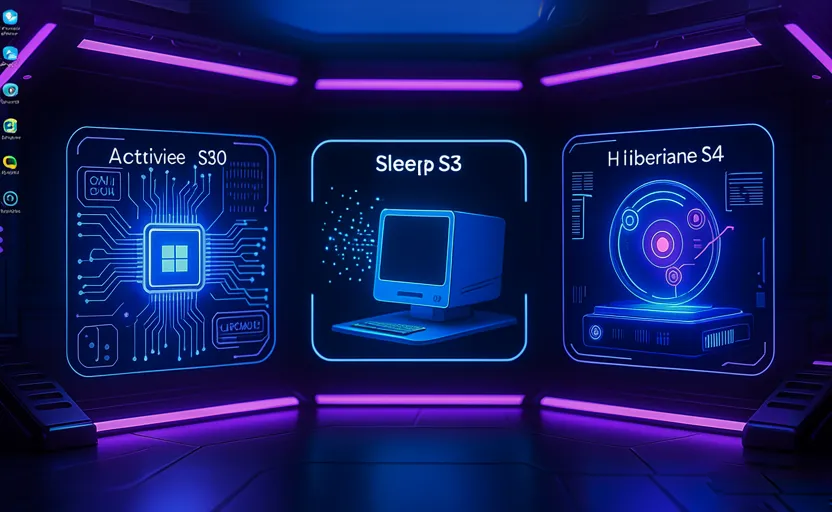
Operating systems manage hardware power consumption through complex software configurations. In Windows 10, this management is governed by the Advanced Configuration and Power Interface (ACPI) specification. This open industry standard defines generic hardware interfaces that allow the operating system to directly monitor and manage power states across motherboard chipsets, peripheral devices, and core processing units.
For IT professionals, system administrators, and power users, understanding the technical differences between various power states is critical. It allows you to optimize boot speeds, secure user sessions during downtime, and manage disk space efficiently. This guide explores the engineering mechanics behind Windows 10 power states, focuses on configuring the Hibernation (S4) subsystem, and provides advanced command-line tools for system optimization.
The ACPI Power State Hierarchy: Sleep vs. Hibernate vs. Hybrid
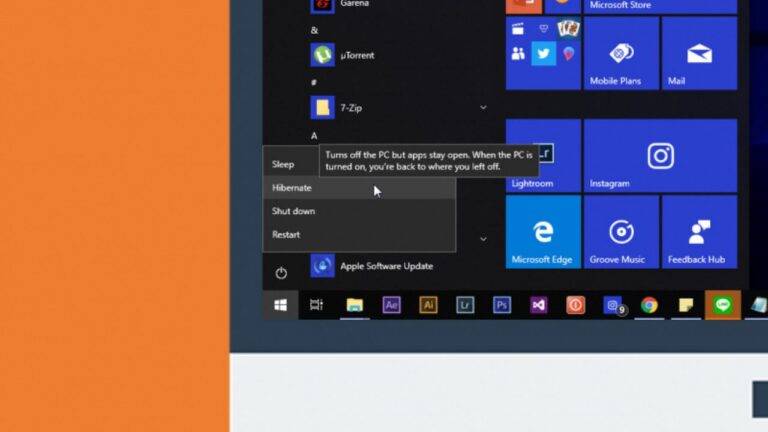
The ACPI specification defines explicit operational states for systems and devices, ranging from fully operational to completely unpowered. Understanding how the Windows kernel handles system memory during these transitions clarifies why certain modes are better suited for specific hardware configurations.
                    [ACPI System Power State Hierarchy]
                                     │
         ┌───────────────────────────┼───────────────────────────┐
         ▼                           ▼                           ▼
    [Working (S0)]              [Sleep (S3)]              [Hibernate (S4)]
 • Full power draw           • Volatile RAM active       • Non-volatile disk write
 • CPU fully active          • CPU/Fans unpowered        • Zero power draw
 • Near-zero latency         • Low-voltage trickle       • Safe from power loss
Working State (S0)
The system is fully operational. The Central Processing Unit (CPU) executes instructions, volatile random-access memory (RAM) dynamically cycles runtime data, and peripheral buses maintain active connections. Power optimization occurs at the device level (e.g., dimming displays or spinning down idle storage drives).
Sleep State (S3)
Often referred to as Suspend-to-RAM, this state puts the computer into a low-power mode.
-
Kernel Operations: The Windows kernel halts execution loops, parks CPU cores, and cuts power to cooling fans and expansion cards.
-
Memory Management: The system maintains a constant, low-voltage trickle charge to the physical RAM modules. This preserves the volatile system state, open applications, and user data structures.
-
Latency: Because data remains in RAM, resuming the system takes less than two seconds, making it ideal for short breaks during a workday.
-
Vulnerability: If the system loses its power source (e.g., a drained laptop battery or a sudden power outage), the volatile RAM instantly clears, resulting in unrecoverable data loss.
Hibernate State (S4)
Known as Suspend-to-Disk, this state focuses on data preservation and zero power draw.
-
Kernel Operations: When a hibernation sequence is triggered, the Windows power manager writes the entire contents of the volatile RAM, along with the active kernel architecture, into a dedicated file on your primary storage drive (hiberfil.sys).
-
Memory Management: Once this data transfer is verified, the motherboard cuts power to all system components, including the RAM. The computer enters a zero-power state identical to a full shutdown.
-
Latency: Resuming from hibernation takes longer than waking from sleep. The system must perform its standard hardware checks (POST) before copying the saved data from the storage drive back into physical RAM.
-
Resiliency: Because the system state is saved to non-volatile storage, your data remains secure even if the computer is completely disconnected from power for an extended period.
Low-Level Mechanics of the Hibernation Subsystem
When you trigger hibernation, the operating system works closely with file systems and storage drivers to safely capture the current system state.
[Trigger Hibernation] ──► [Freeze Threads] ──► [Compress RAM Data] ──► [Write to hiberfil.sys] ──► [Cut System Power]
The Role of hiberfil.sys
The hiberfil.sys file is a hidden, system-protected file located at the root directory of your primary operating system partition (C:\hiberfil.sys). This file acts as a pre-allocated storage container designed to hold your active system memory.
By default, Windows configures this file size to equal 75% of your total installed physical RAM. The operating system uses compression algorithms to fit your active memory footprint into this smaller space. You can calculate the default size of this hidden file using the following formula:
On systems with large amounts of RAM (such as 32 GB or 64 GB), this hidden file can consume significant space on solid-state drives (SSDs), making file size optimization an important consideration for storage management.
The Fast Startup Feature (Hybrid Boot)
In Windows 10, the hibernation engine also powers a feature called Fast Startup. When you select “Shut Down” on a system with Fast Startup enabled, Windows closes all active user applications but logs off the user session while keeping the core operating system kernel loaded.
The system then writes this initialized kernel state into hiberfil.sys before shutting down. When you turn the PC back on, the system skips the standard kernel initialization process and loads the saved kernel state directly into memory, significantly reducing boot times.
Managing Power States via the Command-Line Interface (CLI)
While Windows provides graphical user interfaces (GUI) within the Settings app and Control Panel, configuring power settings via the command-line interface provides precise, scriptable control over the operating system’s power subsystems.
                        [Powercfg CLI Command Matrix]
                                      │
         ┌────────────────────────────┼────────────────────────────┐
         ▼                            ▼                            ▼
  [Subsystem Toggles]         [Footprint Control]          [Diagnostic Reports]
• powercfg /h on            • powercfg /h /type reduced   • powercfg /energy
• powercfg /h off           • powercfg /h /type full      • powercfg /batteryreport
Advanced System Toggles
To modify these settings, you must run the command-line interpreter with administrative privileges. Press Windows Key + X and select Command Prompt (Admin) or Windows PowerShell (Admin).
-
Enabling Hibernation System-Wide: To activate the hibernation engine and allocate the hiberfil.sys file on your storage drive, execute:
DOSpowercfg /hibernate on
*   **Disabling Hibernation System-Wide:** If you need to reclaim disk space or are managing a virtual machine environment where hibernation isn't necessary, you can disable the feature entirely. This deletes the `hiberfil.sys` file immediately and turns off Fast Startup:
    ```cmd
powercfg /hibernate off
Optimizing the Storage Footprint
If you want to keep the benefits of Fast Startup but want to reduce the amount of disk space used by hiberfil.sys, you can change the file configuration type:
-
Reduced Mode: This mode configures the file to only store the Windows kernel, which is ideal for supporting Fast Startup while using minimal disk space. It reduces the file size to roughly 20% of your total physical RAM:
DOSpowercfg /hibernate /type reduced
*   **Full Mode:** This mode restores the file to its full size, allowing the system to use both Fast Startup and standard hibernation:
    ```cmd
powercfg /hibernate /type full
Diagnostic and Optimization Reports
The powercfg tool also includes diagnostics to help audit system power efficiency and analyze battery health on portable devices:
-
Energy Efficiency Audit: This command monitors system behavior for 60 seconds and generates an HTML report detailing device drivers, process configurations, or settings that are causing excessive battery drain:
DOSpowercfg /energy
*   **Battery Lifecycle Assessment:** For laptops and tablets, this command creates a detailed history of your battery's charge cycles, design capacity, and actual capacity over time, helping you monitor overall battery health:
    ```cmd
    powercfg /batteryreport
Technical Summary
Managing Windows 10 power states effectively requires a clear understanding of how hardware and software work together. By using advanced tools like powercfg, you can precisely control how your system handles memory during downtime, balance boot performance against available storage space, and ensure your system is running efficiently.
FAQ: Windows 10 Power States (ACPI, Sleep, Hibernate, Fast Startup)
1. What is ACPI in Windows 10 power management?
ACPI (Advanced Configuration and Power Interface) is an industry standard that allows Windows to communicate with hardware components (CPU, RAM, storage, and peripherals) to control power states efficiently, including sleep, hibernation, and shutdown behaviors.
2. What is the difference between Sleep (S3) and Hibernate (S4)?
- Sleep (S3) keeps system data in RAM with minimal power usage, allowing near-instant resume.
- Hibernate (S4) writes RAM contents to disk (hiberfil.sys) and completely powers off the system.
Sleep = fast resume, but data is lost if power fails
Hibernate = slower resume, but fully power-safe
3. What is the S0 working state?
S0 is the fully active state where CPU, RAM, and all devices are powered and running. The system performs all normal operations in this state.
4. What happens when Windows enters Sleep mode?
Windows pauses CPU execution, reduces power to most components, and keeps RAM in a low-power refresh state so data remains available for instant resume.
5. What is hiberfil.sys?
hiberfil.sys is a hidden system file used by Windows to store the contents of RAM during hibernation or Fast Startup. It is located on the system drive (C:).
6. How large is the hiberfil.sys file?
By default, it is approximately:
hiberfil.sys size = Installed RAM × 0.75
This can consume significant SSD space on systems with large memory capacities.
7. What is Fast Startup in Windows 10?
Fast Startup is a hybrid shutdown feature that saves the kernel session to hiberfil.sys while closing user applications, allowing faster boot times when the PC is turned back on.
8. How is Fast Startup different from full shutdown?
- Full Shutdown: Closes everything and fully reloads system state on boot
- Fast Startup: Restores kernel state from disk for quicker startup
9. How do I enable or disable hibernation in Windows?
Enable:
powercfg /hibernate on
Disable:
powercfg /hibernate off
Disabling removes hiberfil.sys and also disables Fast Startup.
10. Can I reduce the size of hiberfil.sys?
Yes. Windows supports a reduced mode:
powercfg /hibernate /type reduced
This reduces disk usage while keeping Fast Startup functionality.
11. What does powercfg /energy do?
It generates a system power efficiency report that analyzes drivers, processes, and system settings that may cause excessive energy consumption.
12. What is powercfg /batteryreport used for?
It creates a detailed HTML report showing battery health, charge cycles, and capacity degradation over time on laptops and tablets.
13. When should I use Sleep vs Hibernate?
- Use Sleep for short breaks (minutes to hours)
- Use Hibernate for long periods without power (overnight or travel)
- Use Shutdown when doing system updates or maintenance
14. Why is Hibernate safer than Sleep?
Because Hibernate stores system state on disk, it is immune to power loss. Sleep depends on continuous power to RAM, which is vulnerable to outages.
15. What is Hybrid Sleep?
Hybrid Sleep combines both S3 and S4:
- Saves RAM to disk (like hibernate)
- Keeps RAM powered (like sleep)
It is mainly used on desktop systems for recovery safety.