Windows 11 is packed with hidden features, built-in productivity tools, and advanced security layers that many users overlook. This comprehensive manual breaks down 32 off-the-beaten-path capabilities of the operating system, updated to reflect the latest system builds (including features from the 24H2 update).
Desktop Personalization & Interface Adjustments
1. Realign the Start Button to the Left
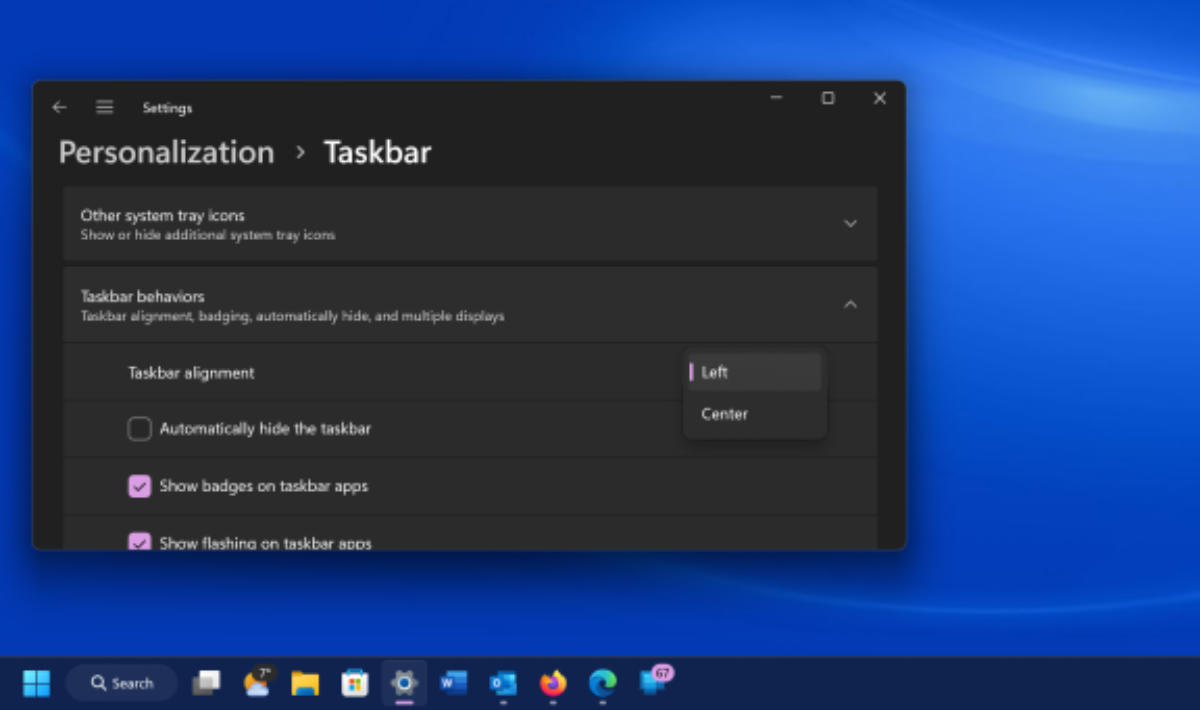
If you prefer the classic desktop hierarchy over the centered taskbar icon layout:
-
Right-click an empty space on the taskbar and select Taskbar Settings.
-
Scroll down and expand the Taskbar Behaviors section.
-
Locate Taskbar Alignment and switch the drop-down menu from Center to Left.
2. Deploy Microsoft PowerToys
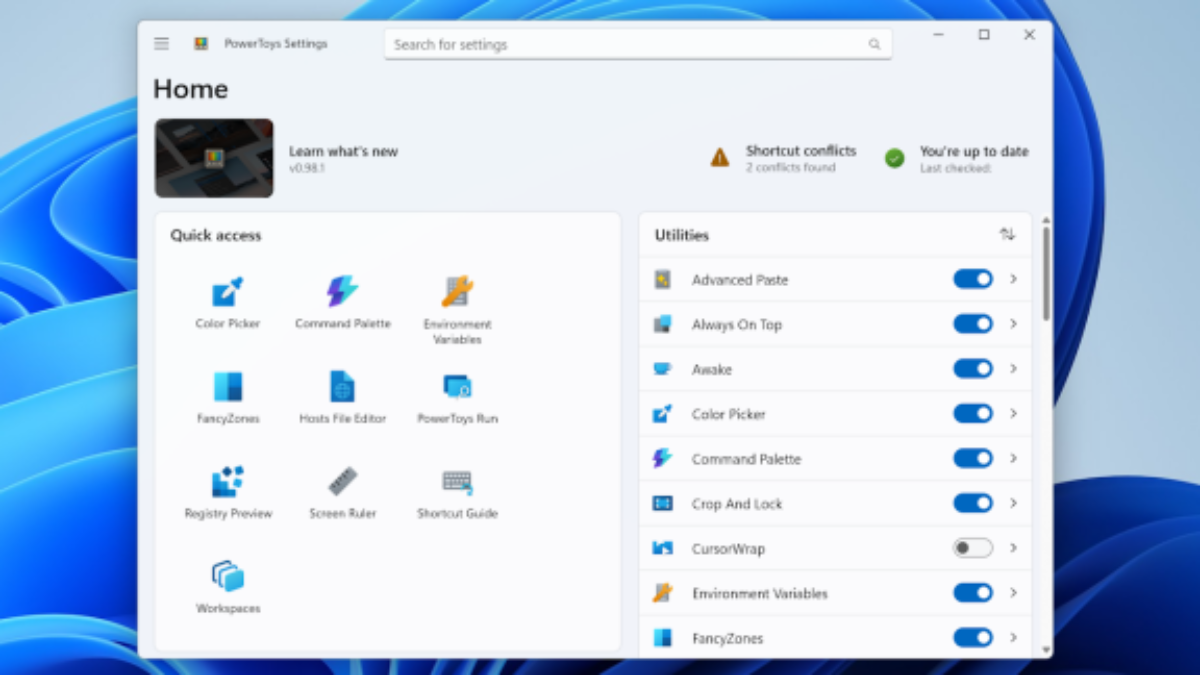
PowerToys is a free, open-source suite of advanced utilities developed by Microsoft for power users. It adds 28 specialized functions to the OS, including:
-
FancyZones: Creates complex, highly customized grid layouts for window snapping.
-
Always on Top: Locks a target application window so it stays visible above all others using a quick shortcut.
-
Image Resizer & PowerRename: Speeds up your workflow by letting you resize photos or rename files in bulk right from the right-click menu.
-
Download it directly from the Microsoft Store or the official GitHub repository.
3. Customize Virtual Desktops with Unique Wallpapers
Virtual Desktops let you separate your computing tasks (e.g., separating “Work” from “Gaming”). Windows 11 allows you to assign a distinct background image to each virtual environment to help you tell them apart.
-
Hover your mouse over the Task View icon on the taskbar and select New Desktop.
-
Right-click on the new desktop space, choose Personalize > Background, and select an image.
-
Note: This must be done via the Background menu. Applying a full system Theme will overwrite all virtual desktops simultaneously.
4. Personalize the Start Menu Folder Shortcuts
You can pin quick-access system folders directly next to the Power button on the Start menu.
-
Go to Settings > Personalization > Start > Folders.
-
Toggle on the folders you want to see instantly, such as Settings, File Explorer, Network, or your personal Downloads and Documents folders.
5. Tailor the Recommended Section
The bottom half of the Start menu displays recently modified files and newly installed applications. You can hide these recommendations if you prefer a cleaner look.
-
Navigate to Settings > Personalization > Start.
-
Toggle off Show recently added apps, Show frequently used apps, and Show recently opened items.
6. Master the Quick Settings Scroll Panel
Clicking the network, volume, or battery icons opens the Quick Settings panel. In the latest Windows 11 builds, this interface scrolls vertically to give you access to all your control toggles.
-
Click the Edit (pencil) icon to rearrange icons. You can click and drag toggles to position your most frequently used controls right at the top.
7. Turn Off Live Tiles on the Start Menu
While modern Windows 11 menus use clean icons, any lingering live info blocks can be turned off to save system resources.
-
Right-click the animated tile, hover over More, and click Turn Live Tile off.
8. Apply Inverted Mouse Pointer Contrast
If you frequently lose your mouse cursor on large or high-resolution displays, you can set it to automatically invert its color based on what is behind it.
-
Navigate to Settings > Accessibility > Mouse pointer and touch.
-
Select the Inverted pointer style (represented by a half-black, half-white cursor). The cursor will dynamically change contrast against your background, making it instantly visible.
Advanced Productivity & Window Management
9. Advanced Window Snapping & Keyboard Shortcuts
Windows 11 upgrades window management with Snap Layouts. Hover your mouse over any window’s Maximize button to reveal a grid of layout templates based on your monitor’s size.
You can also use these powerful layout shortcuts to quickly arrange your screen:
-
Win + Left / Right Arrow: Snaps the active window to either half of the screen.
-
Win + Z: Instantly opens the Snap Layouts template menu without using your mouse.
-
Win + W: Opens the Widgets panel.
-
Win + A: Launches the Quick Settings menu.
-
Win + K: Opens the Cast panel to stream to wireless displays.
-
Win + V: Opens your advanced Clipboard History (storing multiple copied items).
10. Clear Clutter with Title Bar Shake
If your screen gets cluttered with too many open windows, you can clear them away in a single motion.
-
Go to Settings > System > Multitasking and turn on Title Bar Window Shake.
-
Click and hold the title bar of the window you want to keep open, give it a quick shake with your mouse, and every other open window will instantly minimize to the taskbar.
11. Harness Multi-Finger Touch Gestures
For touchscreen tablets and convertible laptops, Windows 11 introduces multi-finger navigation:
-
Three-Finger Swipe Down: Minimizes all open apps to show the desktop.
-
Three-Finger Swipe Up: Opens Task View to display all running windows.
-
Four-Finger Swipe Up: Launches the virtual desktop management layout.
-
Swipe in from Left Edge: Opens the personalized Widgets panel.
12. Focus Sessions via the Clock App
Boost your productivity and minimize workplace distractions with built-in Focus Sessions.
-
Open the native Clock app and select Focus Sessions.
-
Set your target work duration. The OS will automatically silence notifications, block distracting pop-ups, integrate your Microsoft To-Do list, and even play focus playlists from Spotify.
OS Optimization & Resource Management
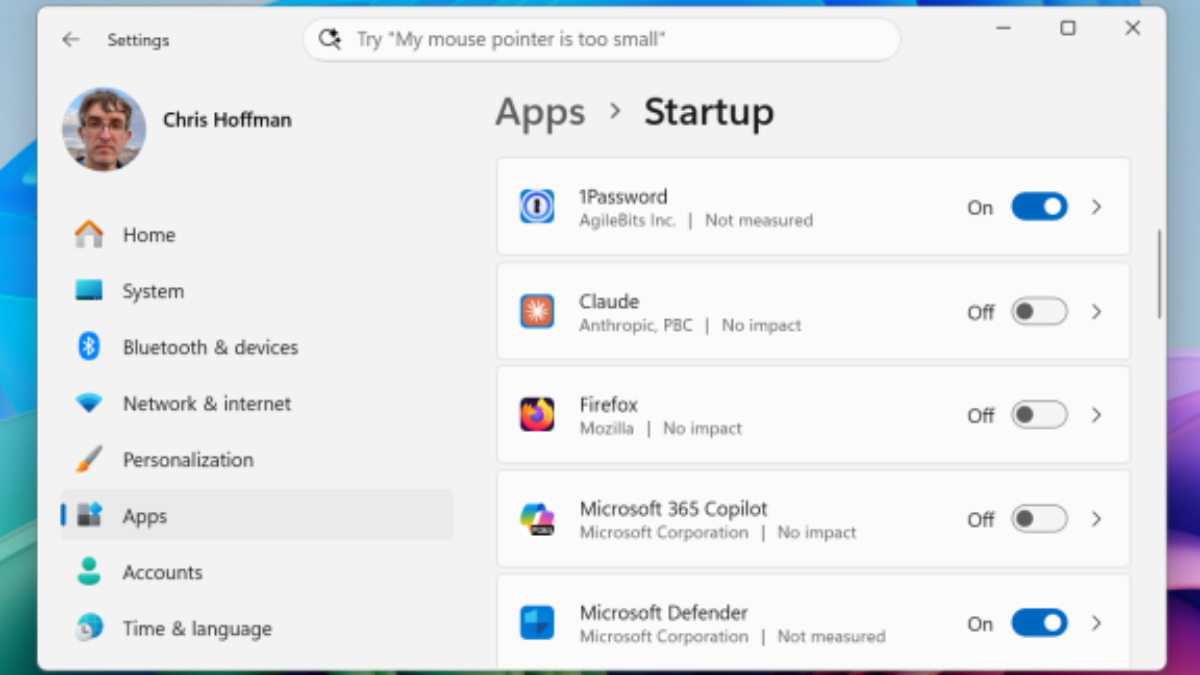
13. Manage System Startup Applications
Many apps configure themselves to launch automatically when you sign in, which increases boot times and drains system memory (RAM).
-
Go to Settings > Apps > Startup.
-
Review the list and toggle Off any unnecessary apps (like game launchers or background music players).
-
Alternative: Open Task Manager (Ctrl + Shift + Esc) and use the Startup apps tab to see your last BIOS boot speed.
14. Stop Hidden Background Apps
Keep apps from quietly draining power and processing resources when you aren’t using them.
-
Open Settings, go to Privacy & security, and click Background apps.
-
Turn off background permissions for apps that don’t need to update in the background.
15. Detailed Battery Telemetry and Analysis
Windows 11 features a battery monitoring interface similar to smartphones.
-
Go to Settings > System > Power & battery and open Battery usage.
-
Review the detailed power consumption charts to spot apps that are draining your battery, and adjust their background permissions to save energy.
                  [ Windows 11 Battery Optimization ]
                                   │
         ┌─────────────────────────┴─────────────────────────┐
         ▼                                                   ▼
[ High-Drain App Detection ]                     [ Background Mitigation ]
  ├── View hourly power charts                     ├── Set background state to "Power Optimized"
  └── Sort apps by resource footprint              └── Force strict sleep states on idle
16. Streamline Your Default Applications
Windows 11 lets you adjust your default apps down to the specific file extension level.
-
Go to Settings > Apps > Default apps.
-
Select the specific web browser or media player you want to use to see every file format it handles, allowing you to easily map associations (like .html, .pdf, or .mp4) to your preferred software.
File Explorer & Ecosystem Upgrades
17. Utilize File Explorer Tabs and Quick Ribbons
The updated File Explorer functions much like a modern web browser.
-
Right-click any folder and select Open in new tab to keep your workspace organized in a single window. You can drag and drop files directly between tabs.
-
The simplified top ribbon features quick-action buttons for Cut, Copy, Paste, Rename, Share, and Delete that adjust based on the file type you select.
18. Native Compression: 7z, TAR, and ZIP
You no longer need to install third-party software like WinRAR to manage compressed archives.
-
Right-click a file or folder in File Explorer, select Compress to…, and choose between ZIP, 7z, or TAR formats for optimal file compression.
19. Integrate iOS and Android via Phone Link
The Phone Link app bridges the gap between your mobile device and your PC.
-
Launch the Phone Link app on your computer and pair your device.
-
You can send text messages, answer voice calls, and view phone notifications directly on your monitor. Supported Android models can even mirror mobile apps, share clipboard contents, and use the phone’s camera as a high-definition webcam.
20. Turn Your PC into a Wireless Display Receiver
You can stream the display of another laptop, tablet, or Android phone directly onto your computer monitor.
-
First, install the feature via Settings > System > Optional features > Add an optional feature and select Wireless Display.
-
Once installed, navigate to Settings > System > Projecting to this PC to configure your computer as a secure receiver.
21. Leverage Windows Backup for Seamless Migration
Secure your configuration settings before moving to a new computer.
-
Open the Windows Backup utility to sync your documents, system preferences, pinned apps, and saved Wi-Fi networks directly to your OneDrive cloud storage. When you sign into a new Windows 11 machine, your familiar layout will restore automatically.
Advanced Security, Audio, & Utility Enhancements
22. Upgrade to Passwordless Passkeys
Protect your online accounts from phishing attempts by moving away from traditional passwords.
-
Windows 11 can natively generate and store secure Passkeys tied to your hardware. The next time you sign into a compatible website, you can authenticate using Windows Hello (facial recognition, fingerprint scan, or device PIN).
23. Enhanced Audio and Mono Conversions
Take finer control over your sound card’s output capabilities.
-
Go to Settings > System > Sound.
-
Toggle on Mono audio to combine the left and right audio channels into a single stream (ideal for users wearing a single earbud).
-
Click All sound devices under the Advanced tab, select your speakers, and turn on Enhance Audio to enable hardware-level bass boost and loudness equalization.
24. Support for Bluetooth LE Audio and Hearing Aids
The latest system builds introduce support for Bluetooth Low Energy (LE) Audio. This feature delivers high-fidelity sound with significantly lower battery drain and allows compatible assistive hearing aids to pair directly with your PC.
25. Native Audio Waveforms via Sound Recorder
The old Voice Recorder app has been replaced with a modernized Sound Recorder. The updated app displays real-time audio waveforms during recordings and allows you to export audio files directly into lossless formats like FLAC and WAV, alongside standard MP3s.
26. The Redesigned Media Player
The modern Media Player serves as a clean, ad-free hub for your local video and music libraries, featuring optimized audio rendering and an intuitive user interface.
27. Windows Game Bar Utilities
Pressing Win + G opens the Xbox Game Bar, which is packed with useful widgets for gamers and general users alike.
-
Use it to capture screen recordings, monitor real-time CPU/GPU performance stats, adjust independent app volume levels, and manage Auto HDR settings.
Integrating Next-Generation AI Features
28. Deploy Copilot for Daily Tasks
Launch Microsoft’s built-in AI assistant by clicking the Copilot icon on the taskbar or pressing Win + C.
-
You can use natural language prompts to write code, compose emails, summarize dense PDF documents, or generate images.
29. Interact with Voice and Copilot Vision
-
Voice Control: Wake the assistant using the “Hey Copilot” command for fluid, human-sounding verbal discussions.
-
Copilot Vision: This feature can analyze what is on your screen to help you navigate complex application menus (like Photoshop) in real time.
30. Listen to the Copilot Daily Podcast
Start your morning by asking for Copilot Daily. The AI will automatically generate a custom audio podcast that summarizes the latest global news, weather updates, and curated facts.
31. Create and Edit Images with Native AI
Windows 11 integrates generative AI models right into its classic creative applications:
-
Paint & Designer: Create artwork from scratch using descriptive text prompts.
-
Photos: Use advanced editing tools like Generative Erase to select and automatically remove background distractions or objects from your photos.
32. Unlock Exclusive Copilot+ PC Hardware Features
If you are running a certified Copilot+ PC equipped with a dedicated Neural Processing Unit (NPU), you gain access to exclusive system capabilities:
-
Recall: Allows you to search an encrypted timeline of your past activities to instantly find a document, website, or image you viewed days ago.
-
Click to Do: Scans your active screen to suggest context-aware actions.
-
Semantic Search: Lets you search for local files on your hard drive using descriptive concepts (e.g., searching for “family trip at the beach” without needing the exact filename).
Summary Reference: Core Configuration Pathways
| To Achieve This Optimization… | Navigate to This Settings Menu Path… | Key Feature Leveraged |
| Move Start Button | Personalization > Taskbar > Taskbar Behaviors | Taskbar Alignment |
| Boost Startup Speed | Apps > Startup | Executable Management |
| Dim Display Automatically | Control Panel > Edit Power Plan > Advanced Settings | Adaptive Brightness |
| Conserve Device Battery | System > Power & battery > Battery usage | App Background Management |
| Activate Mono Sound | System > Sound | Mono Audio Toggle |
Which of these features are you most interested in configuring on your machine? If you are looking to solve a specific issue like slow boot times or window clutter, let me know and we can walk through it step-by-step.
FAQ (Frequently Asked Questions)
Q1: Are all Windows 11 features available on every laptop?
A: No. Some advanced features such as Copilot+ PC tools, Recall, and NPU-based AI functions require newer hardware. However, most core features like Snap Layouts, Startup controls, and Battery settings are available on all Windows 11 devices.
Q2: Is Windows 11 faster than Windows 10?
A: Generally, Windows 11 performs better on modern hardware (SSD, newer CPUs, and optimized drivers). However, actual performance depends more on your device specifications and system configuration than the OS version itself.
Q3: Is it safe to use Microsoft Copilot?
A: Yes. Copilot is built with Microsoft’s security and privacy standards. However, users should avoid sharing sensitive personal or confidential data when using cloud-based AI tools.
Q4: Does disabling startup apps improve performance?
A: Yes. Turning off unnecessary startup applications can significantly reduce boot time and free up RAM and CPU resources during system startup.
Q5: Are Live Tiles still available in Windows 11?
A: No. Live Tiles have been removed in Windows 11. They have been replaced by Widgets and a more modern Start menu design.
Q6: Is Battery Saver mode effective?
A: Yes. Battery Saver reduces background activity, sync processes, and system performance to extend battery life significantly, especially on laptops.
Q7: Do Snap Layouts work with all apps?
A: Most modern applications support Snap Layouts. However, some older or legacy programs may not fully support advanced snapping behavior.
Q8: Should I regularly update Windows 11?
A: Yes. Updates are important for security patches, bug fixes, performance improvements, and new feature releases.
Q9: Is Microsoft PowerToys safe to use?
A: Yes. PowerToys is an official open-source utility developed by Microsoft and is safe for advanced customization and productivity enhancements.
Q10: Do I need to enable all Windows 11 features?
A: No. All features are optional. You can enable or disable them based on your needs, whether for performance, productivity, or personal preference.