Removing apps from your PC should be simple—but sometimes it isn’t. If you’ve ever tried to delete a program and found it still lingering on your system, you’re not alone.
In this guide, you’ll learn how to uninstall programs on Windows 10 completely, including ways to deal with stubborn apps that refuse to go away.
Why You Should Uninstall Unused Applications
Over time, your computer fills up with software you no longer use. Leaving them installed can cause:
- Reduced storage space
- Slower system performance
- Background processes running unnecessarily
- Longer startup times
Cleaning up unused apps helps keep your system running smoothly.
Method 1: Use a Third-Party Uninstaller (Best for Stubborn Apps)
Some programs can’t be removed using standard methods. In this case, using a dedicated tool is the easiest solution.
One reliable option is Bulk Crap Uninstaller.
How to use it:
- Install and open the software
- Browse the list of installed applications
- Right-click the program you want to remove
- Select Uninstall
- Follow the on-screen instructions
After uninstalling, the tool will scan for leftover files and registry entries. You can delete them to ensure the program is completely removed.
Method 2: Uninstall via the Start Menu
This is the quickest method for removing basic apps.
Steps:
- Click the Start Menu
- Search for the app
- Right-click the app
- Select Uninstall
While simple, this method may not work for all programs.
Method 3: Use Settings (Built-in Feature)
The Settings menu offers a more structured way to manage installed apps.
Steps:
- Open Settings
- Go to System > Apps & Features
- Find the app you want to remove
- Click it, then choose Uninstall
You can also search for apps directly in the list.
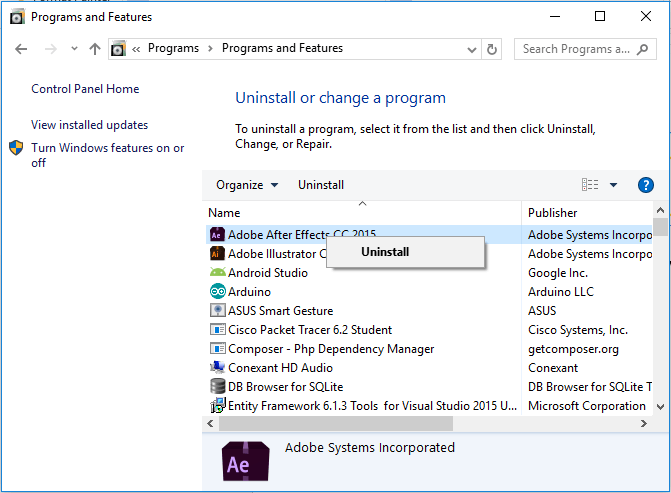
Method 4: Uninstall Using Control Panel
This is the classic method that still works well, especially for older programs.
Steps:
- Open Control Panel
- Select Programs > Programs and Features
- Locate the program
- Right-click and choose Uninstall
It may take a few extra clicks, but it’s still effective.
Bonus Tip: Remove Leftover Files Manually
Even after uninstalling, some files may remain on your system.
You can check these locations:
- C:\Program Files
- C:\Program Files (x86)
- C:\Users\YourName\AppData
Delete any leftover folders related to the app—but be careful not to remove important system files.
Why Some Programs Won’t Uninstall
There are a few common reasons why apps can be difficult to remove:
- The program is still running in the background
- The uninstall file is corrupted
- The app is protected by the system
In these cases, using tools like Bulk Crap Uninstaller is usually the best solution.
Final Thoughts
Learning how to uninstall programs on Windows 10 properly can save you a lot of frustration. For most apps, built-in tools work just fine. But when things get tricky, a third-party uninstaller can help you remove everything—including hidden leftovers.
Keeping your system clean doesn’t just free up space—it also improves performance and keeps your PC running efficiently.
Frequently Asked Questions (FAQ)
1. What is the easiest way to uninstall programs on Windows 10?
The easiest way is through the Start Menu or Settings. However, for stubborn apps, using a tool like Bulk Crap Uninstaller is often more effective.
2. Why can’t I uninstall some programs on my PC?
Some programs are harder to remove because they may:
- Be running in the background
- Have corrupted uninstall files
- Be protected by the system
In these cases, built-in tools may not work properly.
3. How do I completely remove a program from Windows 10?
To fully remove a program from Windows 10:
- Uninstall it using Settings or Control Panel
- Use a third-party uninstaller to scan for leftovers
- Delete remaining files and registry entries
This ensures the program is removed entirely.
4. Is it safe to use third-party uninstallers?
Yes, as long as you use trusted tools. Programs like Bulk Crap Uninstaller are widely used and safe for removing stubborn applications.
5. Do uninstalling apps improve PC performance?
Yes. Removing unused apps can:
- Free up storage space
- Reduce background processes
- Improve system speed and startup time
6. Where are leftover files usually stored?
After uninstalling, leftover files may still exist in:
- Program Files folders
- AppData directory
- System registry
These files can be removed manually or with an uninstaller tool.
7. Can I uninstall built-in apps on Windows 10?
Some built-in apps can be removed, but others are protected by the system and require advanced methods like PowerShell.
8. What should I do before uninstalling a program?
Before uninstalling:
- Close the application
- Save any important data
- Make sure it’s not needed by other software
9. Which method is best for beginners?
For beginners:
- Use Settings or Start Menu for simple uninstall
- Use a third-party tool if the app won’t uninstall
10. How often should I clean up unused programs?
It’s a good idea to review and remove unused apps every few months to keep your system running smoothly.