Let’s be honest—no matter how advanced smartphones get, battery life still feels like a daily struggle.
You start your day with 100%, thinking your phone will easily last until night. But somewhere between scrolling social media, watching videos, replying to messages, and running apps in the background, that battery percentage drops faster than expected.
Modern Android phones are powerful, sleek, and packed with features. But all of that power comes at a cost.
The good news? You don’t need to upgrade your phone or carry a power bank everywhere. With a few simple adjustments, you can significantly extend your battery life and make your phone last much longer throughout the day.
Whether you’re using a flagship or a mid-range device, these tips will help you get the most out of your battery.
Why Your Android Battery Drains Faster Than You Think
Before jumping into solutions, it helps to understand the problem.
Battery drain isn’t usually caused by just one thing. Instead, it’s a combination of:
- bright displays
- background apps
- constant syncing
- location tracking
- notifications
- and sometimes poorly optimized apps
Even if you’re not actively using your phone, many processes continue running in the background.
That’s why your battery can drop even when your phone is sitting idle.
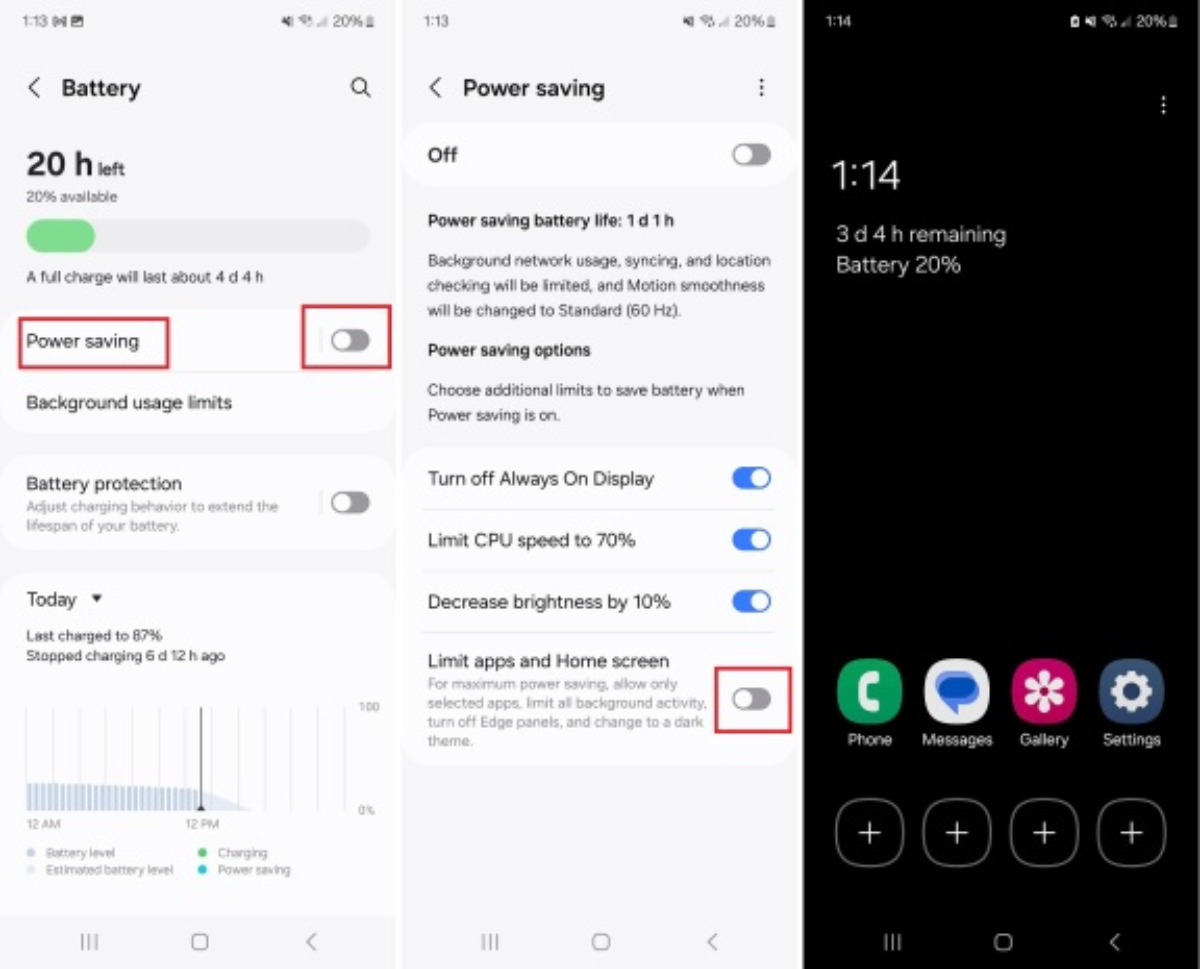
1. Turn On Power Saving Mode When You Need It Most
If you’re ever in a situation where your battery is running low and you still need your phone to last, power-saving mode is your best friend.
Most Android phones from brands like Samsung and Google come with built-in battery-saving features that are surprisingly effective.
When enabled, power-saving mode can:
- limit background activity
- reduce processor performance
- lower screen refresh rate
- disable unnecessary visual effects
- restrict certain apps
Some devices even offer an “extreme” mode that pauses almost everything except essential apps.
It’s not something you need to keep on all the time, but when your battery is low, it can make a huge difference.
2. Lower Your Screen Brightness (It Matters More Than You Think)
Your phone’s display is one of the biggest battery consumers—if not the biggest.
A bright, vibrant screen looks great, but it uses a lot of power, especially if you keep it at maximum brightness.
Here’s what you can do:
- manually reduce brightness to a comfortable level
- avoid max brightness unless you’re outdoors
- turn off adaptive brightness if it over-adjusts
Adaptive brightness sounds helpful, but in reality, it often increases brightness more than necessary.
Taking control manually can save more battery than you’d expect.
3. Rethink Your Lock Screen Settings
Features like Always-On Display are convenient. You can glance at the time, notifications, or battery status without unlocking your phone.
But even though these features are optimized, they still consume power.
If you want to stretch your battery further:
- turn off Always-On Display
- schedule it to work only at certain times
- set it to activate only when you tap the screen
These small tweaks may not seem like much, but over a full day, they can add up.
4. Reduce Screen Timeout to Save More Power
Screen timeout controls how long your display stays on when you’re not using it.
If your phone takes too long to turn off, it wastes battery—especially if you often leave it idle on a table or desk.
A simple adjustment:
- set screen timeout to 15–30 seconds
This ensures your phone turns off quickly when not in use.
It’s one of the easiest changes you can make, and it works immediately.
5. Stop Apps From Draining Battery in the Background
Many apps don’t stop working just because you’re not using them.
They continue to:
- refresh content
- send notifications
- sync data
Over time, this constant activity drains your battery.
To fix this:
- check your battery usage settings
- identify apps that consume the most power
- restrict their background activity
Android also offers features like:
- app sleep mode
- deep sleep mode
- adaptive battery
These tools automatically reduce activity for apps you rarely use.
Just remember: limiting some apps might delay notifications, so adjust carefully.
6. Watch Out for Apps That Drain Battery Excessively
Not all apps are created equal.
Some apps are poorly optimized and consume far more battery than they should.
That’s why Google has started adding warnings in the Play Store for apps that use excessive battery.
You might see messages like:
“This app may use more battery than expected.”
These apps often use something called “wake locks,” which prevent your phone from going into sleep mode.
If your battery drains unusually fast:
- review recently installed apps
- check battery usage stats
- uninstall or replace problematic apps
This alone can sometimes double your battery life.
Bonus Tips to Extend Battery Life Even Further
If you want to go beyond the basics, here are a few extra tips:
- Use Dark Mode, especially on OLED screens
- Turn off Bluetooth, GPS, or Wi-Fi when not needed
- Disable vibration for typing or notifications
- Keep your phone updated
- Avoid exposing your phone to extreme heat
These small habits can make a noticeable difference over time.
Why Your Battery Gets Worse Over Time
Even if you follow every tip perfectly, your battery won’t last forever.
That’s because smartphone batteries naturally degrade over time.
Factors that affect battery health include:
- number of charging cycles
- heat exposure
- heavy usage
After a year or two, it’s normal to notice shorter battery life.
The goal isn’t perfection—it’s slowing down that decline as much as possible.
Final Thoughts
Improving your Android battery life doesn’t require complicated tools or technical knowledge.
In fact, the most effective solutions are often the simplest ones.
Lower your brightness.
Limit background apps.
Use power-saving features when needed.
These small adjustments can make a big difference in how long your phone lasts throughout the day.
Whether you’re using a device from Samsung or Google, taking control of your settings can help you get more out of your battery—without changing your phone.
Frequently Asked Questions (FAQ)
1. Why is my Android battery draining so fast?
Fast battery drain is usually caused by high screen brightness, background apps, poor signal, or battery-intensive apps. Over time, battery health degradation also contributes.
2. Does power-saving mode really help?
Yes, it reduces performance and background activity, which can significantly extend battery life—especially in low-battery situations.
3. Is it okay to charge my phone overnight?
Yes, modern phones are designed to handle overnight charging safely. However, keeping your battery at 100% constantly may slightly reduce long-term lifespan.
4. How do I find which apps drain my battery?
Go to your battery settings and check battery usage. This will show which apps consume the most power.
5. Does Dark Mode actually save battery?
Yes, especially on OLED displays. Dark pixels use less power, helping extend battery life.
6. When should I replace my phone battery?
If your phone drains quickly, shuts down unexpectedly, or struggles to hold a charge, it may be time for a battery replacement.