Managing large files can quickly become a headache—especially when you need to send documents, images, or videos over email or upload them online. That’s where file compression comes in.
If you’re using Windows 10, creating ZIP or RAR files is actually much easier than you might think. Whether you want to save storage space or protect your files with a password, this guide will walk you through everything in a simple, beginner-friendly way.
What Are ZIP and RAR Files?
Before jumping into the steps, it’s helpful to understand what these formats actually are.
A ZIP file is a compressed folder that reduces the size of files, making them easier to store or share. It was originally developed by Phil Katz and is widely supported across almost all operating systems, including Windows, macOS, and Linux.
On the other hand, a RAR file was created by Eugene Roshal. It typically offers better compression rates, meaning your files can become smaller compared to ZIP. However, it usually requires additional software to create or extract.
ZIP vs RAR: Which One Should You Use?
Choosing between ZIP and RAR depends on your needs.
- ZIP Advantages:
- Faster compression process
- Built into Windows (no extra software needed)
- Easy to share and widely supported
- RAR Advantages:
- Higher compression efficiency (can reduce size up to ~70%)
- Better for large files
- Built-in password protection
- ZIP Limitations:
- Slightly larger compressed size (around ~60%)
- Needs extra tools for advanced security
- RAR Limitations:
- Requires third-party software
- Slower compression process
If you just need quick compression, ZIP is perfect. But if you care about smaller file size and better security, RAR is the better option.
Why File Compression Matters
File compression isn’t just about saving space—it’s also about efficiency.
Here are a few real-life benefits:
- Upload files faster
- Send attachments via email without size issues
- Organize multiple files into one folder
- Protect sensitive data with passwords
For students, professionals, and content creators, this is a must-have skill.
Method 1: Create ZIP or RAR Files Without Password
Let’s start with the simplest method—compressing files without any security.
How to Create a RAR File (Using WinRAR)
Since Windows doesn’t support RAR files natively, you’ll need WinRAR installed.
Steps:
- Select or highlight the files you want to compress
- Right-click on the selected files
- Choose WinRAR
- Click “Add to [filename].rar”
- Wait for the compression process to complete
Once done, your RAR file will appear in the same folder.
How to Create a ZIP File (Without Any Software)
Windows 10 already includes a built-in ZIP feature, so no extra tools are needed.
Steps:
- Select the files you want to compress
- Right-click on them
- Click Send to
- Choose Compressed (zipped) folder
- Wait for the process to finish
That’s it—your ZIP file is ready to use.
Method 2: Create ZIP or RAR Files with Password
If you’re dealing with sensitive files, adding a password is highly recommended.
For this method, you’ll need WinRAR.
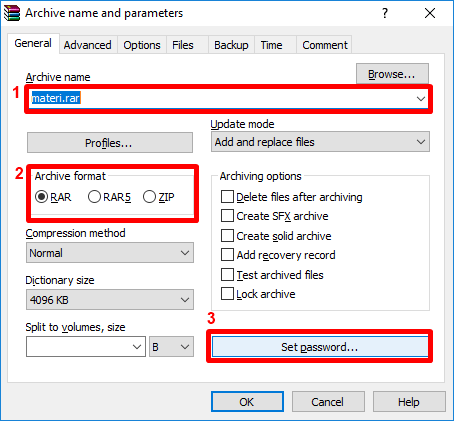
Step-by-Step Guide
- Select the files you want to compress
- Right-click → choose WinRAR → click Add to archive
- Enter a file name
- Choose archive format (RAR or ZIP)
- Click Set password…
- Enter your password and confirm it
- Click OK, then click OK again
- Wait for the compression process to complete
How to Check If Password Protection Works
After creating the file:
- Open the ZIP/RAR file
- Try to extract it
- If prompted for a password → success!
Your file is now secured.
Tips for Choosing Between ZIP and RAR
Still not sure which one to use? Here’s a simple rule of thumb:
- Use ZIP if:
- You need speed
- You don’t want to install software
- The file size isn’t too large
- Use RAR if:
- You want maximum compression
- You need built-in security
- You’re dealing with large files
Common Mistakes to Avoid
Even though this process is simple, there are a few mistakes beginners often make:
- Forgetting the password (there’s no easy recovery!)
- Compressing already compressed files (no size reduction)
- Using RAR without installing proper software
- Sending large files without compressing them
Avoiding these will save you time and frustration.
Final Thoughts
Creating ZIP and RAR files in Windows 10 is a basic yet powerful skill that can make your digital life much easier.
If you want speed and simplicity, go with ZIP.
If you want better compression and security, choose RAR.
The best part? You don’t need to be a tech expert to do any of this. Just follow the steps above, and you’ll be compressing files like a pro in no time.
Frequently Asked Questions (FAQ)
1. Is ZIP or RAR better for file compression?
RAR generally offers better compression, meaning smaller file sizes. However, ZIP is faster and more widely supported.
2. Do I need software to create ZIP files in Windows 10?
No. Windows 10 has a built-in feature for creating ZIP files.
3. Why can’t I open a RAR file?
You likely don’t have the required software installed. Try using WinRAR or similar tools.
4. Can I password-protect ZIP files without software?
Not easily. Windows doesn’t provide built-in password protection for ZIP files, so you’ll need third-party software.
5. Is file compression safe?
Yes, as long as you use trusted software. Adding a password increases security for sensitive data.
6. What happens if I forget my RAR password?
Unfortunately, recovering a lost password is extremely difficult. Always store your password safely.
7. Can compressed files be shared via email?
Yes. In fact, compression helps reduce file size, making it easier to send via email.