
Implementing Linux binaries inside a Windows environment requires choosing between two fundamentally distinct architectural designs developed by Microsoft. Selecting the wrong runtime model can significantly impact file system performance, networking capabilities, and system call compatibility.
WSL 1 Architecture:
[Linux Binary] ──► [LXCore.sys / LXSS.sys Translation Layer] ──► [Windows NT Kernel]

WSL 2 Architecture:
[Linux Binary] ──► [Native Linux Kernel] ──► [Hyper-V Type-1 Hypervisor Platform] ──► [Hardware]
WSL 1: The Monolithic Translation Layer
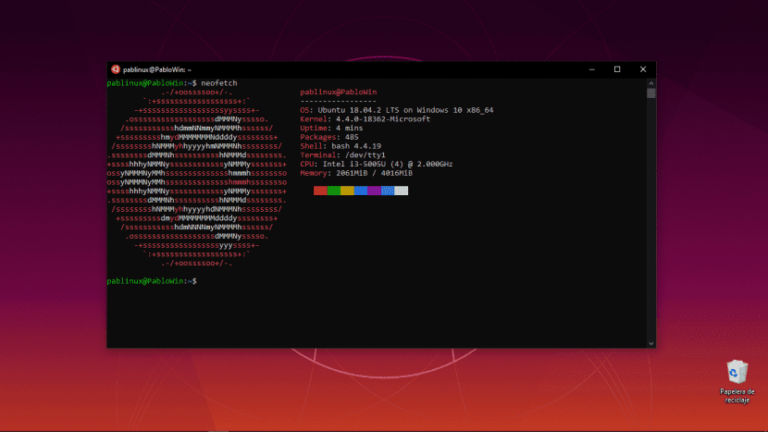
WSL 1 does not run a real Linux kernel. Instead, it uses a translation layer that intercepts Linux system calls (syscalls) and maps them directly to equivalent Windows NT kernel system calls.
-
Mechanism: When a Linux binary calls fork() or open(), the lxss.sys and lxcore.sys kernel drivers translate this request on the fly into native NT infrastructure APIs.
-
Performance Profile: WSL 1 is fast when working across file systems (e.g., accessing files stored on /mnt/c/). However, it slows down significantly when performing operations that require high-density system calls, such as running npm install, git clones, or compiling large codebases.
-
System Call Support: WSL 1 lacks 100% syscall compatibility. Advanced low-level tools, container runtimes (like Docker), and advanced file systems (like Btrfs or ZFS) cannot run on this platform.
2. WSL 2: The Lightweight Utility Virtual Machine
WSL 2 changes this dynamic by running a real, custom-built Linux kernel inside a highly optimized utility virtual machine. This VM runs on top of a specialized subset of the Hyper-V architecture.
-
Mechanism: Microsoft maintains a stable, long-term support (LTS) Linux kernel source tree optimized specifically for WSL 2. This kernel boots in less than a second, automatically reclaims unused RAM, and interfaces directly with the Windows host via a fast virtual socket interface.
-
VFS Performance: Virtual File System (VFS) operations are executed within a native Linux ext4 file system image (ext4.vhdx). This layout achieves up to a $20\times$ performance increase compared to WSL 1 for file-intensive software development.
-
Full System Call Compatibility: Because it runs an actual Linux kernel, WSL 2 fully supports complex technologies like Docker containers, Kubernetes nodes, system-level tracers (eBPF), and advanced memory-mapping techniques.
Advanced Deployment Engineering via Command Line
While you can install WSL via the graphical user interface, configuring it through the command line gives you much tighter control over features like kernel initialization, custom distribution setup, and precise directory management.
[Elevated Shell] ──► [Hypervisor Provisioning] ──► [Kernel Update Stage] ──► [Targeted Subsystem Deployment]
Step 1: Enterprise-Level Feature Provisioning
Open an elevated PowerShell prompt (Run as Administrator) and execute the following deployment script to enable the required kernel features:
# Enable the foundational Windows Subsystem for Linux kernel feature
dism.exe /online /enable-feature /featurename:Microsoft-Windows-Subsystem-Linux /all /norestart

# Provision the isolated Virtual Machine Platform infrastructure required by WSL 2
dism.exe /online /enable-feature /featurename:VirtualMachinePlatform /all /norestart
A system reboot is required at this stage to initialize the Hyper-V sub-layers within the Windows kernel.
Step 2: Architecture Verification and Distribution Ingestion
Once the system restarts, set your default architecture model to WSL 2 and install your chosen Linux distribution:
# Enforce WSL 2 as the default global container runtime version
wsl --set-default-version 2

# Query the online index of verified, downloadable Linux distributions
wsl --list --online

# Install a specific target distribution (e.g., Ubuntu 22.04 LTS)
wsl --install -d Ubuntu-22.04
Step 3: Importing Custom and Enterprise Tarballs
For air-gapped corporate computers or custom developer environments, you can bypass the Microsoft Store entirely by importing custom root file systems directly:
# Import a raw Linux rootfs archive into a specific storage path
wsl --import [Target_Distro_Name] [C:\Path\To\Storage\Directory] [C:\Path\To\linux_rootfs.tar]
High-Performance Runtime Tuning via .wslconfig
To stop WSL 2 from consuming all of your host machine’s hardware resources, you should create a global .wslconfig file in the root of your Windows user profile directory (C:\Users\<YourUsername>\.wslconfig). This configuration file gives you fine-grained control over resource allocation, networking modes, and virtual disk management.
[wsl2]
# Restrict the utility VM from hogging all physical processing cores
processors=4

# Cap memory usage to prevent WSL from starving the Windows host OS
memory=8GB

# Allocate dedicated swap space for handling large, resource-heavy builds
swap=4GB
swapFile=C:\\WSL_Swap\\wsl2.swap

# Enable mirroring to synchronize your network stack with the host system
networkingMode=mirrored

# Automatically reclaim unused RAM from the Linux VM back to Windows
pageReporting=true
Network Architecture Options: NAT vs. Mirrored
-
NAT Mode (Default): WSL 2 creates an isolated virtual network adapter with its own internal subnet. This requires configuring port forwarding rules whenever you need to expose internal services to your local network.
-
Mirrored Mode: This option mirrors your host machine’s network interfaces directly inside the Linux VM. This gives your WSL environment the exact same IP address as your Windows host, simplifies network routing, and adds native support for IPv6 and VPN connections.
Cross-OS Interoperability and File System Dynamics
WSL 2 bridges the gap between Windows and Linux, allowing you to run cross-OS commands and share files smoothly between both operating systems.
       [Windows Host Environment]                          [WSL 2 Linux Environment]
    (NTFS File System: C:\Codebase\)                     (ext4 File System: /home/var/)
                   │                                                   │
                   ├── [DO NOT cross-compile across borders] ──────────┤
                   ▼                                                   ▼
     Slow I/O due to 9p translation                   Native, high-speed Linux performance
The Iron Rule of Cross-OS File Performance
Critical Rule: Never access or compile files across file system boundaries. If your development tools or servers run inside Linux, the project files must live inside the native Linux file system (e.g., /home/username/project). If your tools run directly in Windows, store your project files on a native Windows drive (e.g., C:\Codecode). Crossing these boundaries forces the system to use the 9p file translation protocol, which severely slows down file read/write speeds.
Accessing Files Across File Systems
-
From Windows to Linux: You can view and manage your Linux files using Windows Explorer by navigating to the secure network path \\wsl$\.
-
From Linux to Windows: Your local Windows drives are automatically mounted inside the Linux environment under the /mnt/ directory (for example, C:\ is available at /mnt/c/).
Pipelining Commands Across Operating Systems
You can easily pipe data between Windows applications and Linux tools within the same terminal:
# Pipe native Windows system outputs directly into Linux processing utilities
ipconfig.exe | grep "IPv4 Address"

# Trigger a Windows tool directly from your active Linux shell session
explorer.exe .
Production-Grade Web Server Deployment (Nginx Stack)
The primary real-world use case for WSL 2 is setting up a local web server environment that perfectly mirrors a production Linux server. Below is the technical process for deploying an Nginx web server inside your WSL instance.
[System Package Refresh] ──► [Nginx Installation] ──► [Server Block Config] ──► [Service Execution]
Step 1: Package Synchronization and Installation
Update your distribution’s package repositories and install the Nginx core binaries:
# Update local package indexes to ensure you fetch the latest software versions
sudo apt update && sudo apt upgrade -y

# Install the high-performance Nginx web server daemon
sudo apt install nginx -y
Step 2: Configuring the Nginx Architecture
Modify the default server configuration to ensure it plays nicely with the WSL network stack:
# Open the default server block configuration file
sudo nano /etc/nginx/sites-available/default
Verify that your configuration specifies port 80 and points to the correct web root directory:
server {
    listen 80 default_server;
    listen [::]:80 default_server;

    root /var/www/html;
    index index.html index.htm index.nginx-debian.html;

    server_name _;

    location / {
        try_files $uri $uri/ =404;
    }
}
Step 3: Managing the Server Lifecycle
Because standard WSL environments do not use systemd by default, you should manage your background server services using the traditional service utility:
# Validate your Nginx configuration files for syntax errors
sudo nginx -t

# Initialize and start the Nginx background service
sudo service nginx start

# Verify that the server daemon is running smoothly
sudo service nginx status
Step 4: Access Verification
Open any web browser on your Windows host machine and navigate to http://localhost:80. The native Nginx welcome landing page will render immediately, proving that your WSL 2 web server is successfully running and accepting local network requests.
Summary Technical Matrix
| Tactical Objective | System Interface | Terminal Command / Configuration |
| Check Architecture | Windows PowerShell | wsl –list –verbose |
| Force Version 2 Update | Windows PowerShell | wsl –set-version [Distro_Name] 2 |
| Shut Down All Instances | Windows PowerShell | wsl –shutdown |
| Resource Throttling | Host User Profile | Modify parameters in C:\Users\<User>\.wslconfig |
| Service Control | WSL Linux Instance | sudo service [service_name] start |
FAQ
1) What is WSL and why would someone use it on Windows?
WSL (Windows Subsystem for Linux) is a Microsoft technology that allows you to run Linux distributions and Linux command-line tools directly on Windows without needing a traditional dual-boot setup. It is commonly used by developers, DevOps engineers, security professionals, and advanced users who need access to Linux-based tools while staying inside a Windows environment.
People use WSL for tasks such as:
- Running Linux shells like Bash on Windows
- Installing development stacks such as Python, Node.js, PHP, or Go
- Running package managers like apt
- Using Linux-native tools such as grep, sed, awk, ssh, git, and curl
- Creating local web server environments
- Running Docker-related workflows and container tooling
- Testing Linux applications without leaving Windows
The major advantage of WSL is convenience: it lets you combine Windows software and Linux workflows on the same machine.
2) What is the difference between WSL 1 and WSL 2?
The biggest difference is how Linux is executed under the hood.
WSL 1
WSL 1 does not run a real Linux kernel. Instead, it uses a compatibility and translation layer that converts Linux system calls into Windows NT kernel calls.
Main characteristics of WSL 1:
- Faster access to files stored on the Windows filesystem
- Lightweight and quick to start
- Good for simpler Linux command-line tasks
- Limited system call compatibility compared to a real Linux environment
- Not ideal for Docker, advanced containers, or low-level Linux tooling
WSL 2
WSL 2 runs a real Linux kernel inside a lightweight virtualized environment powered by Hyper-V technologies.
Main characteristics of WSL 2:
- Much better compatibility with real Linux applications
- Supports Docker and containerized development more effectively
- Faster for package installs, builds, dependency-heavy workloads, and large codebases
- Uses a Linux filesystem image for native Linux performance
- Better support for modern developer tooling
If your workflow includes Docker, large codebases, Linux-first development, or advanced tooling, WSL 2 is usually the better option.
3) Which version should I choose: WSL 1 or WSL 2?
It depends on your workload.
Choose WSL 1 if:
- You mostly use lightweight command-line tools
- Your files are primarily stored on Windows drives and you need fast access to them
- You do not need full Linux kernel compatibility
- You want minimal virtualization overhead
Choose WSL 2 if:
- You are a web developer, backend developer, DevOps engineer, or cloud engineer
- You need Docker or container-based workflows
- You work with Node.js, Python, Rust, Java, or other build-heavy development environments
- You want the closest behavior to a real Linux machine
- You need better compatibility with Linux packages and services
For most modern development tasks, WSL 2 is the recommended choice.
4) Do I need virtualization enabled to use WSL 2?
Yes. WSL 2 relies on Microsoft’s virtualization infrastructure, specifically the Virtual Machine Platform feature and underlying Hyper-V components. That means your system must support hardware virtualization, and virtualization may need to be enabled in your BIOS or UEFI firmware.
If virtualization is disabled, WSL 2 may fail to install or launch properly.
Common signs of this issue include:
- WSL installation errors
- Failure to set WSL 2 as default
- Errors related to the Virtual Machine Platform
- Linux distributions refusing to boot
If that happens, check:
- BIOS/UEFI virtualization settings (Intel VT-x / AMD-V)
- Windows optional features
- Windows version compatibility
5) How do I install WSL on Windows?
You can install WSL through PowerShell or Command Prompt with administrator privileges.
A common modern method is:
- Open PowerShell as Administrator
- Run the WSL installation command
- Reboot if prompted
- Install a Linux distribution such as Ubuntu
- Launch the distro and create your Linux username/password
For advanced setups, you may also manually enable:
- Windows Subsystem for Linux
- Virtual Machine Platform
Then you can set WSL 2 as the default version and install your chosen distribution.
WSL installation is easiest on newer versions of Windows 10 and Windows 11 because Microsoft has streamlined the setup process.
6) How do I check which WSL version my Linux distro is using?
You can check the active WSL version of installed distributions from Windows PowerShell using the WSL management commands.
This will show:
- Installed distributions
- Whether each distro is using WSL 1 or WSL 2
- The running state of the distro
This is useful because some systems may have multiple Linux distributions installed, and not all of them may be using the same WSL version.
7) Can I switch an existing distro from WSL 1 to WSL 2?
Yes. You can convert an existing Linux distribution from WSL 1 to WSL 2 without reinstalling it from scratch.
This is useful if you initially installed a distro under WSL 1 but later decided you want:
- Better Linux compatibility
- Docker support
- Faster dependency installation
- Improved development performance
Before converting, make sure:
- Virtualization is enabled
- WSL 2 requirements are installed
- Your Windows build supports WSL 2
After conversion, the distro will run on the WSL 2 architecture instead of the older syscall translation layer.
8) Why is WSL 2 faster for development tasks like npm install, Git operations, or compiling code?
WSL 2 is often much faster for development because it uses a real Linux kernel and a native Linux filesystem image. This matters for workloads that create, read, update, and delete thousands of small files—exactly what happens during:
- npm install
- yarn install
- pnpm install
- composer install
- cargo build
- git clone
- large framework builds
- package extraction and indexing
These tasks generate a huge amount of filesystem activity. WSL 2 handles them far more efficiently when the project lives inside the Linux filesystem rather than on a mounted Windows drive.
9) Where should I store my project files for the best WSL performance?
For the best performance, store Linux-based development projects inside the Linux filesystem, not on the Windows filesystem.
Best practice:
If your tools run in WSL, keep the project in a Linux path such as:
- /home/username/project-name
Avoid for performance-heavy Linux development:
- /mnt/c/…
- /mnt/d/…
Why? Because when Linux tools inside WSL operate on files stored on a Windows drive, file access must cross the Windows/Linux boundary, which introduces overhead and slows down builds, installs, and filesystem-heavy operations.
Rule of thumb:
- Linux tools + Linux workflow → keep files inside Linux filesystem
- Windows tools + Windows workflow → keep files on Windows drives
This is one of the most important WSL performance rules.
10) Can I access Linux files from Windows?
Yes. Windows can access WSL files through a special network-style path.
This allows you to:
- Browse Linux files from File Explorer
- Copy files between Windows and Linux environments
- Open Linux project folders in Windows-based editors if needed
- Move configuration files or exports between both systems
However, even though access is possible, it is still better to avoid heavy cross-filesystem editing if performance is critical.
11) Can Linux inside WSL access my Windows files?
Yes. Windows drives are typically mounted inside WSL under the /mnt/ directory.
Examples:
- C:\ becomes /mnt/c/
- D:\ becomes /mnt/d/
This makes it easy to:
- Open Windows project files from Linux tools
- Copy assets between operating systems
- Run scripts against files stored on Windows
- Access downloads, documents, or code repositories
Just remember that convenience does not always equal best performance. If your workflow is heavily Linux-based, keeping files inside the Linux filesystem is usually faster.
12) Does WSL 2 support Docker?
Yes, and this is one of the biggest reasons many developers choose WSL 2.
Because WSL 2 runs a real Linux kernel, it provides the compatibility needed for container-based workflows. This makes it far more suitable for:
- Docker Desktop integration
- Local container development
- Linux container builds
- DevOps workflows
- modern backend development stacks
WSL 1 does not provide the same level of compatibility for container runtimes and advanced Linux features, so Docker workflows are much better on WSL 2.
13) What is the .wslconfig file and why is it useful?
The .wslconfig file is a global WSL configuration file placed in your Windows user profile. It allows you to control how WSL 2 uses your system resources.
You can use it to configure:
- Memory limits
- CPU core allocation
- Swap size
- Swap file location
- Networking behavior
- Resource reclaim options
This is especially helpful if:
- WSL is using too much RAM
- You want to prevent Linux workloads from starving Windows applications
- You run heavy builds, Docker containers, or local servers
- You want more predictable resource usage
In short, .wslconfig helps turn WSL 2 into a more controlled and production-friendly development environment.
14) Why is WSL using too much RAM, and how can I limit it?
WSL 2 can use a significant amount of memory when running development tools, package managers, databases, containers, or web servers. This is normal because it behaves more like a real Linux machine.
If you want to control memory usage, use .wslconfig to define:
- maximum RAM allocation
- number of processors
- swap size
This helps if:
- your laptop becomes sluggish while WSL is running
- Windows apps start lagging during builds
- Docker containers and development tools consume too many resources
Resource limiting is especially important on machines with limited RAM, such as 8 GB or 16 GB systems.
15) What is the difference between NAT mode and mirrored networking in WSL 2?
WSL 2 can use different networking approaches depending on your configuration.
NAT mode
This is the traditional WSL 2 networking model. WSL runs behind a virtualized network layer with its own internal network behavior. It works well for general use, but can require additional setup for:
- port forwarding
- LAN access
- certain development server scenarios
Mirrored networking mode
Mirrored mode aims to make networking between Windows and WSL more seamless by aligning the Linux environment more closely with the host system’s network stack.
Potential benefits include:
- simpler access to services
- improved compatibility with VPNs
- easier local development networking
- more direct network behavior in some setups
If you regularly run web servers, APIs, or development environments that must communicate smoothly with Windows and external tools, networking mode can matter a lot.
16) Can I run a web server like Nginx or Apache inside WSL?
Yes. One of the most common uses of WSL 2 is running a local Linux-style development server on Windows.
You can install services such as:
- Nginx
- Apache
- PHP-FPM
- MySQL / MariaDB / PostgreSQL
- Node.js development servers
- Python Flask / Django apps
- Laravel or other PHP stacks
This makes WSL 2 a strong choice for:
- local web development
- backend API development
- testing Linux deployment behavior on a Windows machine
- simulating a production-like Linux environment without leaving Windows
17) Does WSL use systemd by default?
Historically, standard WSL environments did not use systemd by default, which meant service management behaved differently from a traditional Linux server.
That affected workflows involving:
- systemctl
- background services
- service autostart behavior
- some packages expecting a full init system
Depending on your WSL version and configuration, systemd support may now be available, but behavior can vary depending on how your environment is set up. If your tools rely heavily on Linux service management, it is worth verifying whether systemd is enabled in your specific distro.
18) Can I use WSL for real software development, or is it just for testing?
WSL 2 is fully capable of supporting serious day-to-day development workflows. Many developers use it for:
- PHP/Laravel development
- Node.js and frontend frameworks
- Python scripting and web apps
- Go and Rust projects
- Docker-based development
- DevOps automation
- Git-based collaboration
- server configuration testing
- command-line tooling and shell automation
For many Windows users, WSL 2 has become the default Linux development environment without needing a separate virtual machine or a dual-boot Linux installation.
19) Is WSL better than using a traditional virtual machine?
It depends on your goals.
WSL is often better if you want:
- fast Linux command-line access
- tight integration with Windows
- a simpler developer workflow
- less overhead than a full Linux VM
- easier file and tool interoperability
A traditional virtual machine may be better if you need:
- a full Linux desktop environment
- highly isolated virtual machines
- advanced kernel experimentation
- enterprise virtualization lab setups
- complete VM snapshots and hypervisor-level control
WSL is best thought of as a developer-focused Linux integration layer for Windows, rather than a full replacement for every virtualization use case.
20) What are the most common mistakes people make when using WSL?
Several mistakes can reduce performance or cause confusion:
1. Storing Linux projects on Windows drives
This is one of the biggest performance killers for build-heavy Linux workflows.
2. Using WSL 1 when the workload really needs WSL 2
Docker, advanced tooling, and large dependency trees work much better on WSL 2.
3. Not enabling virtualization correctly
If virtualization is disabled, WSL 2 will not behave properly.
4. Forgetting to manage WSL resources
Without .wslconfig, WSL can consume more RAM or CPU than expected.
5. Expecting WSL to behave exactly like a full Linux server
While WSL is powerful, there are still differences in service behavior, networking, and cross-OS file handling.
6. Mixing Windows and Linux workflows inefficiently
The best experience comes from understanding which tasks belong on the Windows side and which belong on the Linux side.
21) Is WSL safe to use on a work or production machine?
In most cases, yes, WSL is safe for local development and professional workflows. However, the answer depends on your organization’s IT policies and security model.
Things to consider:
- corporate device restrictions
- virtualization policies
- approved development tooling
- security monitoring and endpoint protection
- where project files are stored
- whether containers or local services are allowed
For personal development, WSL is generally a safe and practical environment. For corporate systems, always confirm internal IT and security requirements before using it for sensitive work.
22) What is the ideal use case for WSL 2 today?
WSL 2 is ideal if you want to turn a Windows machine into a high-performance Linux development workstation without leaving the Windows ecosystem.
It is especially well suited for:
- web developers
- backend developers
- DevOps engineers
- cloud engineers
- students learning Linux
- developers who need Bash and Linux tooling on Windows
- users who want Docker and Linux package management without a full VM