
The integration of Generative AI layers—specifically Google’s AI Overviews—into the primary Search Engine Results Page (SERP) represents a structural shift from information indexation to automated synthesis. For power users, developers, and web archivists, this real estate optimization often introduces latency, algorithmic hallucination, and a dilution of raw data indexing.
The following technical manual outlines methods for bypass, suppression, and structural filtering of LLM-synthesized data blocks from your search ecosystem.
Algorithmic Parameter Manipulation (&udm=14)
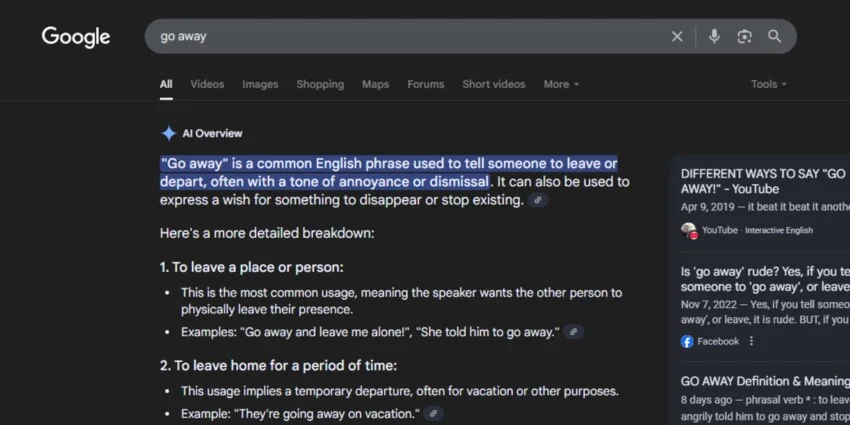
The most resilient method for bypassing generative overlays involves directly manipulating the HTTP GET request parameters sent to the search engine backend. Google’s infrastructure categorizes different types of search layouts using the udm (Universal Search Document Model) parameter.
The Mechanism of udm=14
When a query is dispatched to the engine, the rendering engine determines the layout based on the appended string. While standard blended results run under default states, appending the specific query string flag forces the system to drop the AI generation layer entirely.
-
udm=14 Execution: This specific variable forces the server to return the legacy “Web” indexing document model. It restricts downstream execution of the Gemini-based abstraction layer, returning a clean array of standard text fragments, title tags, and hyperlinked URLs.
-
Performance Metrics: By halting the server-side generation of the AI overview, this approach reduces total Time to First Byte (TTFB) and drastically lowers client-side DOM rendering times by omitting complex script payloads.
Browser Engine Inversion & Custom Search Engines
Manually appending query parameters to every search is inefficient. You can automate this process by modifying the search template strings within your browser’s core engine settings.
[Omnibox Input] ──► [String Interpolation: {google:baseURL}search?q=%s&udm=14] ──► [Direct Legacy SERP Render]
Desktop Chromium Deployment (Chrome, Edge, Brave, Opera)
To hardcode the removal of AI summaries into the browser’s address bar (Omnibox), use the custom site search engine interface:
-
Navigate to the internal settings URI: chrome://settings/searchEngines
-
Locate the Site Search module and select Add.
-
Configure the parameters precisely as follows:
-
Engine Name: Google Legacy Web
-
Shortcut: @web
-
URL with %s in place of query:
{google:baseURL}search?q=%s&udm=14
-
-
Access the contextual three-dot menu next to the newly created engine and select Make Default.
Gecko Engine Deployment (Firefox Desktop & Mobile)
Firefox manages default engines via OpenSearch XML schemas or localized configuration overrides.
-
Install an extension that permits custom search string definition (e.g., Add Custom Search Engine).
-
Define the target URL string as: [https://www.google.com/search?q=%s&udm=14](https://www.google.com/search?q=%s&udm=14)
-
Set the newly defined profile as the global default within about:preferences#search.
String Interruption & Syntactic Operators
If you need to drop the AI overview on a single search without changing your browser settings, you can use syntactic modifiers directly inside the search box.
The Negative Keyword Hack
The search engine’s parsing logic treats specific negative operators as constraints that conflict with the layout parameters required by AI Overviews.
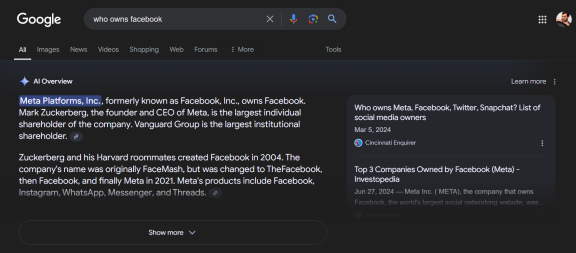
"Who owns Meta platform" ──► Triggers Generative AI Overview Node
"Who owns Meta platform -AI" ──► Causes Parsing Exception ──► Drops AI Node ──► Returns Text Links
By appending a negative exclusion parameter—such as -AI, -i, or random non-indexed strings like -fxq—the query syntax invalidates the specific heuristics used to trigger generative answers. Because the engine cannot find web content that safely excludes these parameters while feeding the summary model, it falls back to standard webpage indexing.
Client-Side Content Filtering via Network and DOM Shields
For those who want to keep the blended search layout (including maps, images, and videos) but completely block the AI container element, client-side DOM filtering is the most effective approach.
1. Declarative Content Blocking (Adblock Plus / uBlock Origin)
Modern content blockers use cosmetic filtering rules to intercept and remove specific HTML nodes from the Document Object Model (DOM) before the browser renders them.
To strip the AI Overview container, inject the following declarative styling rule into your content blocker’s custom filter list:
google.com##.Gc93fe
google.com##div[data-g-id="ai-overview"]
google.com##.MjjYud:has(div[data-ved*="2ahUKE"])
-
Mechanism: These selectors identify the unique CSS classes and experimental attributes used to build the AI Overview container, hiding the entire element block and reclaiming vertical screen real estate.
2. Brave Shields Integration
If you use the Brave browser ecosystem, you can achieve native suppression by leveraging built-in content filtering mechanisms without installing third-party add-ons.
-
Enter the settings interface via brave://settings/shields/filters.
-
Scroll to the Filter Lists repository.
-
Toggle the AI Suggestions Blocker list to active status. This subscribes your browser to a community-maintained repository of CSS selectors that remove AI components from various major search engines.
Comparative Matrix of Suppression Methodologies
| Strategy | Operational Layer | Advantages | Technical Trade-offs |
| &udm=14 Injection | HTTP GET Parameter | Reliable; native backend support; reduces page weight. | Eliminates modern rich snippets, images, and video tabs from the main results page. |
| Negative Operators | Query Syntax | Requires no browser configuration; works on any device instantly. | Slightly alters search syntax; may occasionally filter out relevant pages containing the term. |
| DOM Cosmetic Rules | Client-Side CSS Injection | Retains images, news, and maps while removing the AI box. | Breaks if the search engine updates its internal HTML class naming conventions. |
| Brave Content Filters | Browser Core Architecture | Native performance; no third-party extension overhead. | Requires switching your default daily browser ecosyst |
FAQ
1) What is Google AI Overview in Search?
Google AI Overview is an AI-generated summary block that can appear at the top of Google search results. Instead of only listing webpages, Google uses its generative AI system to synthesize information from multiple sources and display a condensed answer directly in the Search Engine Results Page (SERP). For some users, this is convenient. For others—especially developers, researchers, SEO professionals, and users who want direct access to source pages—it adds clutter, slows the page experience, and can occasionally present incomplete or inaccurate summaries.
2) Why would someone want to disable or hide Google AI Overviews?
There are several common reasons:
- Cleaner search results: Many users prefer the classic list of blue links without a large AI block occupying the top of the page.
- Faster browsing: AI Overviews can add interface complexity and extra rendering overhead.
- Direct source access: Researchers and technical users often want to evaluate original sources themselves rather than rely on a generated summary.
- Reduced distractions: AI answer boxes can push organic results further down the page.
- Lower risk of hallucinations: AI-generated summaries may occasionally misinterpret or oversimplify information.
3) What is the easiest way to remove AI Overviews from Google Search?
The most reliable method is to force Google to load the Web-only style of results by adding the udm=14 parameter to the search URL.
Example:
- Standard search:
https://www.google.com/search?q=your+query - Search without AI Overview:
https://www.google.com/search?q=your+query&udm=14
This tells Google to return a legacy web-focused results layout that generally excludes the AI Overview module.
4) What does udm=14 actually do?
udm=14 is a Google search URL parameter associated with the Web results view. In practice, it often strips away AI-generated overview panels and returns a more traditional list of webpage results. It is currently one of the most effective ways to avoid AI-generated summaries without needing browser extensions.
5) Is udm=14 an official Google feature?
It behaves like an internal Google results-format parameter rather than a user-facing feature prominently explained by Google. While it works for many users, Google can change how it functions at any time. So it is best treated as a practical workaround, not a guaranteed permanent feature.
6) How do I use udm=14 manually for a one-time search?
You can add it directly to the search URL in your browser.
Example query:
If you want to search for “best Linux distro for developers,” use:
https://www.google.com/search?q=best+Linux+distro+for+developers&udm=14
If you’re already on a Google results page, just append:
&udm=14
to the end of the address bar and reload.
7) How do I make Google always search without AI Overviews in Chrome, Edge, Brave, or Opera?
You can create a custom search engine in Chromium-based browsers.
Steps:
- Open your browser.
- Go to:
chrome://settings/searchEngines
(works similarly in Chrome-based browsers like Edge, Brave, and Opera). - Find Site Search or Manage search engines.
- Click Add.
- Fill in the fields like this:
- Search engine: Google Web
- Shortcut: @web
- URL:
{google:baseURL}search?q=%s&udm=14
- Save it.
- Optionally set it as the default search engine if your browser allows it in that section.
Now your searches can use the udm=14 version by default or via the shortcut.
8) Can I make this work in Firefox too?
Yes. Firefox does not expose this quite as neatly as Chromium browsers, but you can still do it.
Common options:
- Use a custom search engine extension.
- Create a custom search profile that points to:
https://www.google.com/search?q=%s&udm=14
Then set that custom engine as your default search engine in Firefox settings.
9) Can I remove AI Overviews without changing browser settings?
Yes. There are a few temporary methods:
Option A: Add &udm=14 manually
This is the cleanest single-search solution.
Option B: Use a custom bookmark
Create a bookmark like:
https://www.google.com/search?q=%s&udm=14
or save a direct Google Web results page and edit the query as needed.
Option C: Use a browser keyword shortcut
Some browsers let you create a keyword like gw so you can type:
gw search terms here
and automatically use the udm=14 search format.
10) What is the “negative keyword” trick to suppress AI Overviews?
Some users report that adding terms like:
- -AI
- -overview
- random exclusion strings
can sometimes stop Google from triggering AI-generated results. Example:
- who owns meta platform
- who owns meta platform -AI
This can occasionally force Google to fall back to regular links, but it is not consistent and can alter the actual search meaning. It’s best viewed as a temporary workaround rather than a dependable solution.
11) Is the negative keyword method as reliable as udm=14?
No. The negative keyword trick is less reliable because:
- It can change the relevance of search results.
- It may filter out useful pages containing the excluded term.
- It does not always prevent AI Overviews from appearing.
If your goal is a stable “no AI Overview” experience, udm=14 is usually the better option.
12) Can I hide AI Overviews with uBlock Origin or Adblock?
Yes. If you want to keep the normal Google results layout—images, videos, maps, and other interface elements—but visually remove the AI Overview block, a content blocker can do that.
You can add cosmetic filters in tools like uBlock Origin or Adblock Plus to hide the AI Overview container on the page.
13) What kind of custom filter rules can be used in uBlock Origin?
Examples often include rules targeting the AI Overview container’s CSS selectors or Google’s internal HTML structure, such as specific classes or data-* attributes. However, Google changes its HTML structure frequently, so exact filters may stop working over time.
In other words:
- Pros: Keeps the rest of Google intact while removing the AI box visually.
- Cons: Breaks when Google changes the page structure.
14) Is blocking the AI Overview with uBlock the same as disabling it at the source?
No. There is an important difference:
With udm=14
You are changing the search result format that Google serves to you.
With uBlock / cosmetic filters
Google may still load the AI-related page structure, but the browser hides it from view after the page loads.
So if you want a more native “no AI Overview” search experience, udm=14 is better. If you want to keep Google’s default layout but remove the AI block visually, cosmetic filters are useful.
15) Can Brave browser block AI Overviews natively?
Brave sometimes supports filter-list based blocking through Shields and custom filter subscriptions. Depending on the current Brave version and available community filter lists, you may be able to hide AI-related search elements without installing a separate extension.
That said, support and filter quality can vary over time, so this is more of a browser-level convenience than a guaranteed permanent solution.
16) Will udm=14 remove all Google rich results too?
It can reduce or change the appearance of some modern search elements depending on the query and how Google renders the Web results view. The main trade-off is:
- Pro: Cleaner results and fewer AI-generated overlays.
- Con: You may lose some blended SERP features or have a more stripped-down layout.
If you want to keep Google’s rich layout but just remove the AI box, cosmetic filtering may be the better fit.
17) Which method is best if I still want images, maps, and other Google features?
If you want to preserve the normal Google experience while removing only the AI block, use:
- uBlock Origin / Adblock custom filters
- Brave Shields filters, if available
If you want the most reliable AI-free search layout overall, use udm=14.
18) Which method is best for speed and simplicity?
Here’s a quick breakdown:
Best for reliability:
udm=14
Best for keeping the standard Google layout:
uBlock Origin / cosmetic filters
Best for one-off searches:
Manually append &udm=14
Best for power users:
Create a custom browser search engine using udm=14
19) Will Google eventually break these methods?
Possibly, yes. Google can change:
- Search parameters
- AI Overview triggers
- HTML structure
- class names and DOM elements
- browser-facing behaviors
That means:
- udm=14 could stop behaving the same way in the future.
- cosmetic filters may need regular updates.
- negative keyword tricks may stop working entirely.
These are practical workarounds, not permanent guarantees.
20) Is it safe to use udm=14 or browser filters?
Yes, generally. These are user-side ways of customizing how search results are displayed in your own browser. You are not hacking Google or doing anything unsafe by:
- appending a search parameter,
- using a custom search engine,
- or hiding page elements with a content blocker.
Just be aware that browser extensions should always be installed from reputable sources.
21) Will this work on mobile devices too?
Yes, but the method depends on the browser:
Mobile Chrome / Android
You can manually use a Google search URL with &udm=14, but setting it as a default search engine is less convenient than on desktop.
Firefox Mobile
Custom search engine add-ons or search shortcuts may help, depending on version and extension support.
Brave Mobile
If Brave supports the relevant filters or shields configuration on your device, you may be able to hide AI elements that way.
In general, manual udm=14 links are the easiest mobile workaround.
22) Can I bookmark a Google search page that always opens without AI?
Yes. A simple way is to create a bookmark using this format:
https://www.google.com/search?q=YOUR+QUERY&udm=14
For a reusable workflow, it is better to create a custom search engine in your browser rather than manually editing bookmarks every time.
23) Does disabling AI Overviews improve search accuracy?
Not directly—but it can improve your ability to evaluate information accurately because it surfaces the original sources more prominently. Instead of relying on an AI summary, you can compare multiple pages yourself, which is especially useful for technical research, legal topics, medical information, and debugging documentation.
24) What is the best setup for developers, researchers, and technical users?
A strong setup is:
- Make a custom Google Web search engine using udm=14
- Keep uBlock Origin installed for optional visual cleanup
- Use standard Google only when you specifically want blended features
- Keep a fallback browser or shortcut for default Google behavior
This gives you fast access to classic web results while preserving flexibility.
25) What’s the simplest summary of all available methods?
Here’s the short version:
- Want the most reliable AI-free Google results?
Use &udm=14 - Want to automate it in your browser?
Create a custom search engine with https://www.google.com/search?q=%s&udm=14 - Want to keep normal Google layout but hide only the AI box?
Use uBlock Origin / Adblock cosmetic filters - Want a temporary one-search trick?
Append &udm=14 manually or try a negative keyword hack