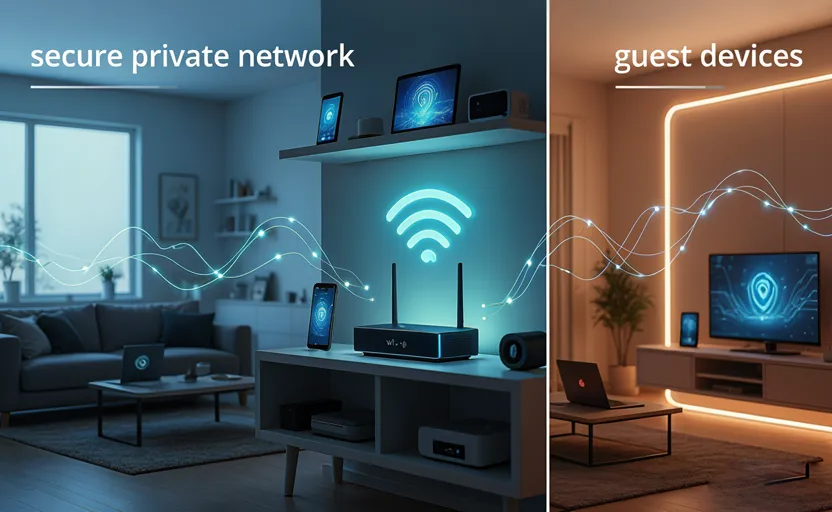
The modern home network has evolved from a simple internet access point into a complex ecosystem of connected devices. This network infrastructure faces its greatest challenge during high-density traffic events, such as when hosting summer visitors. When multiple guest devices—ranging from smartphones and tablets to laptops and streaming sticks—join your local area network (LAN), they do more than consume bandwidth. They introduce security risks, expose local network resources, and accelerate signal degradation across your property.
Many homeowners handle this by simply handing out their primary Wi-Fi password. This approach creates security vulnerabilities and offers a poor user experience. To prepare your network for heavy traffic, you need a strategic approach that addresses physical signal distribution, logical network separation, frictionless onboarding, and active firmware management.
This technical guide outlines the exact steps to optimize, secure, and scale your home wireless network to handle heavy guest traffic without compromising security or performance.
Physical Layer Optimization: Signal Propagation and Architectural Engineering
Before adjusting any software settings, you must optimize the physical layer (Layer 1 of the OSI model). Wireless signals operate on radio frequencies ($2.4\,\text{GHz}$, $5\,\text{GHz}$, and the newer $6\,\text{GHz}$ bands), which are highly susceptible to physical degradation, reflection, and absorption by household materials.
                  [RF Attenuation by Material Type]
                                  │
       ┌──────────────────────────┼──────────────────────────┐
       ▼                          ▼                          ▼
   [Low Loss]               [Moderate Loss]             [Critical Loss]
• Drywall / Gypsum        • Solid Wood Doors          • Reinforced Concrete
• Standard Glass          • Water (Aquariums)         • Brick & Stone Walls
• Plywood Panels          • Brick Facades             • Foil-Backed Insulation
Strategic Router Placement and Elevation
The physical location of your wireless access point (AP) determines the baseline performance of your entire network. To maximize coverage, position your router according to the following guidelines:
-
Centralized Geometric Topology: Place the router in a central room relative to the entire layout of the house. Avoid tucked-away locations like utility closets, basements, or far corners of the building. This shortens the physical distance the radio waves must travel to reach the outer edges of your home.
-
Vertical Elevation: Radio waves propagate downward and outward from the router’s internal antennas. Placing the router low to the ground or on the floor causes immediate signal absorption into the flooring material. Mount the access point high on a shelf or wall—ideally at a height of 1.5 to 2 meters (5 to 6.5 feet).
-
Line-of-Sight Clearing: Keep the area immediately surrounding the router free of physical obstacles. Books, decorative items, electronics, and enclosed cabinetry attenuate the signal right at its source, creating immediate downstream dead zones.
Evaluating Expansion Hardware: Mesh Topologies vs. Extenders
If your home’s layout or construction materials create persistent dead zones in guest areas, you may need to expand your hardware setup.
When choosing a mesh system for high-density summer traffic, prioritize models that feature Wi-Fi 6E or Wi-Fi 7 capabilities (such as the Asus ZenWiFi AX, eero Pro 7, or TP-Link Deco 7 Pro). These standards open up the wide, uncrowded $6\,\text{GHz}$ spectrum. This provides clean channels with minimal interference, which is ideal for data-heavy guest devices.
Logical Layer Segmentation: Provisioning an Isolated Guest SSID
The most critical security step when hosting visitors is establishing an isolated network segment. Giving guests access to your primary Wi-Fi network allows their devices to discover and communicate with everything on your local area network (LAN)—including network-attached storage (NAS) units, backup servers, smart home hubs, security cameras, and printers.
If a guest’s device is infected with malware, ransomware, or a network worm, it can scan your local network and infect your primary devices. Setting up a dedicated Guest SSID creates a logical firewall that isolates visitor traffic.
                                  [Internet WAN]
                                        │
                               [Primary Router/AP]
                                        │
         ┌──────────────────────────────┴──────────────────────────────┐
         ▼                                                             ▼
   [Primary LAN]                                              [Guest Network SSID]
(Trusted Hardware, NAS, PC)                              (Unauthenticated Guest Devices)
         │                                                             │
         └─────────────────── [Layer 3 Isolation] ─────────────────────┘
Step-by-Step Configuration Guide
Step 1: Access the Gateway Administration Interface
Connect a computer to your primary network and open a web browser. Enter your router’s local gateway IP address into the URL bar. Common default IP addresses include:
-
192.168.1.1
-
192.168.0.1
-
10.0.0.1
Note: If you are using a modern mesh router system, this management interface is usually accessed through the manufacturer’s official mobile app rather than a web browser.
Step 2: Authenticate and Secure Admin Credentials
Enter your administrative username and password. If your router is still using the factory-default login credentials found on its physical sticker (e.g., admin / password), change them immediately. Leaving default credentials active allows anyone on the network to access your router’s core settings and reconfigure your security options.
Step 3: Navigate to Wireless Network Parameters
Locate the advanced wireless configuration menu. Depending on your router’s software, this may be labeled as Wireless Settings, Advanced Wireless, or explicitly as Guest Network.
Step 4: Configure the Guest SSID Options
Turn on the Guest Network toggle and configure the following parameters:
-
Network Name (SSID): Choose a clear name that distinguishes it from your main network, such as Smith_Family_Guest.
-
Security Architecture Type: Select WPA2-PSK (AES) or WPA3-Personal. Avoid using open networks without a password, as they allow unencrypted traffic sniffing over the air.
-
Enforce Layer 3 Isolation: Look for a checkbox labeled “Isolate Station,” “AP Isolation,” or “Allow Guests to Access Local Network.” Ensure that local access is strictly disabled. This setting allows guest devices to connect to the internet while preventing them from seeing or communicating with any other devices on the network.
Frictionless Onboarding: Deploying Wireless Credential Protocols
Manually typing long, complex passwords into multiple guest devices can be tedious and often leads to entry errors. You can simplify this onboarding process while maintaining strong network security by using wireless credential handshakes and visual entry codes.
                       [Onboarding Entry Options]
                                   │
         ┌─────────────────────────┼─────────────────────────┐
         ▼                         ▼                         ▼
  [OS-Native Share]         [Dynamic QR Scan]         [Static QR Print]
• Proximity handshake      • Settings-to-camera       • Encrypted QR matrix
• Bluetooth validation      • Zero manual input        • Wall or fridge mount
• Immediate authentication • Instant connection       • Offline authentication
Operating System-Native Proximity Handshakes
Modern mobile operating systems include built-in features for sharing Wi-Fi credentials with nearby contacts over encrypted channels:
-
Apple iOS / macOS Ecosystem: If a visiting guest is in your Apple Contacts list and has Bluetooth enabled, they can simply select your Guest SSID on their device. A pop-up prompt will automatically appear on your unlocked iPhone or iPad, allowing you to securely share the password with a single tap.
-
Android Ecosystem: You can generate a temporary on-screen connection token directly from your phone. Navigate to Settings > Network & Internet > Internet, tap the gear icon next to your Guest SSID, and select Share. This displays a secure QR code on your screen that your guest can scan with their phone’s camera to connect instantly.
Generating an Encrypted Network QR Code Matrix
For a completely platform-independent solution, you can create a static network QR code using an open-source utility like QiFi or QR Code Generator. This allows visitors to scan a printed code and join the network without needing to see or type the password.
The underlying text structure embedded within the QR code must follow this specific syntax:
Print this generated QR code and place it in a central spot, such as the guest bedroom or on the refrigerator. This allows visitors to scan the code with their phone’s native camera app and connect to your isolated network instantly, removing the need for manual password entry.
Systems Maintenance: Patch Management and Resource Hardening
Before your guests arrive and increase your network traffic, you should perform routine system maintenance to ensure your router can handle the extra load smoothly and securely.
Firmware Verification and Security Patching
A router running outdated firmware can suffer from performance bugs, memory leaks, and unpatched security vulnerabilities. Upgrading your firmware helps optimize how your router handles multiple data streams.
[Access Admin Console] ──► [Check Firmware Status] ──► [Apply Update Vendor Microcode] ──► [System Reboot]
-
Log into your router’s administration portal or mobile application.
-
Navigate to the System Tools, Firmware Update, or Advanced Maintenance section.
-
Click Check for Updates. If a newer version of the firmware is available, backup your current settings and apply the update.
-
Allow the router to complete its update and reboot sequence. This flushes temporary system logs and clears old cache allocations, resetting the device’s memory for better stability.
Hardening Specific Local Shares
If you are using an older or basic router that lacks a dedicated Guest SSID isolation feature, you must manually secure your primary network’s shared resources:
-
Credentialed File Shares: Review all shared folders on Windows (SMB) or macOS file networks. Ensure that guest or anonymous read/write access is disabled. Every shared directory should require a strong, unique username and password.
-
Network-Attached Storage (NAS) Controls: Log into your NAS management software and confirm that the built-in firewall is active. Block access from unauthorized IP ranges and disable universal plug-and-play (UPnP) settings to prevent automatic port changes.
Advanced Traffic Engineering: Bandwidth Shaping via Quality of Service (QoS)
When multiple guests join your network, their combined data usage—such as streaming high-definition video, downloading large files, or running cloud backups—can easily consume your available upload and download bandwidth. This can lead to high latency and buffering for everyone on the network.
To prevent this, you can configure Quality of Service (QoS) rules to balance bandwidth allocation across your devices.
                                [Total Bandwidth Cap]
                                          │
         ┌────────────────────────────────┴────────────────────────────────┐
         ▼                                                                 ▼
   [Primary Network]                                                [Guest Network]
• Priority Level: High                                           • Priority Level: Low
• Allocated Bandwidth: 70%                                       • Allocated Bandwidth: 30%
• Guaranteed Low Latency                                         • Dynamically throttled during spikes
-
Access the QoS Menu: Open your router’s advanced settings and locate the QoS or Traffic Management tab.
-
Define Total Bandwidth Limits: Run an online speed test to find your exact download and upload speeds, then enter these values into the QoS configuration fields. This tells the router’s traffic controller its maximum operating capacity.
-
Set Guest Traffic Rules: If your router supports multi-SSID traffic shaping, assign a lower priority level to your Guest SSID, or set a strict bandwidth limit (e.g., capping the guest network at 30% of your total internet speed). This ensures that no matter how many devices join the guest network, your primary home devices will always have enough bandwidth for essential tasks, remote work, or gaming.
Technical Summary
Setting up a robust, secure guest network requires a systematic approach to both the physical and software layers of your home network. By focusing on strategic placement, isolating your guest network, and managing traffic effectively, you can ensure a smooth, secure internet experience for your visitors while keeping your private data fully protected.
                           [Final Deployment Checklist]
                                        │
      ┌─────────────────────────────────┼─────────────────────────────────┐
      ▼                                 ▼                                 ▼
[Physical Check]                [Logical Check]                 [Security Check]
• Router elevated >1.5m         • Guest SSID activated          • Firmware updated
• Centralized location          • Layer 3 isolation verified    • Default admin pass changed
• Mesh nodes synced             • WPA2/WPA3 password set        • QR access code deployed
FAQ: Home Network Optimization for Heavy Guest Traffic
1. Why is sharing my main Wi-Fi password with guests a security risk?
Sharing your primary Wi-Fi password gives guests full access to your local network (LAN), which may expose sensitive devices such as NAS drives, smart home systems, printers, and security cameras. If a guest device is infected with malware, it can potentially scan and attack other devices on the same network.
2. What is a Guest SSID and why should I use it?
A Guest SSID is a separate Wi-Fi network broadcast by your router that provides internet access without exposing your internal devices. It creates logical isolation (Layer 3 separation), ensuring guests can browse the internet but cannot access your private network resources.
3. Does placing my router in a central location really improve Wi-Fi performance?
Yes. Central placement reduces signal travel distance and minimizes interference caused by walls and obstacles. This improves overall coverage consistency and reduces dead zones, especially in multi-room homes.
4. What materials weaken Wi-Fi signals the most?
Reinforced concrete, brick walls, metal surfaces, and foil-backed insulation cause the most significant signal degradation. Water (including aquariums) and dense furniture can also reduce wireless performance.
5. Is a Wi-Fi mesh system better than a range extender?
Yes. Mesh systems provide seamless roaming between nodes and maintain more stable bandwidth distribution. Range extenders often create separate networks and may reduce throughput due to signal repetition loss.
6. How does a Guest Network protect my smart home devices?
By isolating guest traffic, the router prevents external devices from communicating with internal systems like IoT hubs, smart locks, and surveillance cameras, reducing the risk of unauthorized access or cyberattacks.
7. What is QoS (Quality of Service) in networking?
QoS is a router feature that prioritizes certain types of traffic or devices. It ensures critical activities like video calls, gaming, or work applications receive stable bandwidth even when the network is congested.
8. Can too many guest devices slow down my internet?
Yes. Each connected device consumes bandwidth for streaming, browsing, and background updates. Without bandwidth management, performance degradation and latency spikes can occur across the entire network.
9. Why is router firmware important for performance and security?
Firmware updates patch security vulnerabilities, improve device stability, and optimize how the router handles multiple connections and traffic loads.
10. What is a Wi-Fi QR code and how does it help guests?
A Wi-Fi QR code encodes your network credentials into a scannable format, allowing guests to connect instantly without typing passwords, reducing errors and improving onboarding experience.