In an era where physical media is rapidly disappearing, the ISO file (often called a “disc image”) has become the gold standard for data preservation. Whether you are using a modern laptop without a DVD drive or simply want to create a high-speed backup of your most important software, learning to create an ISO is a fundamental digital skill.
An ISO file is essentially a perfect digital “clone” of a CD or DVD. By using virtual drive software, your computer treats this file exactly like a physical disc, allowing for faster data access and long-term storage that won’t scratch or degrade.

The Advantages of the ISO Format
-
No Hardware Required: Access your data on devices that lack an optical drive.
-
Virtual Mounting: Create “Virtual Drives” that act like physical hardware but run at the speed of your hard drive.
-
Consolidated Backups: Instead of hundreds of individual files, your data is stored in one clean, portable package.
Method A: The Powerhouse Approach – Using PowerISO
PowerISO is a veteran in the field of disc image management. It is renowned for its reliability and its ability to handle massive datasets with ease.
Step-by-Step Execution:
-
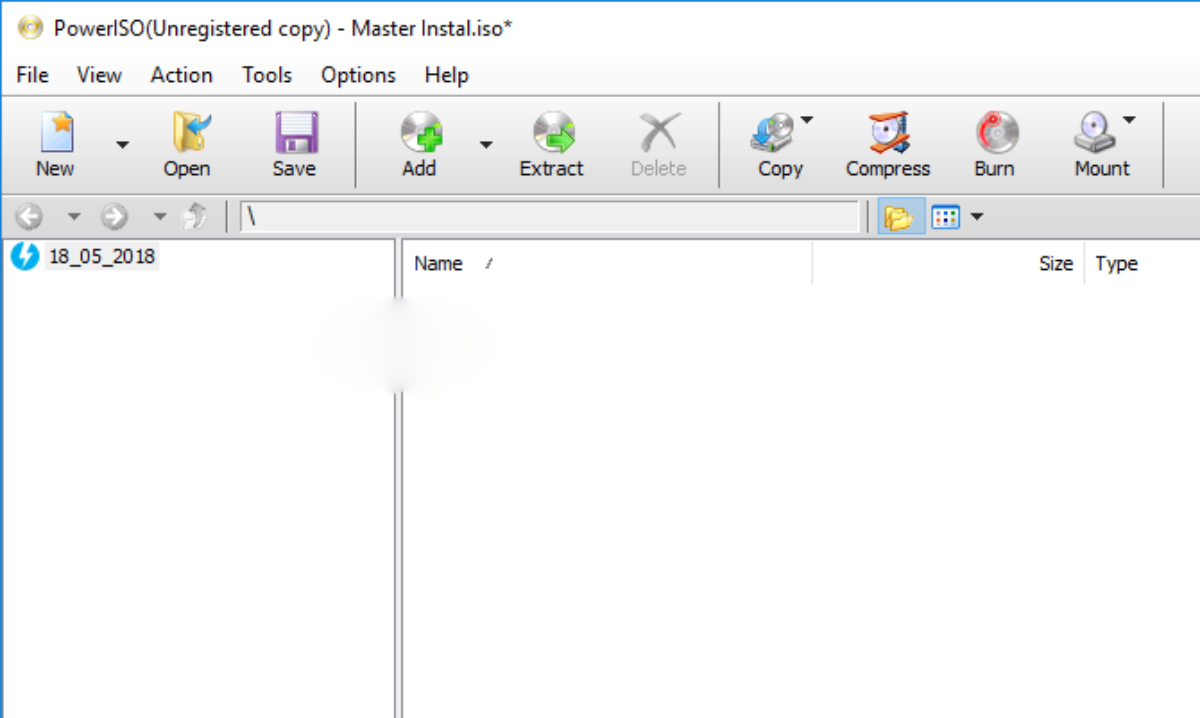
Preparation: Download and install PowerISO. Once launched, look for the clean, intuitive interface.
-
Initiating the Build: Click the New button and select Data CD/DVD. This tells the software you are building a fresh file system.
-
Aggregation: Click the Add button. A browser window will appear; select the files, folders, or software packages you wish to archive.
-
Capacity Check: In the bottom-right corner, check the media size. If your files are under 700MB, select “CD.” For larger projects, select “DVD” (4.7GB) or “BD” (25GB+).
-
Finalizing the Image: Click Save. In the dialog box, ensure the file type is set to “Standard ISO Images (*.iso)”. Name your file and choose a secure destination on your hard drive.
-
The Result: Once the progress bar reaches 100%, your digital clone is ready for use or sharing.
Method B: The Modern Alternative – Using Daemon Tools Lite
Daemon Tools Lite is perhaps the most famous name in virtual drive history. It is highly optimized for Windows 10 and offers a sleek, modern workflow.
Step-by-Step Execution:
-
The Interface: Launch Daemon Tools Lite after installation. Navigate to the New Image icon on the sidebar.
-
Defining the Goal: Choose the option Create a Data Image. This is the standard path for turning regular files into an ISO.
-
Format Configuration: Before adding files, locate the Format dropdown menu. It is crucial to switch this to Standard ISO.
-
The (+) Factor: Click the Plus (+) symbol to browse your computer. You can hold CTRL to select multiple files at once.
-
Storage Logic: Click the Browse (folder icon) next to the “Save As” path. Give your archive a clear, descriptive name.
-
Ignition: Click Start. The software will compile your data into a single, high-performance image file.
Pro-Tips for Digital Archiving
-
File Naming Matters: Avoid special characters in your ISO filenames to ensure they remain compatible across different operating systems (like Mac or Linux).
-
Compression vs. Compatibility: While some formats (sech as .DAA or .ISZ) offer compression, sticking to Standard ISO ensures you can open the file on almost any device in the future without needing specific software.
-
Verification: After creating an ISO, always “mount” it once to verify that the files are intact and the internal directory structure is correct.
Conclusion: Future-Proofing Your Data
Whether you are archiving old family photos or creating a backup of a critical OS installation, the ISO format is your best friend. By mastering PowerISO and Daemon Tools Lite, you bridge the gap between the physical past and the digital future.
Frequently Asked Questions (FAQ)
1. What is an ISO file?
An ISO file is a complete digital copy of a disc (CD, DVD, or Blu-ray) that contains all data and file structure in a single file.
2. Why should I create an ISO file?
Creating an ISO allows you to back up data, preserve software, and access files without needing physical discs.
3. Can I use an ISO file without a DVD drive?
Yes, ISO files can be mounted using virtual drive software, allowing access without any physical hardware.
4. What software can I use to create ISO files?
Popular tools include PowerISO and Daemon Tools Lite.
5. What is the difference between ISO and other formats like DAA or ISZ?
ISO is universally compatible, while formats like DAA or ISZ offer compression but may require specific software to open.
6. How large can an ISO file be?
It depends on the source:
- CD: up to ~700MB
- DVD: up to ~4.7GB
- Blu-ray: 25GB or more
7. What is virtual mounting?
Virtual mounting allows your computer to treat an ISO file like a real disc using software-based drives.
8. Is creating an ISO file safe?
Yes, as long as you use trusted software and ensure your files are free from malware.
9. Can ISO files be edited after creation?
ISO files are typically read-only, but you can modify them using specialized software like PowerISO.
10. How do I verify an ISO file after creating it?
Mount the ISO file and check if all files and folders are accessible and correctly structured.
11. Are ISO files compatible with all operating systems?
Yes, ISO is a standard format and works across Windows, macOS, and Linux.
12. What are best practices for naming ISO files?
Use simple names without special characters to ensure compatibility across different systems.