The Ultimate Masterclass on Windows 10 Action Center: Customizing Quick Actions, System Notifications, and UI Mechanics for Maximum Productivity
1 week ago
In the modern digital workplace, efficiency is rarely limited by raw computing horsepower. Instead, it is governed by how seamlessly a user interacts with their operating system. Every second lost searching through nested configuration windows, navigating submenus, or clicking through system settings degrades workflow focus, breaking what cognitive psychologists call the state of "flow."
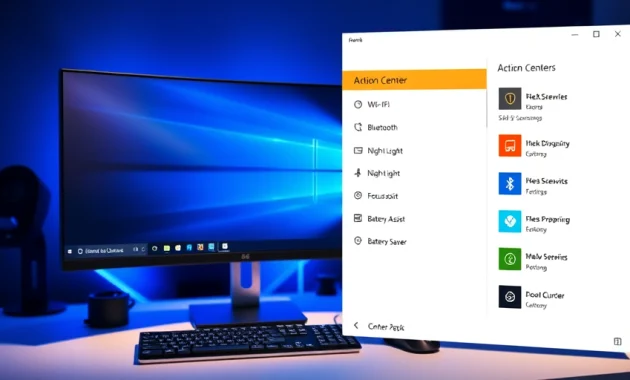
Microsoft addressed this challenge in Windows 10 by introducing a revamped user interface paradigm: the Action Center and its embedded Quick Action Panel.
Functioning as a unified control room, the Action Center combines system notifications with a grid of customizable, one-touch shortcuts for essential settings—such as Airplane Mode, Night Light, Bluetooth, Wi-Fi, and Projection settings.
However, many users rely on the default Action Center layout out of the box, leaving it cluttered with tools they never use while hiding the quick settings they rely on daily.
This guide explores the mechanics of the Windows 10 Action Center, walking you through step-by-step customization methods, Registry tweaks, keyboard navigation tricks, and strategies to turn this daily interface into a high-speed productivity hub.
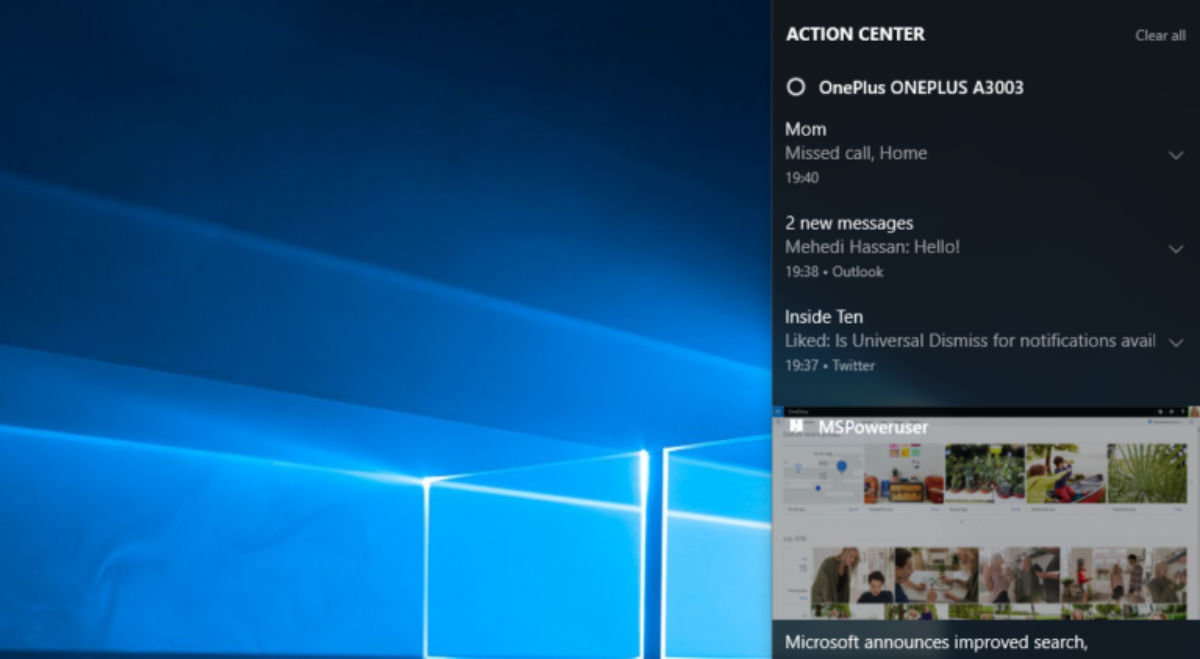
Anatomy and Mechanics of the Windows 10 Action Center
To optimize the Action Center, you must first understand how it is built and how it interacts with the underlying Windows 10 operating system architecture.
Windows 10 Action Center Interface Architecture:
┌─────────────────────────────────────────────────────────────┐
│                   Action Center Side Flyout                 │
│                                                             │
│  ┌───────────────────────────────────────────────────────┐  │
│  │            Top Section: Notification Toast Feed    │  │
│  │  - App Alerts, System Warnings, Security Notifications│  │
│  └───────────────────────────────────────────────────────┘  │
│                                                             │
│  ┌───────────────────────────────────────────────────────┐  │
│  │            Bottom Section: Quick Action Grid          │  │
│  │  - Action Buttons (Wi-Fi, Bluetooth, Night Light)     │  │
│  │  - Expand/Collapse Toggle View Controls               │  │
│  └───────────────────────────────────────────────────────┘  │
└─────────────────────────────────────────────────────────────┘
The Action Center is a slide-out side panel anchored to the right edge of the Windows 10 desktop space. It is split into two primary functional layers:
-
The Notification Feed (Top Layer): A centralized event stream that captures real-time alerts (toast notifications) from native system utilities, security suites (Windows Defender), connected hardware devices, and third-party software applications.
-
The Quick Action Panel (Bottom Layer): A customizable grid of interactive toggle switches and operational shortcuts. These controls allow users to change hardware states, adjust visual settings, or open key system utilities instantly with a single click.
The Graphical User Interface (GUI) vs. System Backend
When you click a Quick Action button—such as toggling Night Light or turning on Bluetooth—the Action Center does not launch a heavy, standalone configuration app in the foreground.
Instead, the Action Center runs as an integrated thread within the primary Windows Shell executable process (explorer.exe). Clicking a Quick Action switch fires off low-level Application Programming Interface (API) calls directly to the Windows Runtime (WinRT) framework or Windows Management Instrumentation (WMI) subsystems.
Quick Action System Call Execution Flow:
[User Clicks Quick Action Button] ──► Action Center (Shell/explorer.exe)
                                              │
                                              ▼
[WinRT / WMI Low-Level API Calls] ──► Target Hardware / Service State Shift
                                              │
                                              ▼
[System Visual Feedback Rendered] ◄── Button State Changes Color (Grey to Blue)
Because these requests bypass standard application launch loops, state changes happen almost instantaneously.
The physical button shifts visually from grey (Inactive/Off) to a bright accent color (Active/On), confirming that the corresponding background service, radio band, or visual display filter has been triggered at the system kernel level.
Step-by-Step Customization via Windows 10 Settings
The primary way to configure your Quick Action panel is through the native Windows 10 Settings app. This interface allows you to add, remove, hide, and reorganize shortcuts to match your daily workflow needs.
Quick Action Configuration Workflow Path:
Start Menu / Win + I ──► System ──► Notifications & Actions ──► Edit Your Quick Actions
Method A: Configuring Quick Actions via Settings App
- To Remove a Button: Click the small unpin icon (pushpin icon with a stroke) located at the top-right corner of the button you want to hide.
- To Add a Button: Click the + Add button at the bottom of the grid, then select an unpinned shortcut from the pop-up list.
- To Rearrange Order: Click and drag any button to move it into your preferred grid position.
Method B: The Direct Right-Click Editing Shortcut
If you want to customize your panel quickly without navigating through the Settings app, Microsoft provides a direct right-click shortcut built right into the Action Center flyout interface.
Direct Editing Context Menu Path:
Open Action Center (Win + A) ──► Right-Click Any Quick Action Button ──► Select "Edit quick actions"
-
Open the Action Center by pressing Win + A on your keyboard or clicking the speech bubble icon in your system tray at the far right of your taskbar.
-
Position your mouse cursor over any Quick Action button inside the panel grid.
-
Right-click the button to open the context menu.
-
Click Edit quick actions. The Action Center immediately switches into edit mode, allowing you to drag, unpin, or add buttons right away.
Comprehensive Directory of Native Quick Action Shortcuts
Windows 10 includes a wide array of built-in Quick Action buttons. Depending on whether you are using a desktop workstation or a mobile laptop, these controls manage display settings, wireless connectivity, security modes, and accessibility tools.
Quick Action Button Functional Categories:
├── Hardware & Connectivity  ➔ Wi-Fi, Bluetooth, Airplane Mode, Mobile Hotspot, Cellular
├── Display & Visual Controls ➔ Night Light, Project, Display Brightness, Battery Saver
└── System & Productivity     ➔ Focus Assist, Location, Connect, Nearby Sharing, All Settings
| Quick Action Name | Operational Function | Ideal Target Workflow / Usage |
| Wi-Fi | Toggles the internal wireless network interface card (NIC) on or off. | Rapidly reconnecting to local networks or disconnecting for security. |
| Bluetooth | Controls the Bluetooth radio to connect peripherals (mice, keyboards, headphones). | Managing wireless audio devices and external input hardware. |
| Night Light | Adjusts color temperature to warm, amber tones to reduce blue light exposure. | Evening work sessions to reduce eye strain and improve sleep quality. |
| Focus Assist | Cycles through notification filtering modes: Off, Priority only, or Alarms only. | Suppressing intrusive pop-up alerts during presentations or deep work sessions. |
| Airplane Mode | Immediately cuts off all wireless hardware radios (Wi-Fi, Bluetooth, Cellular). | Flight travel, strict security environments, or rapid battery conservation. |
| Battery Saver | Limits background sync, dims screen brightness, and throttles idle processes. | Extending battery life when working away from a power outlet. |
| Project | Opens the display projection menu (PC screen only, Duplicate, Extend, Second screen only). | Connecting to external monitors, conference room projectors, or TVs. |
| Connect | Scans for wireless display adapters and audio devices (Miracast, Bluetooth audio). | Streaming video or audio to external wireless displays and sound systems. |
| Location | Toggles system-wide location tracking services for apps and Windows. | Preserving privacy or granting location access to map and weather apps. |
| Nearby Sharing | Uses Wi-Fi and Bluetooth to share files and links with nearby Windows 10 PCs. | Fast, wireless local file transfers without needing USB drives or cloud links. |
| Mobile Hotspot | Re-shares your computer's internet connection over Wi-Fi to other devices. | Providing internet access to phones or tablets while traveling. |
| Screen Snip | Immediately launches the Snip & Sketch tool to capture screen regions. | Capturing screenshots of articles, code snippets, or receipts. |
Advanced Power User Hacks & Registry Tweaks
For system administrators, IT professionals, and power users, managing the Action Center using standard GUI menus is only the beginning. You can also customize, automate, or disable Action Center behavior using the Windows Registry and Local Group Policy Editor.
System Level Policy Override Pathways:
├── Local Group Policy (gpedit.msc) ➔ Administrative Templates ──► Start Menu & Taskbar
└── Windows Registry (regedit.exe)  ➔ HKEY_CURRENT_USER\SOFTWARE\Policies\Microsoft\Windows\Explorer
1. Completely Disabling the Action Center via Policy Editor
In managed enterprise networks or secure kiosk workstations, system administrators often need to disable the Action Center entirely to prevent users from changing system settings or reading sensitive notifications.
Using the Local Group Policy Editor (gpedit.msc)
(Available on Windows 10 Pro, Enterprise, and Education editions)
-
Press Win + R to open the Run dialog box.
-
Type gpedit.msc and press Enter to open the Local Group Policy Editor.
-
In the left panel, navigate to the following folder path:
User Configuration -> Administrative Templates -> Start Menu and Taskbar
-
In the right pane, scroll down to find the policy setting named Remove Notification and Action Center.
-
Double-click the policy setting. Select the Enabled radio button.
-
Click Apply, then click OK.
-
Restart your system or log out and back in. The Action Center icon will disappear from your taskbar, and the Win + A keyboard shortcut will be disabled.
2. Disabling the Action Center via Windows Registry (regedit.exe)
(For Windows 10 Home edition users where Group Policy Editor is unavailable)
⚠️ Critical System Safety Warning: Modifying the Windows Registry incorrectly can cause system instability. Always create a system restore point or backup your registry keys before making structural changes.
-
Press Win + R, type regedit, and press Enter to launch the Registry Editor.
-
In the top address bar, paste the following path and press Enter:
PlaintextHKEY_CURRENT_USER\SOFTWARE\Policies\Microsoft\Windows\Explorer
-
If the Explorer key folder does not exist under Windows, right-click the Microsoft folder, select New -> Key, and name it Explorer.
-
Right-click inside the empty space in the right pane of the Explorer key, select New -> DWORD (32-bit) Value.
-
Name the new value:
PlaintextDisableNotificationCenter
-
Double-click DisableNotificationCenter and change its Value data from 0 to 1.
-
Click OK, close the Registry Editor, and restart your computer to apply the policy override.
Registry Value Parameters:
Key Path    : ...\Policies\Microsoft\Windows\Explorer
Value Name  : DisableNotificationCenter
Value Type  : REG_DWORD
Value Data  : 1 (Disabled) | 0 (Enabled / Default)
3. Resetting Quick Action Layout to Factory Default
If your Quick Action panel grid becomes misconfigured or corrupt, you can easily reset it to factory default settings by clearing its cached registry key using PowerShell.
-
Open the Start Menu, search for PowerShell, right-click it, and select Run as Administrator.
-
Run the following command to delete the customized Quick Action layout cache:
PowerShellRemove-ItemProperty -Path "HKCU:\Control Panel\Quick Actions\Control Center\Providers" -Name * -Force
-
Next, restart the Windows Shell process to rebuild the Action Center grid:
PowerShellStop-Process -Name explorer -Force
-
Windows Explorer will instantly reload, restoring your Quick Action panel back to its clean, out-of-the-box factory layout.
Optimizing Notification Controls for Deep Work
The Action Center is more than just a grid of quick settings; it is also your computer's central hub for system notifications. Unmanaged notifications can interrupt your focus, draining your productivity throughout the workday.
The Notification Management Hierarchy:
[Incoming App Alert] ──► Focus Assist Priority Engine
                                    │
    ┌───────────────────────────────┴───────────────────────────────┐
    ▼                                                               ▼
[Priority Allowed] ➔ Displays On-Screen Toast Alert     [Suppressed / Muted] ➔ Sent Silently to Action Center Log
Mastering Focus Assist Modes
Windows 10 includes a smart notification filter called Focus Assist (formerly known as Quiet Hours). Focus Assist lets you control when and how notifications pop up on your screen.
Focus Assist features three distinct operating modes:
-
Off: Deactivates all filters. All app alerts, system warnings, and social notifications pop up on your screen in real time with visual banners and sound cues.
-
Priority Only: Mutes general notifications while allowing select critical contacts, alarms, and apps to bypass the filter. You can customize your priority list by going to Settings -> System -> Focus assist -> Customize your priority list.
-
Alarms Only: Mutes all incoming app alerts and system notifications. Only set system alarms will sound. All silenced notifications are logged quietly inside the Action Center for you to review later.
Setting Up Automatic Focus Assist Rules
Instead of manually toggling Focus Assist every time you enter a meeting or start deep work, you can configure automatic rules based on your schedule or activity:
Automatic Focus Assist Trigger Matrix:
├── Time Rules   ➔ Automatically turns on between set hours (e.g., 9:00 AM - 5:00 PM)
├── Display Mode ➔ Automatically turns on when duplicating displays for presentations
└── App Detection ➔ Automatically turns on while playing full-screen games or apps
-
Go to Settings -> System -> Focus assist.
-
Scroll down to the Automatic rules section.
-
Toggle on the rules that match your daily workflow:
-
During these times: Automatically turns on Focus Assist during specific hours of the day (e.g., during deep work hours).
-
When I'm duplicating my display: Automatically suppresses alerts when presenting slides to an external projector or TV screen.
-
When I'm playing a game: Suppresses pop-ups when running DirectX or OpenGL games in full-screen mode.
-
When I'm using an app in full-screen mode: Silences alerts when watching full-screen videos or focusing on a single full-screen application.
-
Keyboard Shortcuts & Efficiency Hacks
For power users who prefer keeping their hands on the keyboard, learning Action Center shortcuts can significantly speed up daily navigation tasks.
Action Center Hotkey Directory:
Win + A ──────────► Instantly toggle open/close the Action Center flyout
Win + K ──────────► Open the Connect pane for wireless display/audio pairing
Win + P ──────────► Open the Project pane for multi-monitor configuration
Win + Shift + S ──► Launch Screen Snip tool to capture a selection directly
Navigating the Action Center via Keyboard
Once you open the Action Center using Win + A, you can navigate the entire panel without using a mouse:
-
Press Win + A to slide open the Action Center.
-
Press the Tab key to jump focus between the Notification Feed section and the Quick Action Grid.
-
Use the Arrow Keys (Up, Down, Left, Right) to highlight individual Quick Action buttons in the grid.
-
Press the Spacebar or Enter key to toggle the highlighted Quick Action on or off, or to open its corresponding sub-menu.
-
Press the Esc key to instantly close the Action Center panel and return to your active window.
Troubleshooting Common Action Center Issues
Like any core system component, the Action Center can occasionally run into issues—such as greyed-out buttons, unresponsiveness, or failing to open altogether. Here is how to fix the most common problems.
Action Center Diagnostic Tree:
[Action Center Unresponsive]
       │
       ├──► Try Task Manager Explorer Restart
       │
       ├──► Run System File Checker (sfc /scannow)
       │
       └──► Execute PowerShell Re-registration Script
Issue 1: Action Center Will Not Open or Icon is Greyed Out
If clicking the taskbar speech bubble or pressing Win + A does not open the Action Center, the Windows Shell process may have hung.
Solution: Restart Windows Explorer
-
Press Ctrl + Shift + Esc to open the Task Manager.
-
Under the Processes tab, scroll down to locate Windows Explorer.
-
Right-click Windows Explorer and select Restart. The taskbar and desktop icons will refresh, clearing temporary shell glitches.
Issue 2: Corrupted System Files Preventing Action Center Launch
If restarting Windows Explorer does not resolve the issue, core operating system files may be corrupted.
Solution: Run System File Checker (SFC) and DISM
-
Press the Windows key, type cmd, right-click Command Prompt, and select Run as administrator.
-
Run the Deployment Image Servicing and Management (DISM) tool to repair the system image:
DOSDISM.exe /Online /Cleanup-image /Restorehealth
-
Once the DISM scan finishes, run the System File Checker tool to repair corrupt system files:
DOSsfc /scannow
-
Once the scan reaches 100% completion, restart your computer and test the Action Center again.
Issue 3: Re-registering the Action Center Application Package
If the Action Center remains unresponsive after running SFC scans, re-registering the Action Center package via PowerShell usually fixes the issue.
Get-AppxPackage -AllUsers -Name Microsoft.Windows.ActionCenterExperience | Foreach {Add-AppxPackage -DisableDevelopmentMode -Register "$($_.InstallLocation)\AppXManifest.xml"}
-
Right-click the Start Menu button and select Windows PowerShell (Admin).
-
Copy and paste the command snippet above into the PowerShell window.
-
Press Enter to execute the command. This re-links and re-registers the Action Center application manifest files within your user profile.
-
Once the command finishes executing, restart your system.
Conclusion: Building Your Ideal Windows 10 Workflow
The Windows 10 Action Center is far more than a simple notification panel. When properly configured, it becomes a high-speed command center that saves time and keeps you focused throughout your workday.
By taking a few minutes to clean up unused Quick Action buttons, pin your most-used shortcuts, configure Focus Assist rules, and master key keyboard shortcuts like Win + A, you can eliminate repetitive menu navigation and streamline your daily interactions with Windows 10.
Quick Reference Workflow Matrix
| Desired Result | Method | Primary Command or Path |
| Customize Buttons | GUI Settings | Win + I -> System -> Notifications & actions -> Edit your quick actions |
| Open Panel Quickly | Hotkey | Press Win + A on your keyboard |
| Silence Alerts | Focus Assist | Action Center -> Click Focus Assist (Cycle to Priority or Alarms Only) |
| Disable Action Center | Group Policy | gpedit.msc -> User Config -> Admin Templates -> Start Menu & Taskbar -> Remove Notification and Action Center |
| Reset Grid Layout | PowerShell | Remove-ItemProperty -Path "HKCU:\Control Panel\Quick Actions\Control Center\Providers" -Name * -Force |
Frequently Asked Questions (FAQ)
1. What is the Windows 10 Action Center?
The Windows 10 Action Center is a built-in notification and quick settings hub that allows users to view system alerts, application notifications, and access frequently used system controls from one location. It combines notifications with Quick Actions such as Wi-Fi, Bluetooth, Night Light, Focus Assist, Airplane Mode, and more, making everyday tasks faster and more convenient.
2. How do I open the Action Center in Windows 10?
There are several ways to open the Action Center:
- Press Windows + A on your keyboard.
- Click the Action Center (notification) icon on the far-right side of the taskbar.
- On supported touchscreen devices, swipe in from the right edge of the screen.
The keyboard shortcut is the fastest method for most users.
3. How do I customize the Quick Action buttons?
To customize Quick Actions:
- Press Windows + I to open Settings.
- Go to System.
- Select Notifications & actions.
- Click Edit your quick actions.
- Add, remove, or rearrange shortcuts according to your workflow.
- Click Done to save the changes.
4. Which Quick Action buttons are available in Windows 10?
Windows 10 includes numerous Quick Actions, including:
- Wi-Fi
- Bluetooth
- Airplane Mode
- Night Light
- Focus Assist
- Mobile Hotspot
- Battery Saver
- Project
- Connect
- Nearby Sharing
- Location
- Screen Snip
- Display Brightness
The available options depend on your hardware configuration.
5. What is Focus Assist and how does it work?
Focus Assist is a notification management feature that minimizes distractions while you work.
It offers three modes:
- Off – All notifications appear normally.
- Priority Only – Only notifications from selected apps and contacts are shown.
- Alarms Only – All notifications are hidden except alarms.
Focus Assist can also activate automatically during presentations, gaming sessions, or scheduled working hours.
6. Can I disable the Windows 10 Action Center?
Yes.
Windows 10 Pro, Enterprise, and Education users can disable it through the Local Group Policy Editor.
Windows 10 Home users can disable it using the Windows Registry Editor by creating the DisableNotificationCenter DWORD value.
Always back up your registry before making system-level modifications.
7. Why isn't the Action Center opening?
Common causes include:
- Windows Explorer has stopped responding.
- Corrupted system files.
- Registry or Group Policy restrictions.
- Windows Shell glitches.
Restarting Windows Explorer, running DISM and SFC, or re-registering the Action Center package usually resolves the issue.
8. How do I reset the Quick Action layout?
You can reset the Quick Action panel by deleting its cached configuration using PowerShell.
After removing the cache, restart Windows Explorer or reboot your computer to restore the default layout.
9. Can I use keyboard shortcuts with the Action Center?
Yes.
Useful shortcuts include:
- Windows + A – Open Action Center
- Windows + K – Open Connect panel
- Windows + P – Open Project menu
- Windows + Shift + S – Launch Screen Snip
You can also navigate the Action Center using Tab, Arrow Keys, Enter, and Spacebar.
10. What is the difference between Notifications and Quick Actions?
Notifications provide information about system events, security alerts, emails, software updates, and application messages.
Quick Actions are interactive buttons that allow you to instantly control Windows settings without opening the Settings app.
11. Is the Action Center available on Windows 11?
Windows 11 replaces the traditional Windows 10 Action Center with separate interfaces:
- Quick Settings
- Notification Center
Although the design has changed, many of the same features remain available.
12. Can I improve productivity using the Action Center?
Absolutely.
A customized Action Center can:
- Reduce unnecessary clicks.
- Provide instant access to frequently used settings.
- Minimize interruptions with Focus Assist.
- Speed up display, wireless, and connectivity management.
- Improve workflow efficiency throughout the workday.