
How to Find Your Motherboard Model in Windows Without Third-Party Software
2 days ago
Whether you are upgrading your system RAM, replacing a graphics card, updating your BIOS firmware, or checking device driver compatibility, knowing your exact motherboard model is essential.
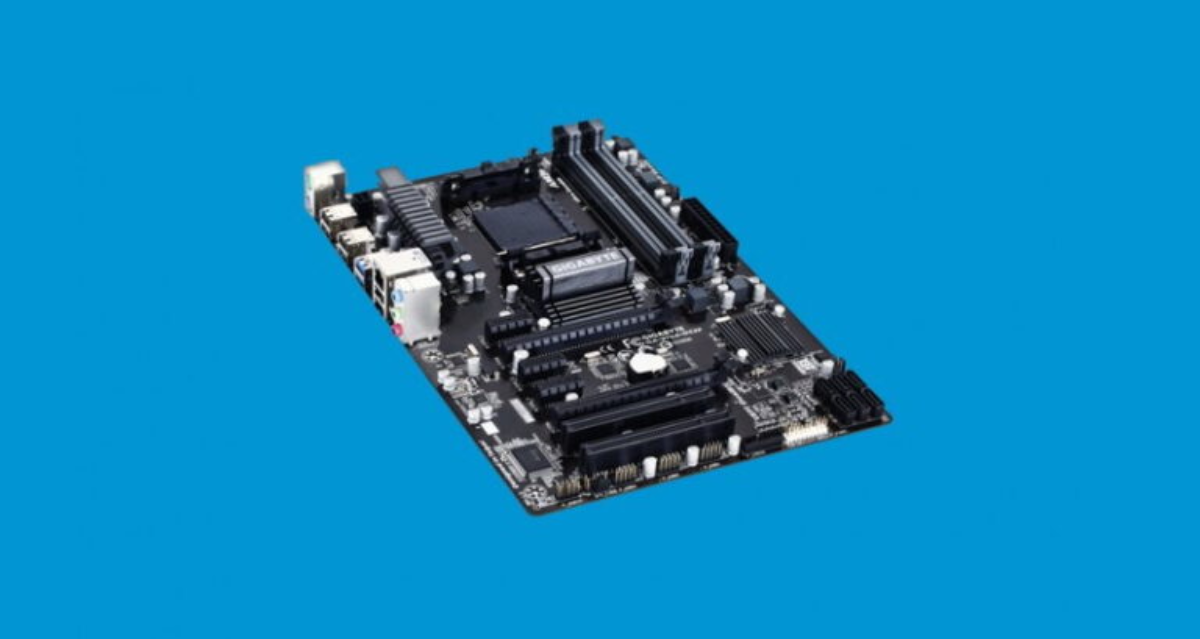
The motherboard serves as the primary printed circuit board (PCB) connecting your CPU, memory modules, storage drives, expansion cards, and power delivery systems.
While you could open your desktop PC chassis to inspect the physical board, doing so is time-consuming and often impractical—especially on laptops. Fortunately, Windows includes built-in administrative tools that read this information directly from your system’s hardware management interfaces.
This technical guide walks you through three methods for identifying your motherboard manufacturer, model, and serial number using native Windows utilities.
Why Identifying Your Motherboard Matters
Before diving into the command protocols, it helps to understand why accurate motherboard details are necessary for system management.
Hardware Architecture Interfacing:
┌─────────────────────────────────────────────────────────────┐
│                       Operating System                      │
│                  (Windows Management Layer)                 │
└──────────────────────────────┬──────────────────────────────┘
                               │
                               ▼
┌─────────────────────────────────────────────────────────────┐
│                      SMBIOS / ACPI Interface                │
│    (Exposes Mainboard Metadata: Vendor, Model, Bus Speed)   │
└──────────────────────────────┬──────────────────────────────┘
                               │
            ┌──────────────────┴──────────────────┐
            ▼                                     ▼
┌───────────────────────┐             ┌───────────────────────┐
│ Firmware Updates      │             │ Hardware Upgrades     │
│ - BIOS / UEFI Flash   │             │ - RAM Generation/Speed│
│ - Security Patches    │             │ - PCIe Slot Generations│
└───────────────────────┘             └───────────────────────┘
Core Hardware Maintenance Use Cases
-
BIOS/UEFI Firmware Flashing: Flashing the wrong motherboard firmware can permanently corrupt your board's flash memory (bricking the system). Identifying the exact revision number ensures software compatibility.
-
RAM Expansion and Speeds: Motherboards impose strict limits on maximum RAM capacity, supported DDR generations (e.g., DDR4 vs. DDR5), bus speeds, and memory channel configurations.
-
Component Clearance and PCIe Generations: Upgrading your GPU requires knowing your motherboard's PCIe slot generation (e.g., PCIe 3.0, 4.0, or 5.0) and form factor constraints (ATX, Micro-ATX, Mini-ITX).
Method 1: Using Command Prompt (WMIC & PowerShell)
Command-line utilities offer the fastest way to retrieve raw system information without navigating graphical menus.
Command Terminal Execution Path:
├── WinKey + R ➔ Type "cmd" ➔ Press Enter
└── Input: wmic baseboard get product, manufacturer, version, serialnumber
Step-by-Step Execution
-
Press Windows Key + R to open the Run dialog box.
-
Type cmd and press Enter (or click OK).
-
In the terminal window, enter the following command:
wmic baseboard get product, manufacturer, version, serialnumber
-
Press Enter. The system will query the Windows Management Instrumentation (WMI) service and return four specific outputs:
-
Manufacturer: The company that built the board (e.g., ASUS, MSI, Gigabyte, ASRock, or OEM vendors like HP/Dell).
-
Product: The model identifier (e.g., PRIME B550M-A or MAG Z790 TOMAHAWK).
-
Version: The hardware revision number of the board PCB.
-
SerialNumber: The unique hardware tracking code assigned by the manufacturer.
-
Alternative: Modern PowerShell Query
Because WMIC is being deprecated in newer Windows builds, you can use modern PowerShell cmdlets to retrieve the same data:
Get-CimInstance -ClassName Win32_BaseBoard | Select-Object Manufacturer, Product, Version, SerialNumber
Method 2: Using the System Information Utility (msinfo32)
For users who prefer a graphical interface, the native System Information application provides a comprehensive system summary.
System Information Navigation Route:
┌─────────────────────────────────────────────────────────────┐
│                    Launch System Info                       │
│              (WinKey + R ➔ Type "msinfo32")                 │
└──────────────────────────────┬──────────────────────────────┘
                               │
                               ▼
┌─────────────────────────────────────────────────────────────┐
│                   Select "System Summary"                   │
│  - BaseBoard Manufacturer ➔ Vendor Name                     │
│  - BaseBoard Product      ➔ Exact Board Model               │
│  - BaseBoard Version      ➔ Hardware Revision               │
└─────────────────────────────────────────────────────────────┘
Step-by-Step Instructions
Method 3: Using the DirectX Diagnostic Tool (dxdiag)
The DirectX Diagnostic Tool is primarily used to troubleshoot display and sound hardware, but it also displays primary system board parameters.
DxDiag Execution Sequence:
├── Step 1 ➔ Press WinKey + R
├── Step 2 ➔ Type "dxdiag" and press Enter
└── Step 3 ➔ Check "System Model" & "System Manufacturer" under the System Tab
Step-by-Step Instructions
-
Press Windows Key + R on your keyboard.
-
Type dxdiag in the text field and click OK.
-
If prompted to check driver signatures, select Yes.
-
Under the default System tab, review the following fields:
-
System Manufacturer: Displays the motherboard or system manufacturer.
-
System Model: Shows the motherboard model identifier (or system model for pre-built laptops).
-
Conclusion
Determining your motherboard model in Windows requires no third-party software installations or physical tools. By using native utilities like Command Prompt, System Information (msinfo32), or DxDiag, you can quickly locate your hardware details to safely plan upgrades, update drivers, and flash system firmware.
Quick Reference Matrix
| Method | Access Command | Primary Advantages |
| Command Prompt | wmic baseboard get... | Fastest execution; outputs raw serial numbers and board revisions. |
| PowerShell | Get-CimInstance Win32_BaseBoard | Modern replacement for WMIC; highly scriptable. |
| System Info | msinfo32 | Comprehensive graphical breakdown of all system hardware. |
| DxDiag Tool | dxdiag | Ideal for checking GPU, DirectX, and general system board profiles. |
FAQ
1. Why do I need to know my motherboard model?
Knowing your motherboard model is essential for downloading the correct BIOS/UEFI updates, installing compatible drivers, upgrading RAM, replacing your CPU (when supported), troubleshooting hardware issues, and ensuring compatibility with new components such as SSDs, GPUs, or expansion cards.
2. Can I find my motherboard model without opening my computer?
Yes. Windows provides several built-in tools that can identify your motherboard model without opening your desktop or laptop, including:
- Command Prompt (WMIC)
- Windows PowerShell
- System Information (msinfo32)
- DirectX Diagnostic Tool (dxdiag)
3. Which method is the fastest?
The fastest method is using Command Prompt or PowerShell.
For Command Prompt:
wmic baseboard get product, manufacturer, version, serialnumber
For PowerShell:
Get-CimInstance -ClassName Win32_BaseBoard | Select Manufacturer, Product, Version, SerialNumber
Both commands display your motherboard manufacturer, model, hardware revision, and serial number within seconds.
4. Why is WMIC being deprecated?
Microsoft has deprecated WMIC in newer versions of Windows in favor of PowerShell and CIM (Common Information Model) cmdlets. While WMIC still works on many Windows installations, PowerShell is the recommended long-term solution.
5. What information does the motherboard serial number provide?
The serial number uniquely identifies your motherboard. Manufacturers and technical support teams use it for:
- Warranty verification
- Product registration
- Hardware replacement
- Technical support
- BIOS recovery assistance
6. Can I identify my motherboard on a laptop?
Yes. The same Windows tools work on laptops.
However, some laptop manufacturers (Dell, HP, Lenovo, Acer, ASUS, etc.) may display the laptop model instead of the motherboard model because the motherboard is custom-designed specifically for that laptop.
7. What if Command Prompt returns "To Be Filled By O.E.M."?
Some motherboard manufacturers or OEM computer builders do not properly populate SMBIOS information.
If this happens:
- Check System Information (msinfo32)
- Use PowerShell
- Check your BIOS/UEFI setup
- Visit the manufacturer's support page using your PC's serial number
8. Does System Information display more than just the motherboard?
Yes. System Information provides a comprehensive overview of your PC, including:
- Processor
- Installed RAM
- BIOS version
- Secure Boot status
- Windows version
- Storage devices
- Hardware resources
- Installed components
- Motherboard details
9. Can DxDiag always identify my motherboard?
Not always.
DxDiag typically displays:
- System Manufacturer
- System Model
For custom-built PCs, this may closely match your motherboard information. On branded laptops or desktops, it often shows the overall computer model rather than the motherboard itself.
10. Why is knowing the motherboard model important before updating the BIOS?
Installing the wrong BIOS version can permanently damage (or "brick") your motherboard.
Always verify:
- Manufacturer
- Exact motherboard model
- Hardware revision
- Current BIOS version
before downloading any BIOS update.
11. Can I determine which RAM my motherboard supports?
Yes. Once you know the motherboard model, you can visit the manufacturer's support page to check:
- Supported DDR generation (DDR4, DDR5, etc.)
- Maximum RAM capacity
- Maximum memory speed
- Number of memory slots
- Dual-channel or quad-channel support
- Qualified Vendor List (QVL)
12. Will these methods work on Windows 11?
Yes. All methods work on Windows 11.
PowerShell is preferred because WMIC may eventually be removed from future Windows releases.
13. What if my motherboard information is missing?
If Windows cannot identify the motherboard:
- Check the BIOS/UEFI information.
- Use the manufacturer's support software.
- Inspect the motherboard physically (desktop PCs).
- Use reputable hardware identification utilities if necessary.
14. Is it safe to run these commands?
Yes. The commands shown in this guide are read-only. They simply query Windows hardware information and do not modify any files, drivers, or BIOS settings.
15. Can I find my motherboard without administrator privileges?
Yes. Most motherboard identification commands, including WMIC, PowerShell CIM queries, System Information, and DxDiag, can be executed without administrator rights.
16. What should I do after identifying my motherboard?
Once you've identified your motherboard, you can:
- Download the latest chipset drivers.
- Update BIOS/UEFI firmware safely.
- Check CPU compatibility.
- Upgrade RAM.
- Verify PCIe generation support.
- Install compatible NVMe SSDs.
- Download official utilities from the manufacturer's website.
17. Which Windows tool provides the most complete motherboard information?
Here's a quick comparison:
| Tool | Best For |
|---|---|
| Command Prompt (WMIC) | Fast motherboard identification |
| PowerShell | Modern, scriptable hardware queries |
| System Information (msinfo32) | Complete hardware overview |
| DirectX Diagnostic Tool (dxdiag) | General system and graphics information |