The Complete Guide to Windows 10 Hibernation: Mechanics, Configuration, and Storage Optimization
10 hours ago
In the daily flow of digital work, nothing breaks momentum quite like opening your laptop, logging in, and realizing that every application, browser tab, and document you were working on yesterday was closed when your system ran out of power.
Conversely, few things are as frustrating as sitting through a two-minute boot cycle when you simply need to jot down a quick note or send an urgent email.
Microsoft Windows 10 solves this dilemma through a variety of power-saving states designed to balance speed, convenience, and energy consumption: Sleep, Hibernate, and Hybrid Sleep. Among these, Hibernate remains one of the most powerful—and frequently misunderstood—under-the-hood features in modern computing.
Whether you are looking to preserve every percentage point of battery life on a long trip, free up gigabytes of precious solid-state drive (SSD) storage, or troubleshoot why your computer refuses to stay asleep, understanding how Windows manages its power states is essential.
This guide explores the underlying mechanics of Windows 10 Hibernation, provides step-by-step instructions for enabling and disabling the feature, and breaks down the technical impact on system performance and drive endurance.
The Spectrum of Windows Power States
To understand Hibernation, we must first examine how Windows categorizes power states using the Advanced Configuration and Power Interface (ACPI) specification standard.
ACPI Global and System Power States:
┌─────────────────────────────────────────────────────────────┐
│ S0: Working State (Fully powered, CPU running)               │
└──────────────────────────────┬──────────────────────────────┘
                               │
                               ▼
┌─────────────────────────────────────────────────────────────┐
│ S3: Sleep (Standby)                                         │
│ - RAM remains powered (volatile session retention)          │
│ - CPU, GPU, & Storage drives powered off                    │
│ - Ultra-fast wake time (< 2 seconds)                        │
└──────────────────────────────┬──────────────────────────────┘
                               │
                               ▼
┌─────────────────────────────────────────────────────────────┐
│ S4: Hibernate                                               │
│ - RAM contents written to disk (`hiberfil.sys`)             │
│ - Complete power draw cut (0 Watts)                         │
│ - Moderate wake time (~10-20 seconds depending on SSD/HDD)   │
└──────────────────────────────┬──────────────────────────────┘
                               │
                               ▼
┌─────────────────────────────────────────────────────────────┐
│ S5: Soft Off (Full Shutdown)                                │
│ - No session saved; clean OS boot required                  │
└─────────────────────────────────────────────────────────────┘
1. Sleep Mode (ACPI S3)
In Sleep Mode, the operating system halts the processor and powers down non-essential hardware like the graphics card, cooling fans, and storage drives. However, the system maintains a low, continuous electrical charge to the System RAM.
-
Pros: Instantaneous wake-up times (typically under two seconds).
-
Cons: Draws constant trickle power from the wall or battery. If the power source fails entirely (e.g., a drained laptop battery or a sudden power outage), all unsaved session data held in RAM is permanently lost.
2. Hibernation Mode (ACPI S4)
Hibernation takes a fundamentally different approach. Instead of keeping RAM powered using electricity, Windows takes a complete "snapshot" of your active system memory—including open programs, unsaved files, background services, and driver states—and writes it directly to your primary storage drive into a hidden file called hiberfil.sys.
Once the write operation finishes, Windows completely cuts power to all internal components.
-
Pros: Zero power consumption. The computer can be unplugged, have its battery removed, or sit in a backpack for months without losing your place.
-
Cons: Slower resume speed than Sleep Mode, as the system must read the saved file off the drive back into RAM upon booting.
3. Fast Startup: The Modern Hybrid
Introduced in Windows 8 and refined in Windows 10, Fast Startup is a specialized hybrid power state that utilizes Hibernation technology under the hood.
When you shut down a PC with Fast Startup enabled, Windows logs off all active user accounts to close personal apps, but it hibernates the core operating system kernel and loaded hardware drivers to disk. When you turn the PC back on, Windows does not perform a full cold boot; instead, it reloads the saved kernel snapshot into memory, cutting boot times in half.
Step-by-Step Configuration Protocols
Depending on your workflow, you may want to enable Hibernation to add it to your Start Menu options or disable it completely to recover valuable disk space.
Management Workflows:
├── Method 1 ➔ Control Panel GUI (Adds/Removes Hibernate from Start Menu)
└── Method 2 ➔ Command Prompt / PowerCFG (Disables feature & deletes `hiberfil.sys`)
Method 1: Enabling Hibernate via Control Panel (GUI)
If you simply want to make the "Hibernate" option visible in your Windows 10 Start Menu power options, follow these steps:
-
Press $\text{Windows} + \text{R}$ to open the Run dialog box, type control, and press Enter.
-
Set View by (top right) to Large icons or Small icons, then click on Power Options.
-
In the left-hand navigation pane, click Choose what the power buttons do.
-
Near the top of the window, click the blue link that displays a shield icon: Change settings that are currently unavailable. (Requires Administrator privileges).
-
Scroll down to the Shutdown settings section at the bottom of the window.
-
Check the box next to Hibernate.
-
Click Save changes at the bottom of the window.
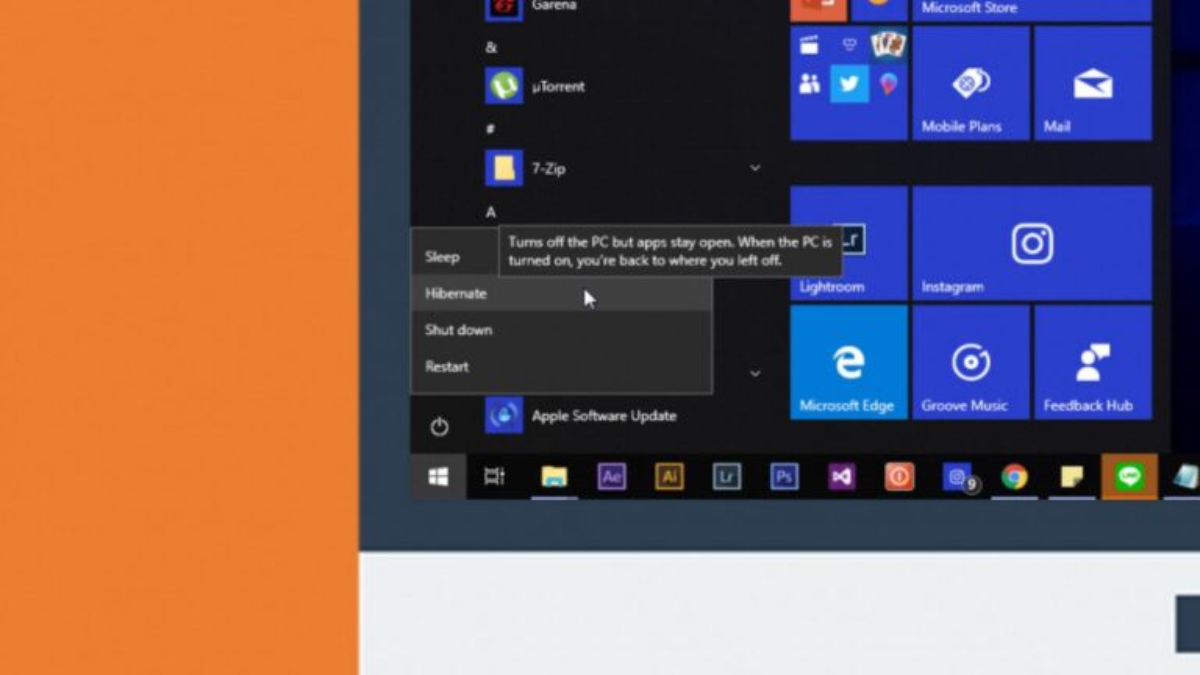
Now, when you click Start $\rightarrow$ Power, "Hibernate" will appear alongside Sleep, Shut down, and Restart.
Method 2: Disabling Hibernate via Command Prompt (PowerCFG)
If you have a small Solid-State Drive (SSD) and need to recover several gigabytes of space immediately, you can completely turn off the hibernation feature and delete the associated file using the powercfg tool.
-
Press $\text{Windows} + \text{S}$, type cmd into the search bar.
-
Right-click Command Prompt and select Run as administrator.
-
To disable Hibernation and delete hiberfil.sys, type the following command and press Enter:
DOSpowercfg -h off
-
To re-enable Hibernation in the future, open an elevated Command Prompt and enter:
DOSpowercfg -h on
⚠️ Important Note: Disabling Hibernation via powercfg -h off will automatically disable Fast Startup as well, since Fast Startup relies on the hibernation file to store the kernel state.
Advanced Optimization & Troubleshooting
1. Reclaiming Storage: Reducing hiberfil.sys Size
By default, Windows allocates a hiberfil.sys file size equal to approximately 75% to 100% of your installed RAM capacity. For example, if your system has 32 GB of RAM, hiberfil.sys might permanently reserve up to 24 GB of space on your main drive.
If you want to keep Fast Startup active without reserving tens of gigabytes for a full session hibernation, you can reduce the file size to its minimal "reduced" state using Command Prompt:
powercfg /hibernate /type reduced
This reduces the file footprint on your drive by up to 50-60%, keeping only enough storage space to support Fast Startup while disabling full session hibernation. To return to full hibernation capacity later, use:
powercfg /hibernate /type full
2. Modern Standby (S0 Low Power Idle) Conflicts
Many modern laptops feature Modern Standby (S0 Low Power Idle) rather than traditional ACPI S3 sleep. Modern Standby keeps the network connected in a low-power mode (similar to a smartphone), allowing the laptop to fetch emails and update apps while asleep.
If your Modern Standby laptop is getting hot or draining its battery in your bag, setting the power plan to enter Hibernate after X minutes acts as a crucial safety fallback:
Modern Standby Safety Fallback:
1. Laptop enters S0 Modern Standby (Screen off, low power)
2. If battery drains by X% OR idle time reaches threshold ➔
3. System automatically triggers S4 Hibernate ➔ Wakes, writes RAM to disk, cuts 100% power.
Conclusion: Balancing Convenience and Drive Space
Hibernation remains a valuable tool in the Windows 10 power management ecosystem. By bridging the gap between volatile, battery-draining Sleep Mode and cold full shutdowns, it offers a reliable, zero-watt option for preserving complex work environments.
-
Keep Hibernate Enabled if: You travel frequently, rely on battery life preservation, or open dozens of complex development environments, spreadsheets, and browser tabs that take significant time to re-establish.
-
Disable Hibernate if: You operate on a small primary SSD (e.g., 128 GB or 256 GB) where every gigabyte matters, or if you prefer completely fresh operating system boots every time you press the power button.
Power State Decision Matrix
| Feature / Need | Sleep Mode (S3) | Hibernate Mode (S4) | Full Shutdown (S5) |
| Power Consumption | Low (~1–3 Watts) | Zero (0 Watts) | Zero (0 Watts) |
| Wake / Resume Speed | Ultra-Fast (< 2 sec) | Moderate (~10–20 sec) | Slowest (Cold Boot) |
| Session State Preserved? | Yes (in RAM) | Yes (in Storage) | No (Clean Boot) |
| Risk from Power Loss | High (Unsaved data lost) | Zero | Zero |
| Storage Space Required | None | Requires hiberfil.sys | None |
Frequently Asked Questions (FAQ)
1. What is Hibernate mode in Windows 10?
Hibernate is a Windows power-saving feature that saves your entire current session—including open applications, documents, browser tabs, and system state—to a hidden file called hiberfil.sys on your storage drive. After saving the session, Windows completely powers off the computer. When you turn it back on, your previous session is restored exactly as you left it.
2. What is the difference between Sleep, Hibernate, and Shutdown?
Sleep
- Saves your session in RAM.
- Uses a small amount of electricity.
- Wakes almost instantly.
- Unsaved work may be lost if power is interrupted.
Hibernate
- Saves your session to the SSD or HDD.
- Uses zero power.
- Takes slightly longer to resume.
- Your work remains safe even if the battery is completely drained.
Shutdown
- Closes all programs and powers off the computer.
- Does not save your active session.
- Requires a full system boot the next time you start Windows.
3. Does Hibernate consume battery power?
No.
Once Windows enters Hibernate mode, the computer is completely powered off. Battery consumption is virtually zero, making it ideal for laptops that won't be used for several hours or days.
4. Is Hibernate better than Sleep?
It depends on your situation.
Use Sleep if:
- You will return within a few minutes or hours.
- You want the fastest resume time.
Use Hibernate if:
- You're traveling.
- Your battery is running low.
- You won't use your PC for an extended period.
- You don't want to lose your work if power is disconnected.
5. Why can't I see the Hibernate option in the Power menu?
Hibernate is often disabled by default.
To enable it:
- Open Control Panel.
- Select Power Options.
- Click Choose what the power buttons do.
- Click Change settings that are currently unavailable.
- Check Hibernate.
- Click Save Changes.
The Hibernate option should now appear in the Start menu.
6. What is the hiberfil.sys file?
hiberfil.sys is a hidden Windows system file that stores everything currently loaded into memory before the PC powers off.
It contains:
- Open applications
- Running processes
- Windows kernel
- Driver states
- Active user sessions
Windows reads this file during startup to restore your previous session.
7. Why is hiberfil.sys so large?
The file size is based largely on your installed RAM.
For example:
- 8 GB RAM → approximately 6 GB hiberfil.sys
- 16 GB RAM → approximately 12 GB
- 32 GB RAM → approximately 24 GB
Windows reserves enough space to save your entire memory contents.
8. Can I safely delete hiberfil.sys?
Yes—but only after disabling Hibernate.
Open Command Prompt as Administrator and run:
powercfg -h off
Windows will automatically remove the file.
Do not manually delete hiberfil.sys while Hibernate is enabled.
9. Will disabling Hibernate improve computer performance?
Not directly.
Disabling Hibernate:
- Frees several gigabytes of storage.
- Disables Fast Startup.
- Does not increase CPU speed.
- Does not increase RAM.
- Does not improve gaming performance.
The main benefit is recovering storage space.
10. Does disabling Hibernate also disable Fast Startup?
Yes.
Fast Startup relies on Hibernate technology.
Running:
powercfg -h off
will disable:
- Hibernate
- Fast Startup
11. What is Fast Startup?
Fast Startup is a hybrid between Shutdown and Hibernate.
Instead of shutting down the Windows kernel completely, Windows saves the kernel to hiberfil.sys.
When the computer starts again, Windows loads the saved kernel instead of rebuilding everything from scratch, resulting in much faster boot times.
12. Can Hibernate damage an SSD?
No.
Modern SSDs are designed for extremely high write endurance.
Although Hibernate writes memory contents to disk, the amount of data written is insignificant compared to the total lifespan of today's SSDs.
13. Is Hibernate available on every Windows 10 computer?
Most desktop PCs and laptops support Hibernate.
However, some newer laptops that use Modern Standby (S0 Low Power Idle) may not expose traditional Hibernate settings until manually enabled.
14. How can I check if Hibernate is enabled?
Open Command Prompt and run:
powercfg /a
Windows will list every supported sleep state.
If Hibernate is enabled, you'll see:
Hibernate
listed among the available power states.
15. Can I reduce the size of hiberfil.sys?
Yes.
To keep Fast Startup while reducing storage usage:
powercfg /hibernate /type reduced
To restore full Hibernate support:
powercfg /hibernate /type full
16. Why does my laptop still get warm while sleeping?
Many modern laptops use Modern Standby, which keeps parts of the system active to:
- Check emails
- Download updates
- Maintain network connections
If your laptop overheats in your bag, configure Windows to enter Hibernate after a certain amount of idle time.
17. When should I use Hibernate instead of shutting down?
Hibernate is ideal when:
- Working on large projects
- Running virtual machines
- Editing videos
- Programming with multiple IDEs open
- Using dozens of browser tabs
Shutdown is better when:
- Installing updates
- Troubleshooting
- Performing hardware upgrades
- You want a completely fresh Windows session
18. Does Hibernate save unsaved documents?
Yes.
Anything currently stored in RAM—including unsaved documents—is preserved exactly as it exists when Hibernate begins.
However, you should still save important work regularly in case of unexpected hardware failures.
19. Is Hibernate useful for desktop computers?
Yes.
Desktop users benefit by:
- Resuming complex work instantly
- Saving multiple open applications
- Avoiding lengthy startup routines
- Reducing power consumption overnight
20. Which power mode is best for everyday users?
A practical recommendation is:
- Sleep → Short breaks (minutes to a few hours)
- Hibernate → Overnight, travel, or low battery situations
- Shutdown → System maintenance, updates, or when a clean restart is needed