The Ultimate Guide to Windows Subsystem for Linux (WSL): Bridging the Gap Between Windows and Open Source
5 days ago

For decades, developers and system administrators were forced to choose a side. You either lived in the polished, user-friendly ecosystem of Microsoft Windows, or you embraced the raw, command-line power of Linux. If you needed both, you were relegated to clunky compromises: rebooting your machine to switch dual-boot partitions, or dedicating massive amounts of RAM and CPU power to run sluggish virtual machines like VirtualBox or VMware.
Those days are over.
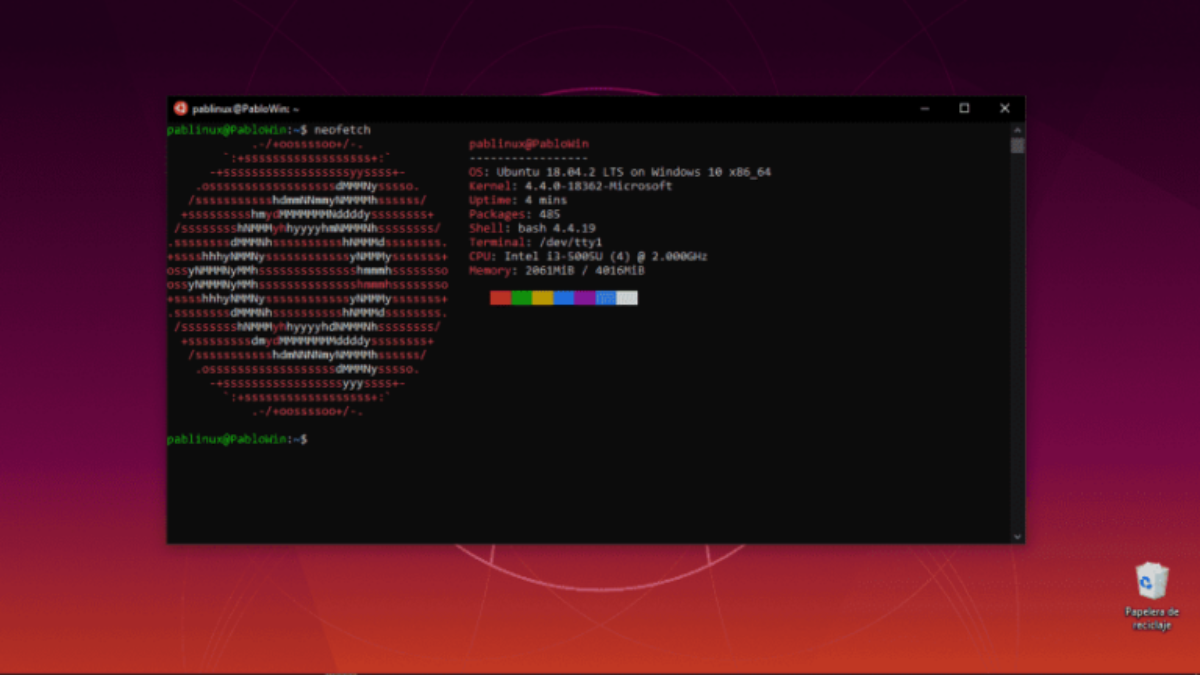
Microsoft fundamentally shifted the landscape of modern development with the introduction of the Windows Subsystem for Linux (WSL). WSL allows you to run a full Linux environment—including command-line tools, utilities, and applications—directly on Windows, natively, without the overhead of a traditional virtual machine.
Whether you are a seasoned developer building cross-platform applications, a cybersecurity student diving into Kali Linux, or a beginner looking to learn Bash, WSL is the most efficient way to bring the power of Linux to your Windows machine.
This comprehensive guide breaks down exactly what WSL is, how the underlying architecture works, and the step-by-step process for getting it running flawlessly on your system.
Understanding the Paradigm Shift (WSL 1 vs. WSL 2)
Before diving into the installation, it helps to understand what is actually happening under the hood. WSL is not just a terminal emulator; it is a deep integration between two fundamentally different operating systems.
When Microsoft first launched WSL 1, it acted as a translation layer. When a Linux application tried to interact with the system kernel (for example, to write a file or allocate memory), WSL 1 caught those instructions and translated them into Windows NT kernel commands. It was an impressive feat of software engineering, but it had limitations. Because it was essentially translating a foreign language on the fly, disk read/write speeds were notoriously slow, and some complex Linux applications simply wouldn't run.
Microsoft solved this with the release of WSL 2.
Instead of a translation layer, WSL 2 uses a highly optimized, lightweight Utility Virtual Machine (VM) running a real, Microsoft-compiled Linux kernel.
Why WSL 2 is a Game-Changer:
-
True Linux Kernel: Because it uses a real kernel, 100% of Linux applications—including Docker—run flawlessly.
-
Blistering File IO Speeds: File reading and writing operations are up to 20 times faster than WSL 1.
-
Dynamic Resource Allocation: Unlike a traditional VM that cordons off a permanent chunk of your RAM, WSL 2 dynamically scales its memory usage. If Linux needs 4GB of RAM to compile a program, Windows grants it. When the task is done, the RAM is immediately handed back to Windows.
The Modern, One-Command Installation (Windows 10 & 11)
If you are running Windows 11, or a fully updated version of Windows 10 (Version 2004 or higher), installing WSL has been dramatically simplified. You no longer have to dig through control panels or restart your computer multiple times.
Microsoft bundled the entire installation process into a single command.
Step 1: Open an Elevated Terminal
To install core system features, you need administrative privileges.
-
Click the Windows Start menu.
-
Type PowerShell or Windows Terminal.
-
Right-click the application and select Run as administrator.
Step 2: Execute the Install Command
In the terminal, type the following command and press Enter:
wsl --install
What this command does automatically:
-
Enables the required Virtual Machine Platform feature.
-
Enables the Windows Subsystem for Linux feature.
-
Downloads and installs the latest Linux Kernel.
-
Downloads and installs Ubuntu as your default Linux distribution.
Once the process finishes, reboot your computer. When you log back in, an Ubuntu terminal will automatically open, asking you to create a new UNIX username and password.
(Note: This Linux password does not need to match your Windows password, but you will need to remember it for executing sudo commands).
The Manual Installation Method (The Legacy Route)
If you are running an older build of Windows 10, or if you prefer to have granular control over exactly which features are enabled on your system, you can still install WSL manually using the graphical user interface.
Step 1: Turn on Windows Features
-
Click the Windows Start button and select the Settings gear icon.
-
Click on Apps, then look to the right-hand panel (or the bottom, depending on your screen size) and click Programs and Features.
-
On the left side of the new window, click Turn Windows features on or off.
-
Scroll down the list and check the box next to Windows Subsystem for Linux.
-
(Highly Recommended for WSL 2): Also check the box for Virtual Machine Platform.
-
Click OK, wait for Windows to apply the changes, and click Restart Now.
Step 2: Download a Linux Distribution
Once your computer reboots, the core WSL engine is active, but you don't have a Linux operating system installed yet.
-
Open the Microsoft Store from your taskbar or Start menu.
-
Click the search bar and type Linux.
-
You will see several officially supported distributions, including:
-
Ubuntu (The most popular choice for beginners and developers).
-
Kali Linux (The industry standard for penetration testing and cybersecurity).
-
Debian GNU/Linux (A highly stable, lightweight alternative).
-
Alpine WSL (An ultra-minimalist distro).
-
-
Select your preferred distro and click the blue Get or Install button.
Once the download is complete, launch the app from your Start menu. It will take a few minutes to decompress the files, after which you will be prompted to set up your new user credentials.
Bridging the Gap: File Management Between Worlds
One of the most powerful features of WSL is that Windows and Linux do not exist in isolated silos; they can interact seamlessly with each other's files.
Accessing Windows Files from Linux
When you are inside your Linux terminal, Windows automatically mounts your primary C: drive to the /mnt/ directory.
To access your Windows Documents folder from your Linux terminal, you would type:
cd /mnt/c/Users/YourWindowsUsername/Documents
From here, you can use powerful Linux command-line tools like grep, awk, or sed to manipulate files that live on your Windows hard drive.
Accessing Linux Files from Windows
If you are writing code inside your Linux environment but want to view the files using the standard Windows File Explorer, you can easily bridge the gap.
Open the Windows File Explorer and type the following into the address bar at the top: \\wsl$
This hidden network path opens a directory showing all of your installed Linux distributions. You can open them, browse the Linux root file system, and drag-and-drop files between Windows and Linux exactly as if you were moving files between two normal folders.
Supercharging Your Workflow (VS Code & Docker)
Installing WSL is only the first step. To unlock its true potential, you should integrate it with modern development tools.
Visual Studio Code Integration
If you write code, the combination of WSL and Visual Studio Code (VS Code) is unmatched.
-
Install VS Code on your Windows machine.
-
Open VS Code, navigate to the Extensions tab, and search for the WSL extension (built officially by Microsoft).
-
Install the extension.
Now, open your Linux terminal, navigate to your project folder, and type:
code .
This command instantly launches the Windows VS Code graphical interface, but connects the backend directly to your Linux environment. You can edit files using the beautiful Windows UI, while the terminal, compiler, and debugger run natively in Linux.
Docker Desktop Natively
Before WSL 2, running Docker on Windows required setting up a clunky Hyper-V virtual machine that drained battery life and system resources.
Today, Docker Desktop for Windows hooks directly into the WSL 2 engine. By navigating to Docker’s settings and checking "Use the WSL 2 based engine," your containers will spin up natively inside your Linux environment. This results in lightning-fast container startup times and significantly lower RAM usage.
Conclusion: The Best of Both Worlds
The historical barrier separating the Windows user experience from the power of the Linux command line has been permanently dismantled.
With the Windows Subsystem for Linux, you no longer have to compromise. You can play your favorite PC games, run standard Windows productivity software, and utilize Adobe Creative Cloud, while instantly spinning up a native, lightning-fast Linux environment to compile code, manage servers, or test network security.
By following the simple setup process outlined above, you have transformed your standard Windows machine into an elite, hybrid development workstation. Welcome to the future of cross-platform computing.
Now that you have the complete guide to the architecture and setup, how are you planning to use WSL? Are you looking to set up a specific development environment (like Python or Node.js), or are you focusing on testing cybersecurity tools with Kali Linux?
Here's the complete SEO package for your Windows Subsystem for Linux (WSL) article.
Frequently Asked Questions (FAQ)
1. What is Windows Subsystem for Linux (WSL)?
Windows Subsystem for Linux (WSL) is a Microsoft feature that allows you to run a genuine Linux environment directly inside Windows without creating a traditional virtual machine or dual-boot setup. It enables developers, system administrators, and students to use Linux command-line tools, programming languages, package managers, and applications alongside Windows.
2. What is the difference between WSL 1 and WSL 2?
The primary difference is how Linux runs.
WSL 1
- Uses a compatibility layer that translates Linux system calls into Windows system calls.
- Faster when accessing Windows files.
- Lower resource usage.
- Limited compatibility with some Linux applications.
WSL 2
- Uses a real Linux kernel running inside a lightweight virtual machine.
- Supports full Linux kernel functionality.
- Much faster file system performance inside Linux.
- Fully compatible with Docker and modern development tools.
- Recommended by Microsoft for most users.
3. Which Windows versions support WSL?
WSL is supported on:
- Windows 11 (all supported editions)
- Windows 10 Version 2004 and later
- Windows Server 2022 and newer (with supported configurations)
Earlier versions of Windows 10 may require manual installation steps and feature updates.
4. Is WSL a virtual machine?
Not exactly.
WSL 2 uses lightweight virtualization technology, but it is significantly more efficient than traditional virtual machines like VMware or VirtualBox.
Unlike a standard VM, WSL starts almost instantly, automatically manages memory, integrates directly with Windows, and consumes fewer system resources.
5. Does WSL require Hyper-V?
WSL 2 relies on Microsoft's virtualization platform.
Modern Windows versions automatically enable the required virtualization components during installation with:
wsl --install
You do not need to manually create or manage Hyper-V virtual machines.
6. Which Linux distributions can I install on WSL?
Microsoft officially supports several Linux distributions through the Microsoft Store, including:
- Ubuntu
- Debian
- Kali Linux
- openSUSE
- Oracle Linux
- Fedora Remix
- Alpine Linux
- Ubuntu LTS releases
You can even install multiple Linux distributions simultaneously.
7. Can I run graphical Linux applications with WSL?
Yes.
Windows 11 includes WSLg, allowing Linux GUI applications to run seamlessly alongside Windows applications.
Examples include:
- GIMP
- VS Code (Linux version)
- Firefox
- Nautilus
- gedit
- MATLAB (supported configurations)
No third-party X Server is required on Windows 11.
8. Can I access Windows files from Linux?
Absolutely.
Windows drives are automatically mounted under:
/mnt/c
/mnt/d
/mnt/e
For example:
cd /mnt/c/Users/YourName/Documents
This allows Linux tools to work directly with files stored on Windows.
9. Can Windows access Linux files?
Yes.
Open File Explorer and enter:
\\wsl$
This displays all installed Linux distributions and allows you to browse Linux files directly using Windows Explorer.
10. Is WSL suitable for software development?
Yes.
WSL has become one of the most popular development environments because it supports:
- Python
- Node.js
- Java
- PHP
- Go
- Rust
- C/C++
- Ruby
- Git
- Docker
- Kubernetes
- Bash scripting
It combines Linux development tools with Windows productivity software.
11. Can I run Docker with WSL?
Yes.
Docker Desktop integrates directly with WSL 2.
Benefits include:
- Faster container startup
- Lower RAM usage
- Better filesystem performance
- Native Linux container support
Microsoft and Docker both recommend using the WSL 2 backend.
12. How much RAM does WSL use?
WSL 2 dynamically allocates memory.
Unlike traditional virtual machines that permanently reserve RAM, WSL only uses the memory it needs and automatically releases unused memory back to Windows after workloads finish.
13. Is WSL safe?
Yes.
WSL is developed and maintained by Microsoft.
Linux runs in an isolated environment while still allowing secure interaction with Windows files when needed. As with any operating system, you should only install trusted software and keep your system updated.
14. Can I uninstall WSL later?
Yes.
You can remove individual Linux distributions using:
wsl --unregister DistributionName
Or completely disable WSL through:
- Windows Features
- PowerShell
- Settings
Removing WSL does not affect your normal Windows installation.
15. Who should use WSL?
WSL is ideal for:
- Software developers
- Web developers
- DevOps engineers
- Cybersecurity professionals
- Linux learners
- Cloud engineers
- Data scientists
- Students studying Linux
- System administrators
- Open-source contributors
It provides a native Linux experience without leaving Windows.