How to Fix a Missing Battery Icon in Windows: Step-by-Step Troubleshooting Guide
3 days ago
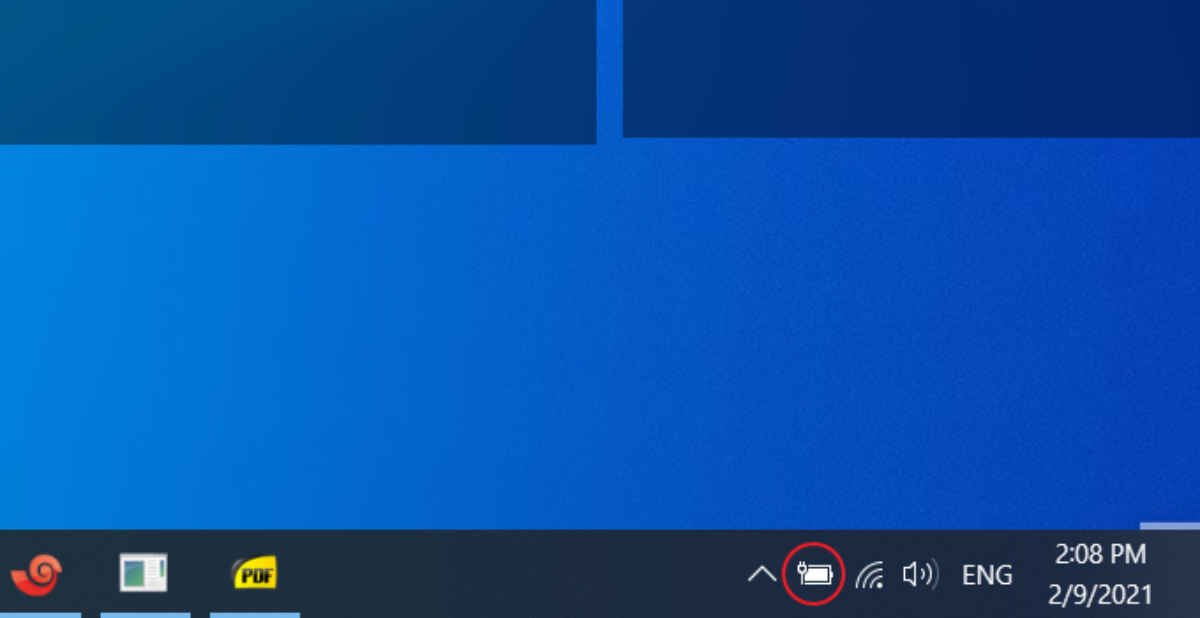
The battery icon on your laptop’s taskbar is one of the most critical status indicators in daily computing. It tells you your remaining power percentage, warns you when power levels are low, and gives you quick access to power-saving profiles.
When the battery icon suddenly disappears from the system tray, it can be frustrating. You are left guessing how much charge remains before your laptop powers off unexpectedly.
A missing battery icon is rarely a sign of hardware failure. In most cases, it is caused by a simple configuration setting, a temporary driver freeze, or system glitches following a Windows update.
This guide provides three proven methods to restore your missing battery icon on Windows 10, 8, and 7, alongside advanced system file repair techniques.
Why the Battery Icon Disappears
Understanding what causes status indicators to disappear helps you choose the right fix.
Windows Taskbar Indicator Architecture:
┌─────────────────────────────────────────────────────────────┐
│                 Windows Explorer Process                    │
│      (Manages Desktop Shell, Taskbar, & System Tray)         │
└──────────────────────────────┬──────────────────────────────┘
                               │
                               ▼
┌─────────────────────────────────────────────────────────────┐
│               Device Manager (Battery Drivers)              │
│  - Microsoft AC Adapter                                     │
│  - Microsoft ACPI-Compliant Control Method Battery          │
└──────────────────────────────┬──────────────────────────────┘
                               │
            ┌──────────────────┴──────────────────┐
            ▼                                     ▼
┌───────────────────────┐             ┌───────────────────────┐
│ Active Indicator      │             │ Glitched / Disabled   │
│ - Tray Icon Visible   │             │ - Missing Icon        │
│ - Accurate Percentage │             │ - Driver Freeze       │
└───────────────────────┘             └───────────────────────┘
Common Causes of a Missing Battery Icon
-
Accidental Configuration Changes: Taskbar system icon settings may be toggled off automatically after a software installation or tablet-mode switch.
-
ACPI Battery Driver Freezes: The Microsoft ACPI-Compliant Control Method Battery driver manages hardware communications between your battery and Windows. If this driver stops responding, the OS cannot read your charge level and hides the icon.
-
Interrupted Windows Updates: Interrupted updates can cause system glitches, hiding key taskbar indicators.
-
Corrupted File Explorer Process: A frozen explorer.exe process can cause icons in the system tray to disappear until restarted.
Method 1: Enabling BatteryBar and Taskbar Toolbar Settings
The quickest way to restore your battery status is by checking your taskbar toolbar settings or enabling third-party indicators like BatteryBar.
Taskbar Toolbar Activation Pathway:
├── Step 1 ➔ Right-Click Taskbar Area
├── Step 2 ➔ Hover over "Toolbars"
└── Step 3 ➔ Toggle "BatteryBar" or System Icon Visibility
Step-by-Step Instructions
-
Right-click any open space on your Taskbar (the bar running along the bottom of your screen).
-
Hover your cursor over Toolbars.
-
Look for BatteryBar (or your preferred third-party battery utility) in the sub-menu and click it to ensure a checkmark appears next to it.
Windows Settings System Icon Check:
Press Win + I ➔ Personalization ➔ Taskbar ➔ "Turn system icons on or off" ➔ Toggle Power "ON"
If you prefer the native Windows battery icon:
-
Press Windows Key + I to open Settings.
-
Go to Personalization > Taskbar.
-
Scroll down to the Notification area section and click Turn system icons on or off.
-
Locate the Power toggle switch and make sure it is set to On.
Method 2: Restarting ACPI Battery Drivers via Device Manager
If the battery toggle switch in Settings is grayed out or inactive, your operating system has likely lost communication with the physical battery hardware. Disabling and re-enabling the battery drivers in Device Manager resets the connection without requiring a system reboot.
Device Manager Driver Reset Sequence:
┌─────────────────────────────────────────────────────────────┐
│                     Open Device Manager                     │
│                  (Search via Start Menu)                    │
└──────────────────────────────┬──────────────────────────────┘
                               │
                               ▼
┌─────────────────────────────────────────────────────────────┐
│                  Expand "Batteries" Category                 │
└──────────────────────────────┬──────────────────────────────┘
                               │
            ┌──────────────────┴──────────────────┐
            ▼                                     ▼
┌───────────────────────┐             ┌───────────────────────┐
│ Microsoft AC Adapter  │             │ ACPI Control Method   │
│ - Right-Click         │             │ - Right-Click         │
│ - Disable ➔ Enable    │             │ - Disable ➔ Enable    │
└───────────────────────┘             └───────────────────────┘
Step-by-Step Driver Reset Procedure
Once both drivers are re-enabled, Windows will re-detect your battery hardware, and the icon should immediately reappear in your system tray.
Method 3: Resolving System Glitches via Windows Update and File Repair
If driver resets do not restore the icon, system file corruption or pending update bottlenecks may be affecting the taskbar interface.
System Update & Repair Decision Matrix:
├── Pending Updates     ➔ Run Windows Update to complete stalled installations
└── Corrupted System    ➔ Execute SFC /Scannow in Command Prompt
1. Resuming Stalled Windows Updates
-
Press Windows Key + I to open Settings.
-
Select Update & Security.
-
Check if your updates are paused or pending a restart. Click Resume updates or Check for updates.
-
Allow Windows to download and install all pending system patches, then restart your laptop.
2. Advanced Step: Restarting Windows Explorer
If updates do not fix the issue, the Windows shell process may be stuck:
Command Prompt Shell Reset:
1. Press Ctrl + Shift + Esc to open Task Manager.
2. Locate "Windows Explorer" in the Processes tab.
3. Right-click "Windows Explorer" and select "Restart".
3. Running System File Checker (SFC)
If system files are corrupted:
-
Type cmd in the search bar, right-click Command Prompt, and select Run as administrator.
-
Type sfc /scannow and press Enter.
-
Allow the tool to scan and repair corrupted OS files automatically, then restart your laptop.
Conclusion
Losing your laptop’s battery icon can make tracking your remaining charge difficult, but it is almost always straightforward to fix. By toggling taskbar system icons, resetting your ACPI battery drivers in Device Manager, or completing pending Windows updates, you can quickly restore your battery status indicator.
Quick Troubleshooting Reference Matrix
| Issue Encountered | Recommended Action | Expected Outcome |
| Battery toggle grayed out | Disable and re-enable ACPI drivers in Device Manager | Unlocks the grayed-out toggle in Settings |
| Icon missing after update | Restart explorer.exe or complete pending updates | Clears shell glitches and restores the icon |
| Driver reset fails | Run sfc /scannow in Command Prompt | Repairs corrupted system files affecting the system tray |
FAQ
1. Why did my battery icon disappear from the taskbar?
The battery icon can disappear due to several common reasons, including:
- Taskbar system icons being turned off
- Frozen battery drivers
- Interrupted Windows updates
- Corrupted system files
- Windows Explorer glitches
- Tablet mode or display settings changes
In most cases, the problem is software-related and can be fixed without replacing hardware.
2. How do I turn the battery icon back on in Windows 10 or Windows 11?
Follow these steps:
- Press Windows + I to open Settings.
- Go to Personalization → Taskbar.
- Scroll down to Notification area.
- Click Turn system icons on or off.
- Find Power and switch it to On.
If the option is grayed out, your battery drivers may need resetting.
3. Why is the Power toggle grayed out?
A grayed-out Power option usually means Windows cannot communicate properly with the battery hardware.
This is commonly caused by:
- ACPI battery driver issues
- Driver conflicts
- Incomplete updates
- Temporary system glitches
Resetting the battery drivers in Device Manager often solves the issue.
4. How do I reset battery drivers in Device Manager?
Follow these steps:
- Open Device Manager.
- Expand Batteries.
- Right-click:
- Microsoft AC Adapter
- Microsoft ACPI-Compliant Control Method Battery
- Select Disable device.
- Wait 10 seconds.
- Re-enable both drivers.
Windows will reconnect to the battery and usually restore the icon immediately.
5. Will disabling battery drivers damage my laptop?
No. Disabling and re-enabling battery drivers is completely safe.
Windows automatically reloads the drivers when you enable them again, similar to restarting a frozen application.
6. Does restarting Windows Explorer fix missing icons?
Yes. Since Windows Explorer controls the taskbar and system tray, restarting it can restore missing icons.
Steps:
- Press Ctrl + Shift + Esc.
- Open Task Manager.
- Find Windows Explorer.
- Right-click it.
- Select Restart.
This refreshes the desktop shell without rebooting your computer.
7. Can Windows updates cause the battery icon to disappear?
Yes. Interrupted or incomplete updates may temporarily affect:
- System tray icons
- Drivers
- Power management settings
Checking for updates and restarting your computer often resolves these issues.
8. How do I check for Windows updates?
- Press Windows + I.
- Open Update & Security (Windows 10) or Windows Update (Windows 11).
- Click Check for updates.
- Install all pending updates.
- Restart your PC.
9. What is the Microsoft ACPI-Compliant Control Method Battery driver?
This driver acts as a bridge between:
- Your physical battery
- Laptop motherboard
- Windows operating system
If the driver freezes, Windows cannot read battery information, causing the battery icon to disappear.
10. Can corrupted system files remove the battery icon?
Yes. Damaged Windows files can affect:
- Taskbar functions
- System tray indicators
- Device communication
Running the System File Checker (SFC) can repair these files.
11. How do I run SFC (System File Checker)?
- Search for Command Prompt.
- Right-click and select Run as administrator.
- Type:
sfc /scannow
- Press Enter.
- Wait for the scan to finish.
- Restart your computer.
12. What if SFC cannot fix the problem?
You can use the DISM tool:
DISM /Online /Cleanup-Image /RestoreHealth
After DISM completes, run:
sfc /scannow
This repairs deeper Windows image corruption.
13. Does this issue affect battery life?
No. A missing icon only affects the display of battery information.
Your battery continues charging and discharging normally.
14. Can third-party battery applications replace the Windows battery icon?
Yes. Applications such as:
- BatteryBar
- BatteryCare
- HWMonitor
can provide detailed battery information, including:
- Wear level
- Charging cycles
- Estimated runtime
15. Does restarting the laptop fix the issue?
Sometimes, yes.
A simple restart can:
- Reload battery drivers
- Restart Windows Explorer
- Complete pending updates
- Refresh system services
Always try restarting before attempting advanced fixes.
16. Can BIOS updates affect battery indicators?
Yes. BIOS or firmware updates may:
- Improve battery detection
- Fix charging issues
- Correct ACPI communication problems
Check your laptop manufacturer's website for BIOS updates if the issue persists.
17. Is a missing battery icon a sign of battery failure?
Usually not.
However, if you experience:
- Battery not charging
- Sudden shutdowns
- "No battery detected" messages
then hardware diagnostics may be necessary.
18. How can I prevent battery icon problems in the future?
Best practices include:
- Keep Windows updated
- Avoid forced shutdowns during updates
- Update laptop drivers regularly
- Create restore points
- Run periodic SFC scans
- Install BIOS updates when recommended
19. Will these fixes work on Windows 7, 8, 10, and 11?
Yes. The general troubleshooting steps work across:
- Windows 7
- Windows 8
- Windows 10
- Windows 11
Menu locations may differ slightly between versions.
20. What should I do if none of the methods work?
If the battery icon still does not appear:
- Run SFC and DISM.
- Update battery drivers.
- Install Windows updates.
- Check BIOS settings.
- Perform a System Restore.
- Contact your laptop manufacturer if hardware issues are suspected.