The Ultimate Guide to Completely Uninstalling Windows 10 Applications: Eradicating Stubborn Software and Residual Registry Clutter
1 day ago
A personal computer or laptop is never truly complete without an array of productivity tools, gaming ecosystems, media suites, and design software. However, letting unneeded programs linger consumes valuable hard disk space and slows down system performance. When traditional uninstallation methods fail, stubborn apps can leave behind problematic registry entries and temporary files. This guide provides a detailed technical analysis of four powerful uninstallation strategies—ranging from third-party deep cleaning to built-in system tools—ensuring your Windows 10 environment remains highly optimized and free of digital clutter.
The Problem with Bloatware and Residual Files in Windows 10
Every time you install a modern application on Windows 10, the software scatters data across multiple layers of your operating system. Beyond the main executable files placed in your "Program Files" directory, applications build temporary user profiles under the hidden "AppData" folders, configure settings inside the Windows Registry matrix, and occasionally establish permanent background processes that hook into your system's startup routine.
When you no longer need an application, simply deleting its desktop icon or primary folder does not clean up this underlying data infrastructure. Over time, these left-behind fragments—commonly referred to as digital residue or junk files—accumulate, fracturing your storage space and forcing your Random Access Memory (RAM) to work harder during multitasking. To protect your system's health, you must perform deep, thorough uninstallations that remove software entirely from the roots of the operating system.
Advanced Method: Deep-Cleaning Stubborn Applications Using Bulk Crap Uninstaller
When dealing with stubborn, poorly optimized, or intentionally persistent software that refuses to uninstall through standard system paths, third-party optimization tools become necessary. For this task, professional technicians highly recommend Bulk Crap Uninstaller (BCUninstaller). This open-source program bypasses default limitations to detect hidden, built-in, and corrupt applications across your hard drive.
Follow these detailed steps to perform a complete deep-clean uninstallation using BCUninstaller:
-
Step 1: Initialization: Open Bulk Crap Uninstaller after completing the setup process. The application will scan your computer and display a complete list of every installed item, including hidden built-in operating system applications and background tools. Scroll through or use the search filter to find the target application you wish to erase (e.g., ScreenRec).
-
Step 2: Activating Uninstallation: Right-click on the selected software from the list and choose Uninstall from the options context menu.
-
Step 3: Initial Confirmation: On the prompt wizard that appears, read the diagnostic summary and click Continue to move forward.
-
Step 4: Operational Verification: Verify your target preferences on the next verification pane and click Continue once more.
-
Step 5: Beginning the Process: Click the Begin Uninstallation button to launch the software's native uninstaller tool.
-
Step 6: Native Script Execution: Confirm the prompt inside the application's built-in installer by clicking Uninstall.
-
Step 7: Clearing User Directories: The system will process the request and remove user profiles, logged settings, and temporary media caches. Click Next on the configuration wizard.
-
Step 8: Native Component Finalization: Click Finish once the basic uninstallation script finishes processing. Do not close the main program window yet.
-
Step 9: Initiating the Leftover Scan: To ensure no residual files remain on your storage drives, click Close on the initial success screen.
-
Step 10: System-Wide Leftover Identification: When prompted with a notification asking to scan for leftovers, select Yes.
-
Step 11: Deleting Orphaned Registry Keys: Wait for the scanner to finish reviewing your directories. BCUninstaller will list all orphaned registry keys, empty configuration files, and temporary system data. Review the checked items and click Delete selected.
-
Step 12: Completing the Deep Clean: If the tool asks to create a system restore point, click Don't create (unless you prefer an extra layer of backup). The stubborn application and all of its hidden files are now completely removed from your machine.
Comparative Uninstallation Framework Matrix
| Method Name | System Layer Accessed | Eradication Efficiency | Primary Cleanliness Value |
| Bulk Crap Uninstaller | Registry Matrix, AppData Directories, Hidden System Roots | Excellent (Deep Root Removal) | Removes orphaned registry keys, hidden telemetry logs, and empty junk files completely. |
| Windows 10 Start Menu | Primary Application Shortcuts Layer | Basic (Surface Level Only) | Quick and convenient, but often leaves behind residual configuration files and registry data. |
| Windows 10 Settings Menu | Apps & Features Modern Core Interface | Standard (Depends on App Script) | Offers a clean interface organized by file size, but relies strictly on the app's native uninstaller. |
| Legacy Control Panel | Programs and Features Classic Architecture | Standard (Traditional Management) | Provides a reliable, system-wide view for traditional desktop applications. |
Built-in Method 1: The Quick Start Menu Approach
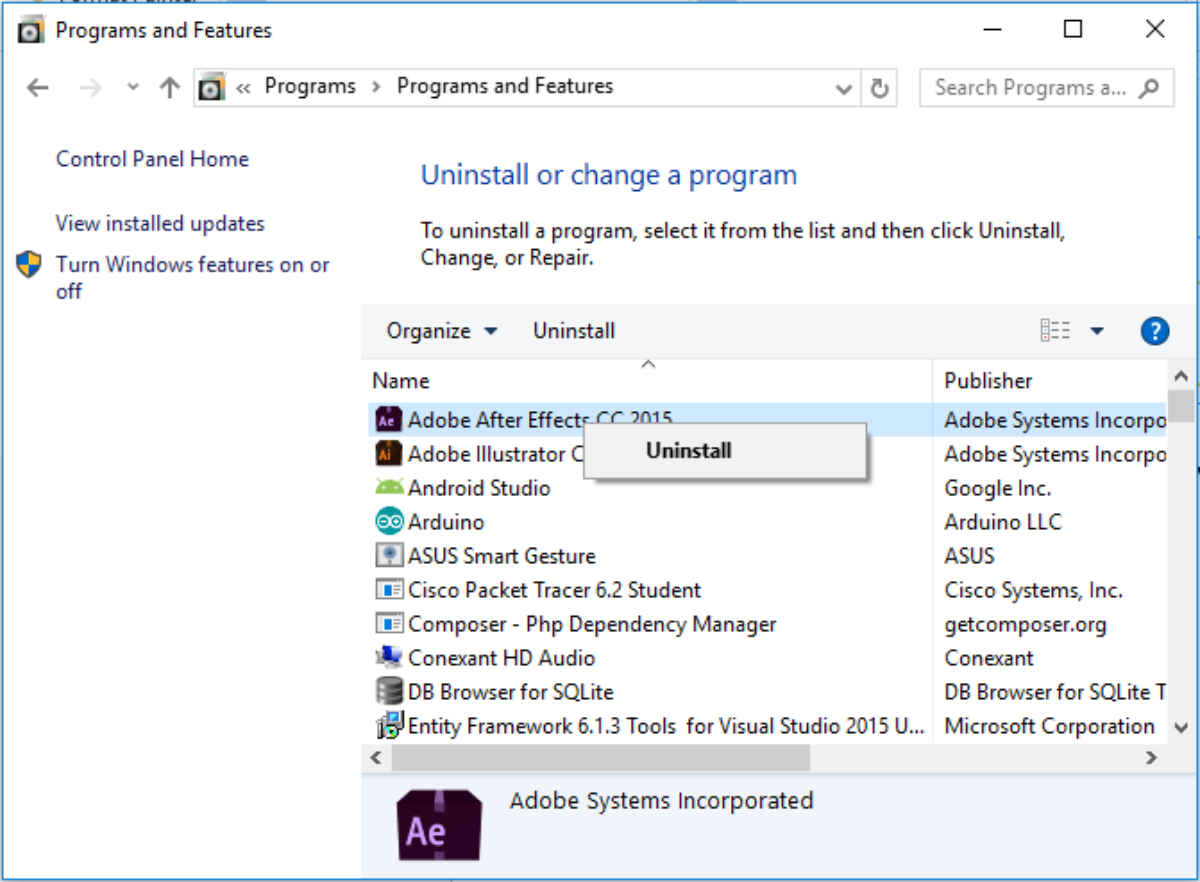
For standard applications that do not show signs of errors or corrupt files, Windows 10 offers several built-in utilities that let you manage your software library without installing third-party tools. The fastest and most direct approach is using the native Start Menu interface.
To use this method, guide your mouse pointer to the lower-left corner of your desktop screen and click the Start Button (the classic Windows logo icon), or press the Windows key on your keyboard. Type the name of the program you want to remove into the search box. Once the correct application appears in the search results, right-click its icon to open the options dropdown menu, and select Uninstall. The operating system will then guide you through the quick, standard removal process.
Built-in Method 2: Utilizing the Modern Settings Interface
The modern Settings panel in Windows 10 provides a centralized, user-friendly hub for managing your applications. This tool is highly helpful because it automatically organizes all your installed programs into a single list, sorted cleanly by their total file size on your storage drive.
First, open the Windows Settings app by clicking the Start Button and selecting the gear-shaped icon, or simply press the Windows Key + I shortcut on your keyboard. Once the main Settings window opens, click on the System category (which handles display, notifications, and power) and select the Apps & features tab from the left sidebar. Use the "Search this list" input field to quickly find your target application. Click directly on the application name to expand its menu options, and click the Uninstall button to begin the standard removal process.
Built-in Method 3: The Legacy Control Panel System
For traditional desktop applications—especially older software utilities and business programs—using the classic Windows Control Panel remains a reliable and time-tested option. This legacy interface provides a straightforward, no-frills view of your system's software configuration.
To access this area, right-click the Start Button in the bottom-left corner of your screen to open the Power User tasks menu, and select Control Panel from the list (or type "Control Panel" into your taskbar search box). Inside the Control Panel window, look under the Programs category and click on Programs and Features, or click the direct link that says Uninstall a program. Scroll through the alphabetical list to find your target software, right-click its entry, and select Uninstall to let the system remove the application.
Summary and System Maintenance Best Practices
Keeping a clean, optimized storage drive is essential for maintaining your computer's speed, responsiveness, and long-term health. Regularly auditing your installed programs and removing software you no longer use frees up valuable hard drive space and stops unneeded background processes from draining your RAM during multitasking routines.
While the built-in Windows 10 tools—like the Start Menu, Settings panel, and classic Control Panel—are perfectly adequate for everyday applications, they can fall short when dealing with broken or stubborn software. For a truly thorough clean that reaches down to the roots, using advanced tools like Bulk Crap Uninstaller ensures that hidden registry entries and junk files are completely wiped out. Try these methods on your own system to keep your Windows 10 environment running smoothly, efficiently, and clutter-free!
FAQ
1. Why should I uninstall programs I no longer use?
Unused programs occupy valuable storage space, may run unnecessary background services, create startup entries, and leave temporary files behind. Removing them helps improve system performance, reduces clutter, and makes managing your Windows 10 PC easier.
2. Does deleting a program folder completely uninstall the software?
No. Simply deleting a program folder or desktop shortcut does not remove the application's registry entries, configuration files, cache, or user data. A proper uninstallation is required to completely remove the software.
3. What are leftover files after uninstalling a program?
Leftover files are residual data that remain after a standard uninstall, including:
- Registry entries
- AppData folders
- Configuration files
- Cache files
- Temporary files
- Log files
- Empty folders
- Startup entries
These remnants can accumulate over time and waste storage space.
4. Why do some applications refuse to uninstall?
Some applications become difficult to remove because:
- Installation files are corrupted
- The uninstall script is damaged
- Background services are still running
- Registry entries are broken
- The application is partially removed
- Malware or poorly designed software intentionally resists removal
5. What is Bulk Crap Uninstaller (BCUninstaller)?
Bulk Crap Uninstaller (BCUninstaller) is a free, open-source Windows utility designed to remove stubborn applications and automatically scan for leftover files, registry entries, and unnecessary data that standard uninstallers often leave behind.
6. Is BCUninstaller safe to use?
Yes. BCUninstaller is widely regarded as a safe and reliable open-source application. It allows users to review detected leftovers before deleting them, giving you full control over the cleanup process.
7. What does BCUninstaller remove that Windows cannot?
BCUninstaller can remove:
- Orphaned registry keys
- Leftover AppData folders
- Temporary files
- Empty directories
- Configuration files
- Hidden application data
- Some built-in Windows apps
- Residual startup components
This results in a much deeper system cleanup.
8. Why does BCUninstaller scan for leftovers after uninstalling?
Many uninstallers only remove the main program files. The leftover scan searches for files and registry entries that were not removed by the application's native uninstaller, helping reclaim disk space and reduce clutter.
9. Should I create a System Restore Point before uninstalling software?
Creating a restore point is recommended when removing critical software or making major system changes. It provides a recovery option if something unexpected happens during the uninstall process.
10. What is the easiest way to uninstall a program in Windows 10?
The fastest method is through the Start Menu:
- Open the Start Menu.
- Search for the application.
- Right-click it.
- Select Uninstall.
- Follow the prompts.
This works well for most standard applications.
11. How do I uninstall programs through Windows Settings?
Follow these steps:
- Press Windows + I.
- Open Apps.
- Select Apps & features.
- Locate the application.
- Click Uninstall.
- Follow the on-screen instructions.
This method provides an organized list of installed software.
12. When should I use Control Panel instead of Settings?
The Control Panel is particularly useful for:
- Older desktop software
- Legacy business applications
- Traditional Win32 programs
- Programs that don't appear correctly in Settings
Many classic applications still uninstall most reliably through Programs and Features.
13. Which uninstall method removes the most leftover files?
Generally, the effectiveness ranks as:
- Bulk Crap Uninstaller – Deep cleanup
- Control Panel – Standard removal
- Settings (Apps & Features) – Standard removal
- Start Menu – Basic removal
BCUninstaller provides the most comprehensive cleanup.
14. Will uninstalling software improve computer performance?
It can. Removing unnecessary software may:
- Free storage space
- Reduce startup time
- Lower background RAM usage
- Eliminate unnecessary background services
- Reduce CPU activity
- Simplify system maintenance
The biggest improvements usually come from removing programs that run automatically at startup.
15. Can uninstalling programs free up disk space?
Yes. Depending on the application, uninstalling software can recover anywhere from a few megabytes to several gigabytes of storage, especially if games, editing software, or development tools are removed.
16. What is the Windows Registry, and why do leftover entries matter?
The Windows Registry is a database that stores application settings and system configuration. Although a few leftover entries rarely cause major performance issues by themselves, accumulated registry clutter from many programs can make software management more difficult and contribute to unnecessary system clutter.
17. Should I uninstall Windows built-in apps?
Only if you're certain you don't need them. Some built-in applications are optional, while others are closely integrated with Windows. Removing essential system components can affect certain features or future updates.
18. How often should I review installed programs?
Review your installed applications every few months or whenever storage space becomes limited. Removing software you no longer use helps keep your system organized and efficient.
19. Can I reinstall a program after uninstalling it?
Yes. Most applications can be downloaded and installed again whenever needed. However, if the software requires a license or activation key, be sure to keep your license information before uninstalling.
20. What are the best practices for keeping Windows 10 clean and optimized?
Good maintenance habits include:
- Uninstall unused software regularly.
- Use trusted uninstall tools for stubborn applications.
- Keep Windows updated.
- Remove temporary files periodically.
- Review startup programs.
- Keep sufficient free disk space available.
- Restart your computer regularly.
- Create restore points before major software changes.