The Ultimate Digital Lifeline: A Complete Guide to Mastering the Windows On-Screen Keyboard
5 days ago
Have you ever been in the middle of a high-stakes project, chasing a midnight deadline, when suddenly your laptop’s keyboard decides to go on strike? Or perhaps you are sitting in a bustling coffee shop, about to log into your online banking portal, and a sudden wave of paranoia hits you about who—or what—might be tracking your keystrokes.
If you are running a Windows-based laptop or desktop, there is an incredibly powerful, deeply integrated tool built right into your operating system that can save you from these exact nightmares. Yet, it remains one of the most underutilized features in the entire Microsoft ecosystem.
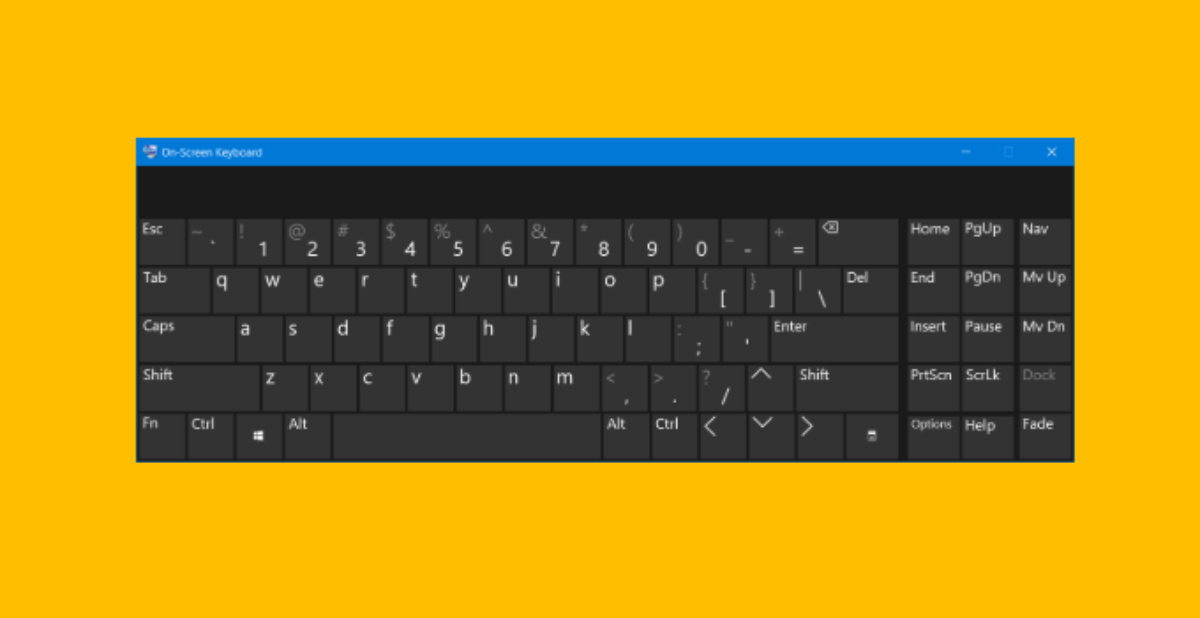
It is called the On-Screen Keyboard (OSK). Far from being just a visual gimmick or an accessibility feature reserved exclusively for touchscreen tablets, this virtual interface is a robust digital lifeline.
In this comprehensive blog guide, we will break down exactly how to uncover this feature, how to customize it to mirror high-end physical hardware, and how it can serve as a shield for your digital security.
The Anatomy of a Digital Emergency
To appreciate the value of the On-Screen Keyboard, it helps to understand why mechanical systems fail in the first place. Physical keyboards are delicate electro-mechanical assemblies. Beneath every keycap lies a tiny plastic plunger, a silicone dome, and a matrix of conductive traces printed on thin plastic sheets.
   [Your Finger]
         │
         ▼
   [Keycap Assembly] ──► [Silicone Dome Collapses] ──► [Traces Complete Circuit] ──► [OS Registers Key]
When you press a key, you complete a localized circuit, sending an electrical signal to the keyboard controller chip, which then translates that signal into a scancode for your computer's operating system.
Because these components rely on physical contact, they are highly susceptible to environmental hazards. Microscopic dust particles, ambient pet dander, dried liquid residue from an accidental coffee spill, or natural skin oils can easily wedge beneath the silicone domes. When this happens, the electrical contact is blocked, causing individual keys or entire rows to suddenly stop working.
This is exactly where the virtual alternative steps in. By decoupling the act of typing from physical circuitry, Windows allows you to input data using alternative pointing devices—like a mouse, a trackpad, a drawing stylus, or even your finger on a touchscreen.
Multiple Ways to Launch the On-Screen Keyboard
Microsoft built several access pathways into Windows to ensure you can open the virtual keyboard even if your physical inputs are partially or completely broken.
                      [OSK Launch Strategies]
                                 │
        ┌────────────────────────┼────────────────────────┐
        ▼                        ▼                        ▼
 [The Search Pipeline]    [The Run Command]       [Ease of Access Menu]
 Type 'onscreen' into     Press Win + R and       Click the accessibility
 the Windows Start Bar.   execute 'osk.exe'.      icon on the Lock Screen.
Method 1: The Windows Search Pipeline (Fastest Option)
If your mouse or trackpad is working, this is the most direct route:
-
Click the Start Menu icon or the Search Bar in the bottom-left corner of your taskbar.
-
Type onscreen using whatever functional keys you have left, or copy-paste the letters.
-
The system will instantly display the On-Screen Keyboard desktop app. Click it to launch the interface.
Method 2: The Run Dialogue Box (For Keyboard Enthusiasts)
If your mouse is broken but your physical keyboard still works partially:
-
Press the shortcut combination Windows Key + R to open the global Run dialogue box.
-
Type osk into the text field.
-
Hit Enter. The system will instantly bypass the search menu and launch the executable file (osk.exe) directly from the system directory.
Method 3: The Windows Lock Screen (The Emergency Pathway)
What happens if your keyboard breaks before you even log into your account? If your Windows password includes a broken letter or number, you might feel completely locked out. Thankfully, Microsoft planned for this:
-
Look at the bottom-right corner of your Windows sign-in screen.
-
Click the Accessibility / Ease of Access icon (which looks like a stylized human figure or a broken circle).
-
Select On-Screen Keyboard from the pop-up menu.
-
Use your mouse to click your password into the login field and regain access to your desktop.
Advanced Optimization and Customization
Once the On-Screen Keyboard is active on your screen, it defaults to a minimal layout designed to save screen real estate. However, if you are planning to use it for an extended period, you can easily customize it to look and feel like a full-sized desktop keyboard.
[Launch OSK] ──► [Click 'Options' Key] ──► [Check 'Turn on numeric key pad'] ──► [Full Grid Layout]
Activating the Dedicated Numeric Keypad
By default, the virtual layout skips the right-hand number pad found on larger enterprise and gaming laptops. To turn it on:
-
Locate and click the Options key positioned in the bottom-right quadrant of the virtual keyboard.
-
A dedicated settings window will appear over your desktop.
-
Find the checkbox labeled Turn on numeric key pad and select it.
-
Click OK. The virtual window will instantly expand to include a full mathematical grid, making spreadsheet entries and numerical calculations much easier.
Pinning the App for Daily Use
To avoid hunting through menus every time you turn on your laptop, you can pin the tool to your primary interface:
-
Right-click the active On-Screen Keyboard icon located on your bottom Taskbar.
-
Select Pin to taskbar from the context menu.
-
The icon will now permanently stay on your taskbar, allowing you to open it with a single click whenever you need it.
Cybersecurity and the Invisible Threat of Keyloggers
Beyond acting as a temporary fix for broken hardware, the On-Screen Keyboard serves as a surprisingly effective security shield. To understand why, we need to take a look at a common form of cyber-espionage: Keylogging.
[Physical Typing] ───────► [Keylogger Software Intercepts] ───────► [Attacker Steals Data]
                                      ▲
[OSK Mouse Clicks] ─── (Bypasses Physical Hardware Layer)
A keylogger is a type of malicious software or hardware device designed to monitor and record every single keystroke made on a physical keyboard. These dangerous programs often sneak onto computers via phishing emails or compromised software downloads, running completely invisibly in the background.
Whenever you type an account password, a credit card number, or sensitive corporate communications, the keylogger packages that data and sends it out to a malicious server.
The On-Screen Keyboard changes this dynamic by fundamentally altering how data reaches your applications. Because you are using mouse clicks or a touchpad to select letters rather than depressing mechanical switches, the physical hardware layer is completely bypassed.
While sophisticated modern spyware can sometimes capture screenshots of mouse clicks, using the virtual interface still adds an excellent layer of defense that thwarts a wide array of standard, script-based keyloggers. It is a smart, simple security habit to use when logging into sensitive portals from shared networks or public workspaces.
Summary of Benefits and Action Protocols
| Current Challenge | Immediate Impact of OSK | Long-Term Solution |
| Mechanical switch failure or debris blockage under keycaps. | Replaces physical keys with a fully functional virtual layout. | Keeps you productive while you arrange for a professional hardware repair. |
| Trapped outside Windows account due to a broken password key. | Accessibility launch pathway unlocks input field at startup. | Allows you to log in instantly without needing an external USB keyboard. |
| High risk of keystroke interception on insecure networks. | Bypasses the hardware key scanning cycle to confuse keyloggers. | Protects sensitive login credentials when accessing private data in public spaces. |
Conclusion
The Windows On-Screen Keyboard is a fantastic example of smart, practical operating system design. It stands ready to step in whether you are dealing with a sudden hardware emergency, a complex data entry task, or a need for heightened privacy during sensitive transactions. By mastering these simple activation paths and customization options, you can protect your productivity and secure your data against unexpected issues.
Have you ever had to use a virtual keyboard to save a project during a tech emergency? Or do you have your own favorite Windows shortcuts for managing tricky hardware issues? Let us know your thoughts and stories in the comments below!
FAQ
1. What is the Windows On-Screen Keyboard (OSK)?
The Windows On-Screen Keyboard (OSK) is a built-in virtual keyboard included with Windows that allows users to type using a mouse, touchpad, touchscreen, stylus, or other pointing devices instead of a physical keyboard. It is designed for accessibility but is also incredibly useful when a keyboard is damaged, unresponsive, or unavailable.
2. Why should I use the On-Screen Keyboard?
The OSK can help you in several situations, including:
- Recovering from a broken keyboard
- Logging into Windows when certain keys no longer work
- Typing on touchscreen devices
- Entering sensitive passwords more securely
- Continuing work without needing an external keyboard
- Providing accessibility support for users with mobility impairments
3. How do I open the On-Screen Keyboard in Windows?
There are several ways to launch it.
Method 1: Windows Search
- Click the Start Menu.
- Type On-Screen Keyboard or osk.
- Select the application from the search results.
Method 2: Run Command
- Press Windows + R.
- Type osk.
- Press Enter.
Method 3: Windows Lock Screen
- On the login screen, click the Accessibility icon.
- Choose On-Screen Keyboard.
- Use your mouse to enter your password.
4. Can I use the On-Screen Keyboard before logging into Windows?
Yes.
Windows allows you to launch the On-Screen Keyboard directly from the login screen through the Accessibility menu. This is especially useful if your physical keyboard stops working before you can sign in.
5. Does the On-Screen Keyboard work without a touchscreen?
Yes.
You can operate it using:
- Mouse
- Touchpad
- Trackball
- Drawing tablet
- Stylus
- Other pointing devices
A touchscreen is not required.
6. How do I enable the numeric keypad?
By default, the numeric keypad may be hidden.
To enable it:
- Open the On-Screen Keyboard.
- Click Options.
- Check Turn on numeric key pad.
- Click OK.
The keyboard will expand to display a full numeric keypad.
7. Can I pin the On-Screen Keyboard to the taskbar?
Yes.
To keep it easily accessible:
- Open the OSK.
- Right-click its icon on the taskbar.
- Select Pin to taskbar.
This lets you launch it with a single click whenever needed.
8. Is the On-Screen Keyboard useful if my laptop keyboard stops working?
Absolutely.
It allows you to continue using your computer while:
- Waiting for repairs
- Cleaning the keyboard
- Troubleshooting hardware
- Ordering replacement parts
It can save important work during unexpected hardware failures.
9. Can the On-Screen Keyboard protect against keyloggers?
It can provide an additional layer of protection against some types of keyloggers.
Traditional hardware or software keyloggers often monitor physical keyboard input. Since the On-Screen Keyboard uses mouse clicks or touch input instead of physical keystrokes, it may reduce the effectiveness of basic keylogging attacks.
However, advanced malware may still capture:
- Screen recordings
- Mouse clicks
- Clipboard contents
- Browser activity
For maximum protection, always use updated antivirus software, enable multi-factor authentication (MFA), and keep Windows fully updated.
10. Is the On-Screen Keyboard completely secure?
No.
While it can help reduce the risk from basic keyloggers, it is not a complete cybersecurity solution.
Good security practices should also include:
- Strong passwords
- Password managers
- Multi-factor authentication
- Updated antivirus software
- Windows Security protections
- Safe browsing habits
11. Does the On-Screen Keyboard support touchscreens?
Yes.
It works very well on:
- Windows tablets
- 2-in-1 laptops
- Touchscreen monitors
- Convertible PCs
Users can simply tap the keys with their fingers.
12. Can I resize the On-Screen Keyboard?
Yes.
You can drag the edges of the window to resize it according to your screen size and personal preference.
13. Does the On-Screen Keyboard support shortcut keys?
Yes.
It includes most standard keys, including:
- Ctrl
- Alt
- Shift
- Windows key
- Function combinations
- Arrow keys
This allows users to perform many common Windows shortcuts.
14. Can I use the On-Screen Keyboard for spreadsheet work?
Yes.
After enabling the numeric keypad, it becomes much easier to enter numerical data into applications such as Microsoft Excel or accounting software.
15. Is the On-Screen Keyboard different from the Touch Keyboard?
Yes.
Windows includes two different virtual keyboards:
- On-Screen Keyboard (OSK): A full desktop keyboard designed for accessibility and traditional desktop use.
- Touch Keyboard: Optimized for touchscreen devices with predictive typing and mobile-style layouts.
16. Does the On-Screen Keyboard work in all Windows applications?
Yes.
It works with nearly all Windows desktop applications, including:
- Microsoft Office
- Web browsers
- File Explorer
- Email clients
- Programming software
- Graphic design tools
- Login dialogs
17. Can I use it if only a few keys are broken?
Yes.
Many users continue typing normally on their physical keyboard while using the On-Screen Keyboard only for damaged keys.
This is especially useful if keys like:
- Enter
- Spacebar
- Shift
- Backspace
- Specific letters
stop functioning.
18. Does the On-Screen Keyboard require an internet connection?
No.
It is built directly into Windows and functions completely offline.
19. What are the biggest advantages of the On-Screen Keyboard?
Key benefits include:
- Built into Windows
- Free to use
- Easy to launch
- Works before login
- Supports accessibility
- Helpful during keyboard failures
- Useful for secure password entry
- Compatible with most Windows applications
20. When should I use the On-Screen Keyboard?
It is particularly useful when:
- Your keyboard is damaged.
- You spill liquid on your keyboard.
- Certain keys stop responding.
- You are troubleshooting hardware.
- You need temporary input before repairs.
- You are logging into sensitive accounts on public computers.
- You need accessibility support for typing.