In May 2026, the laptop landscape is a study in contrasts. We have machines like the MSI Prestige 14 Flip AI+ pushing a staggering 42 hours of battery life, yet many of us still find ourselves frantically searching for an outlet at a crowded airport terminal or a remote cafe.
As laptops become thinner and lighter, internal space for physical battery cells is sacrificed for portability. This makes software-level optimization—the “invisible” power settings—more critical than ever. This guide isn’t just about survival; it’s about mastering the Windows 11 ecosystem to ensure your machine stays as mobile as you are.

The Evolution of Efficiency: AI and the 2026 Windows Kernel
Windows 11 has undergone significant architectural changes this year. The 2026 kernel now features AI-driven thread scheduling, which intelligently shifts low-priority background tasks to “efficiency cores” (E-cores) on modern CPUs. However, these systems still require human input to reach their full potential. By aligning your manual settings with these automated features, you can extend your productive hours by up to 35%.
The “Big Three” Windows Power Modes
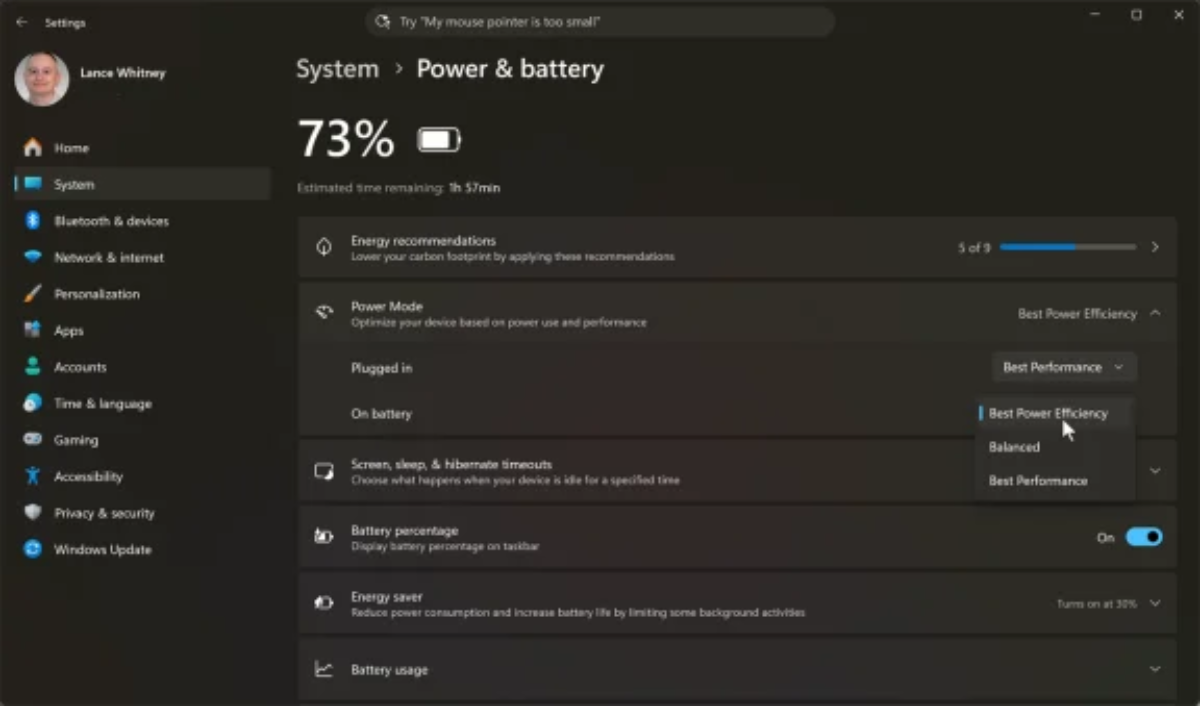
The most immediate impact on your battery life comes from the Power Mode setting found under Settings > System > Power & battery.
Breaking Down the Modes
-
Best Performance: This is the “unleashed” mode. The CPU clock speeds are kept high, background indexing is aggressive, and fan curves are optimized for cooling. Use this only when plugged in.
-
Best Power Efficiency: This is your travel companion. It limits background telemetry, caps CPU burst frequencies, and dims the screen slightly. In my experience, switching to this mode at the start of a flight can add an extra 60–90 minutes of work time.
-
Balanced: The “AI-managed” middle ground. Windows attempts to guess your needs based on the active application.
Idle Logic: Mastering Timeouts
One of the most common power leaks is the “Idle Drain.” When you step away to grab a coffee, your screen and storage drive continue to pull current.
Pro-Tip for 2026: For “On Battery” mode, set your screen to turn off after 2 minutes and your sleep timer to 5 minutes. Unlike older machines, modern SSD-based Windows PCs wake from sleep almost instantly, so there is no productivity penalty for being aggressive with these timers.
Energy Saver: The Digital Safety Net
Energy Saver is Windows’ dedicated emergency protocol. Located under Power & battery > Energy saver, this mode goes beyond simple efficiency by suspending non-essential sync services (like OneDrive or heavy email polling).
The 30% Strategy: Don’t wait until your battery hits 10% to turn this on. Setting Energy Saver to trigger automatically at 30% or 40% provides a much wider safety margin, giving you plenty of time to finish your document or save your project before the “Critical Battery” warning appears.
The Screen Factor: Refresh Rates and Brightness
The display remains the single largest consumer of power in a laptop. In 2026, many laptops come with High Refresh Rate (120Hz or 144Hz) screens. While these make animations look buttery smooth, they double the power draw of the display panel.
The 60Hz Swap: When you switch to battery power, manually lower your refresh rate to 60Hz under Settings > System > Display > Advanced Display. This simple change is often the difference between finishing a task and your screen going black at 95% completion.
Frequently Asked Questions (FAQ)
1. What is the best Windows 11 power mode for battery life?
“Best Power Efficiency” mode is the most effective option for extending battery life during travel or mobile work.
2. Does lowering screen brightness really save battery?
Yes. The display is one of the biggest power consumers in a laptop, and reducing brightness can significantly improve battery life.
3. Why do high refresh rate displays drain more battery?
120Hz and 144Hz screens refresh the image more frequently, increasing power usage compared to standard 60Hz displays.
4. Should I use Energy Saver all the time?
Energy Saver is most useful when battery levels drop below 30–40% or when you need maximum endurance away from a charger.
5. What is the difference between Balanced and Best Performance mode?
Balanced mode dynamically manages resources for efficiency, while Best Performance prioritizes speed and responsiveness over battery life.
6. How do sleep timers help battery life?
Shorter screen-off and sleep timers reduce idle power drain when the laptop is not actively being used.
7. Does Windows 11 use AI for power management?
Modern Windows 11 systems use intelligent scheduling to optimize workload distribution across performance and efficiency CPU cores.
8. Is 60Hz better for battery life than 120Hz?
Yes. Switching to 60Hz on battery power can noticeably reduce display power consumption.
9. Why does my laptop battery drain quickly even when idle?
Background apps, syncing services, high brightness, and aggressive performance settings can continue consuming power during idle periods.
10. Can battery optimization improve laptop lifespan?
Yes. Efficient charging habits and reduced heat generation from lower power usage may help preserve long-term battery health.