
The Ultimate Master Guide to Windows 10 Virtual Memory: Optimize Performance, Prevent Crashes, and Understand Pagefile Architecture
1 week ago

Every computer user has experienced it: you are multitasking between dozens of browser tabs, editing a high-resolution image, or running a demanding game, and suddenly your system begins to stutter, lag, or throw an ominous error message stating, "Your system is low on memory."
To resolve this issue without immediately purchasing expensive hardware upgrades, Windows 10 utilizes a built-in architectural feature known as Virtual Memory (or the Pagefile).
This comprehensive manual breaks down the core mechanics of virtual memory, provides an step-by-step configuration guide, calculates optimal storage allocations using mathematical formulas, and analyzes how this system interacts with modern storage hardware like SSDs and NVMe drives.
The Architecture of Windows Memory Subsystems
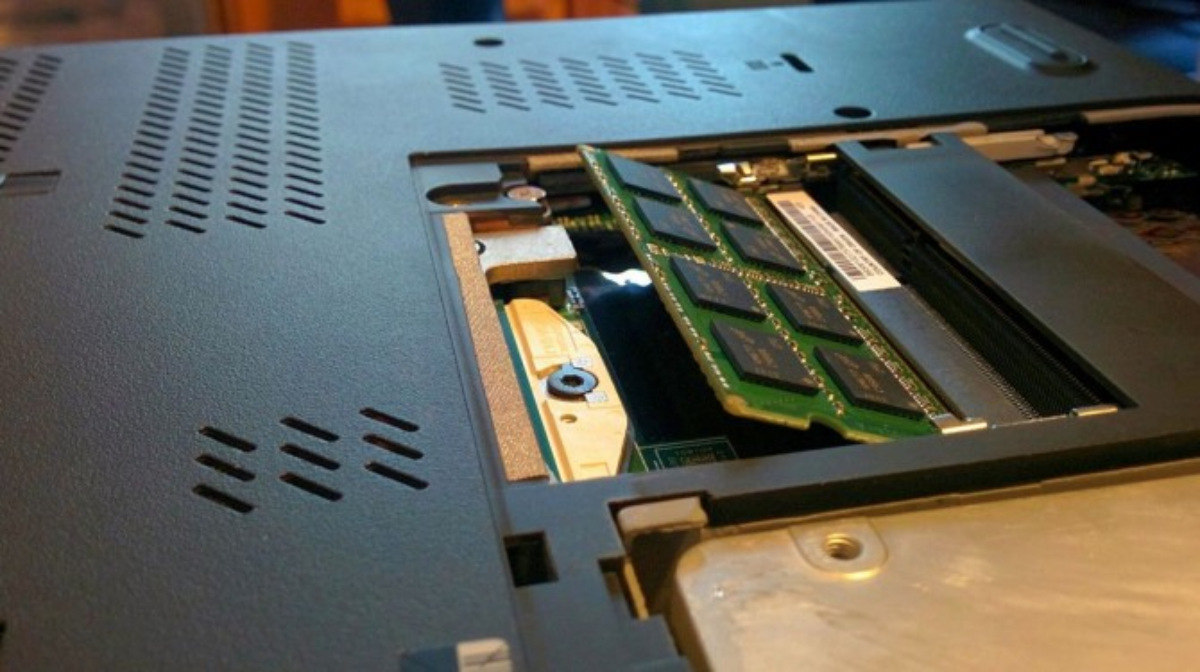
To optimize virtual memory, you must first understand how Windows 10 manages volatile and non-volatile data storage. The operating system continuously balances workloads between physical hardware and storage drives using a subsystem called the Virtual Memory Manager (VMM).
┌────────────────────────────────────────────────────────┐
│                   Applications & OS                    │
└───────────────────────────┬────────────────────────────┘
                            ▼
             ┌─────────────────────────────┐
             │   Virtual Memory Manager    │
             └──────────────┬──────────────┘
                            ▼
         ┌──────────────────┴──────────────────┐
         ▼                                     ▼
┌─────────────────┐                   ┌─────────────────┐
│   Physical RAM  │                   │  pagefile.sys   │
│  (Ultra-Fast)   │                   │ (Storage Drive) │
└─────────────────┘                   └─────────────────┘
Physical RAM vs. Virtual Memory
-
Random Access Memory (RAM): This is your computer's ultra-fast, volatile physical storage workspace. The CPU can read and write data to RAM almost instantaneously. However, RAM capacity is finite (typically 4GB, 8GB, 16GB, or 32GB in modern systems).
-
Virtual Memory (pagefile.sys): When your active applications demand more capacity than your physical RAM can provide, Windows allocates a hidden system file on your hard drive or solid-state drive called pagefile.sys. This file acts as a secondary, temporary reservoir, simulating additional RAM.
The Paging Mechanism
When physical RAM fills up, the Virtual Memory Manager performs an operation called Paging or Swapping. The VMM identifies blocks of data in the RAM that are currently idle (such as a background app you haven't clicked on in an hour) and moves them into the pagefile.sys on your storage drive. This instantly frees up high-speed physical RAM for the application you are actively using. When you click back to the background application, the VMM swaps the data back into the physical RAM.
Step-by-Step Guide: How to Configure Virtual Memory in Windows 10
By default, Windows 10 automatically manages the size of your paging file across all drives. However, automatic management can sometimes result in inefficient file fragmentation or inadequate allocations during heavy workloads.
Follow this step-by-step pathway to manually configure and optimize your virtual memory settings.
Accessing Advanced System Settings
-
Open the Windows File Explorer (Win + E).
-
Locate This PC in the left-hand navigation panel, right-click it, and select Properties.
-
In the settings window that appears, click on Advanced system settings (located on the right-hand side or under related links).
[Start Menu / Search] ──► Type "Advanced System Settings" ──► Press Enter
Navigating to the Performance Menu
-
In the System Properties dialog box, ensure you are on the Advanced tab.
-
Under the Performance section (which handles visual effects, processor scheduling, and memory usage), click the Settings... button.
┌─────────────────────────────────────────────────────────┐
│ System Properties                                       │
├─────────────────────────────────────────────────────────┤
│ Computer Name | Hardware | [Advanced] | System Protection│
│                                                         │
│ Performance (Visual effects, virtual memory)           │
│ [ Settings... ] ◄───────────────────────────────────────┤
└─────────────────────────────────────────────────────────┘
-
In the Performance Options window, click over to the Advanced tab.
-
Under the Virtual memory section, click the Change... button.
┌─────────────────────────────────────────────────────────┐
│ Performance Options                                     │
├─────────────────────────────────────────────────────────┤
│ Visual Effects | [Advanced] | Data Execution Prevention │
│                                                         │
│ Virtual memory (Total paging file size)                 │
│ [ Change... ] ◄─────────────────────────────────────────┤
└─────────────────────────────────────────────────────────┘
Modifying the Paging File Size
-
At the top of the Virtual Memory window, uncheck the box labeled Automatically manage paging file size for all drives.
-
Select the specific drive volume where you want to host the pagefile.
-
Click the radio button next to Custom size.
  [ ] Automatically manage paging file size for all drives

  Drive Selection:  [ C: ] [System Managed]
                    [ D: ] [Custom Size] ◄── Select target drive
-
Enter your calculated values into the Initial size (MB) and Maximum size (MB) fields (see the formula section below to calculate these numbers).
-
Crucial Step: Click the Set button. If you do not click Set, Windows will discard your inputs when you close the window.
-
Click OK, apply the changes, and choose Restart Now when prompted to reboot your computer. The new configurations will take effect immediately upon system reboot.
The Mathematics of Pagefile Allocation
Setting your virtual memory size arbitrarily can degrade system performance. If the initial size is too small, Windows will constantly stall your applications while it resizes the pagefile dynamically. If it is too large, you waste valuable storage space.
To establish stable minimum and maximum bounds, industry standard engineering practices use formulas based on your system's physical RAM capacity (converted to Megabytes, where $1\text{ GB} = 1024\text{ MB}$).
The Mathematical Formulas
Quick-Reference Allocation Table
To eliminate manual conversion errors, use this lookup table to find the precise values to enter into your Windows 10 configuration panel based on your hardware configuration:
| Physical RAM Capacity | Initial Size Input Value (1.5x) | Maximum Size Input Value (3x) |
| 4 GB | $6144\text{ MB}$ | $12288\text{ MB}$ |
| 8 GB | $12288\text{ MB}$ | $24576\text{ MB}$ |
| 16 GB | $24576\text{ MB}$ | $49152\text{ MB}$ |
| 32 GB | $49152\text{ MB}$ | $98304\text{ MB}$ |
Pro Tip: If your system has 32GB or 64GB of physical RAM, your computer rarely runs out of memory during everyday workloads. In these high-spec scenarios, you can safely set a flat custom size of 4096 MB to 8192 MB across the board just to handle automated Windows mini-dump error logs without wasting close to 100GB of storage drive space.
Storage Hardware Implications: HDDs vs. SSDs vs. NVMe
Where you choose to place your pagefile.sys file has a massive impact on system responsiveness when virtual memory active.
Speed Spectrum:
[Traditional Mechanical HDD] ──► [SATA Solid-State Drive] ──► [NVMe M.2 SSD]
(Severe Latency / Bottleneck)      (Highly Responsive)         (Optimal Processing)
The Mechanical Hard Drive (HDD) Bottleneck
Traditional mechanical hard drives rely on spinning platters and moving read/write heads. Because physical RAM moves data at tens of gigabytes per second, shifting data to an HDD causes a massive drop in performance, often causing your computer to lock up or freeze temporarily (a state known as disk thrashing).
Solid-State Drives (SSD) and NVMe Acceleration
Modern Solid-State Drives (SATA SSDs) and NVMe M.2 drives communicate directly over high-speed PCIe lanes, offering significantly faster data transfer rates than old hard drives.
-
The Drive Selection Rule: If your computer has multiple drives, always place the virtual memory file on your fastest available SSD.
-
The Separation Strategy: If you have a secondary SSD that is separate from your main operating system drive (C:), placing the pagefile on that secondary drive (D: or E:) can improve performance by splitting the data reading and writing workloads across different hardware channels.
The SSD Lifespan Myth vs. Reality
Important Note on Wear-and-Tear: A common concern is that the constant data writing of virtual memory will prematurely kill an SSD by exhausting its Terabytes Written (TBW) lifespan rating. While it is true that virtual memory increases cell degradation slightly, modern SSD controllers feature advanced wear-leveling algorithms. Under normal computing conditions, your SSD will remain operational for many years before pagefile activity causes hardware failure. The performance benefits far outweigh the minor wear on the drive.
Troubleshooting Common Virtual Memory Errors
When virtual memory is misconfigured or your storage drive runs out of free space, Windows 10 will surface distinct performance anomalies.
Error: "Your system is low on virtual memory"
This error triggers when your physical RAM is completely saturated, and the pagefile.sys has expanded to its maximum designated ceiling.
-
The Fix: Go back to the Advanced System Settings panel, verify that your drive has enough unallocated, free storage space, and increase the Maximum size field by an additional $1.5\times$ your current setting.
Constant Stuttering and System Hanging
If your computer freezes for several seconds whenever you switch between running applications, your system is likely trapped in a constant paging loop. This indicates that your daily application usage far exceeds your computer's actual hardware capabilities.
-
The Long-Term Solution: While adjusting virtual memory is an excellent software workaround to prevent application crashes, it cannot simulate the raw speed of actual hardware. If your workflow requires constant virtual memory paging, the only definitive solution to restore fast computing speeds is to purchase and install more physical RAM sticks into your motherboard.
FAQ (Windows 10 Virtual Memory / Pagefile Optimization)
1. What is virtual memory in Windows 10?
Virtual memory is a system mechanism where Windows uses a hidden file called pagefile.sys on your storage drive (HDD/SSD/NVMe) as an extension of physical RAM. It temporarily stores inactive memory data when RAM is full.
2. Why does Windows use virtual memory?
Windows uses virtual memory to:
- Prevent system crashes when RAM is full
- Allow multiple heavy applications to run simultaneously
- Manage background processes efficiently
- Improve system stability under memory pressure
3. What is pagefile.sys?
pagefile.sys is a hidden system file located on your storage drive that acts as “backup RAM.”
When physical RAM is full, Windows moves less-used data into this file.
4. What happens when RAM is full?
When RAM is saturated:
- Windows identifies inactive memory pages
- Moves them to pagefile.sys (paging/swapping process)
- Frees RAM for active applications
- Reloads data back into RAM when needed
This process can cause slight slowdowns if storage is slow (especially HDDs).
5. Is virtual memory slower than RAM?
Yes. The speed difference is significant:
- RAM: extremely fast (nanoseconds latency)
- SSD/NVMe: fast but still much slower than RAM
- HDD: very slow and can cause lag or “freezing”
6. What is the best drive for virtual memory?
Recommended priority:
- NVMe SSD (best performance)
- SATA SSD (good performance)
- HDD (not recommended)
If possible, place pagefile on the fastest SSD available.
7. Should I manually configure virtual memory?
It depends:
- Normal users: leave “System Managed” (recommended)
- Power users / gamers / editors: manual configuration may improve stability
- Low storage systems: manual tuning helps prevent overflow issues
8. What is the correct pagefile size formula?
Common engineering guideline:
- Initial Size = 1.5 × RAM (MB)
- Maximum Size = 3 × RAM (MB)
Example (16 GB RAM):
- Initial: 24,576 MB
- Maximum: 49,152 MB
9. Is bigger pagefile always better?
No. Too large can:
- Waste storage space
- Not improve performance beyond a point
- Cause unnecessary disk usage
Optimal sizing depends on workload, not just RAM capacity.
10. Can I disable virtual memory?
Technically yes, but not recommended because:
- Some applications require it
- System crashes may occur under memory pressure
- Windows may fail to generate crash dumps
Disabling it is only safe on systems with very large RAM (e.g., 32–64 GB+) and controlled workloads.
11. Does virtual memory damage SSDs?
Modern SSDs use wear-leveling and are designed for high write endurance.
Virtual memory:
- Does increase write activity
- But rarely causes premature SSD failure in normal use
The impact is generally minimal compared to expected SSD lifespan.
12. Why does my PC still lag even with virtual memory?
Because virtual memory is not a replacement for RAM. Possible reasons:
- Insufficient physical RAM
- Heavy applications exceeding system capacity
- Slow storage (HDD bottleneck)
- Background processes consuming memory
13. What is disk thrashing?
Disk thrashing occurs when:
- RAM is constantly full
- System repeatedly swaps data between RAM and pagefile
- Storage drive is heavily used
Result: severe lag, freezing, and high disk usage.
14. How do I fix “low virtual memory” errors?
Solutions:
- Increase maximum pagefile size
- Free up disk space
- Close memory-heavy applications
- Add more physical RAM (best solution)
- Move pagefile to faster SSD
15. Is upgrading RAM better than tuning virtual memory?
Yes. Virtual memory is only a fallback system.
Upgrading RAM provides:
- Faster performance
- Less reliance on disk swapping
- Better multitasking stability
- Lower system latency